Handbook · Tools · 13 min read
The key app categories
Last reviewed:
Task manager, notes, calendar, time tracking — who's best in each category and who it's for. Advanced tricks included.
In this article
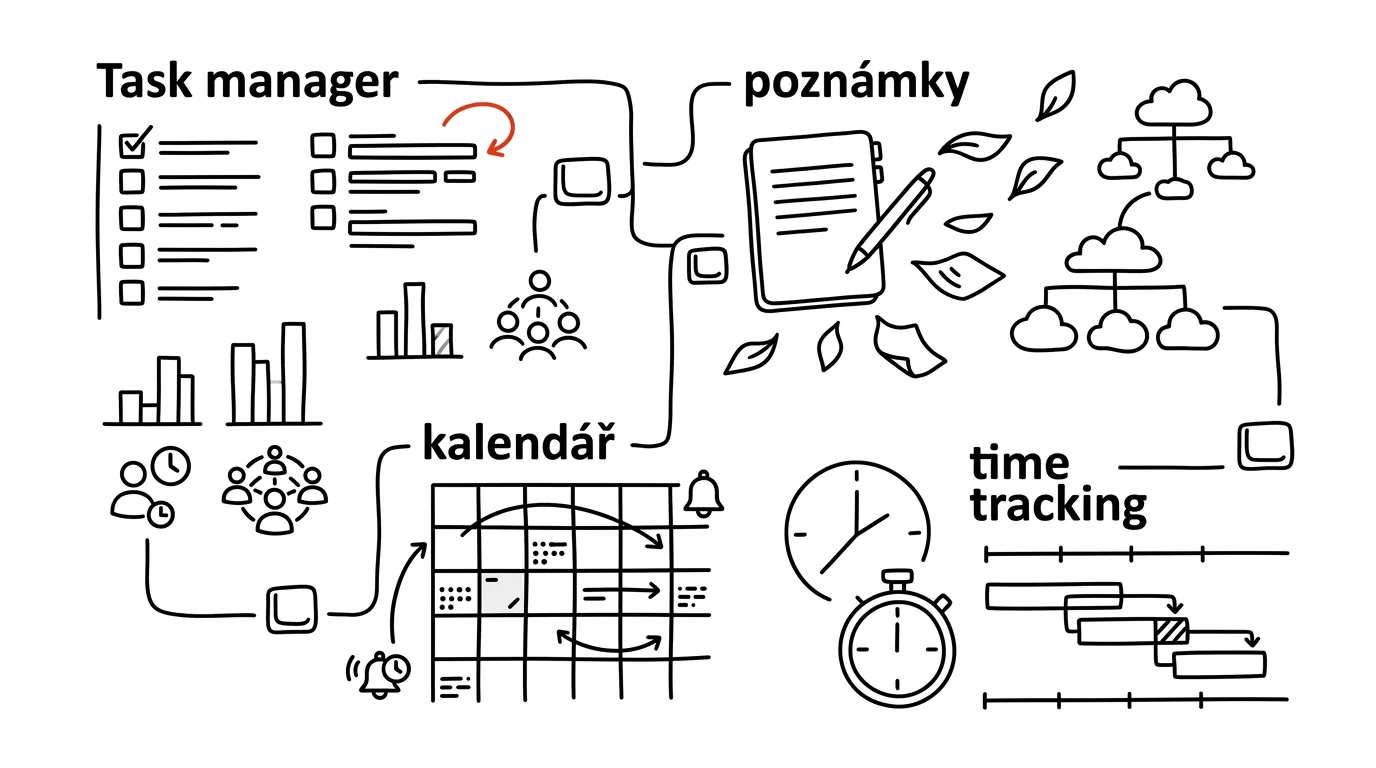
There are thousands of productivity apps out there and more arrive every week. Fortunately, you only need to understand four categories — and pick one app in each that you'll actually stick with.
- 1Task managementTodoist · Things · TickTick
- 2NotesNotion · Obsidian · Evernote
- 3CalendarGoogle Calendar · Fantastical
- 4Time trackingToggl Track · RescueTime
Task management: running tasks and projects
Before you start comparing specific names, get clear on what you actually need from a task manager.
Core features: tasks and subtasks, due dates, projects, priorities, tags and labels. Advanced features: collaboration, recurring tasks, filters and custom views, calendar integration, a fully usable mobile app.
If the basics are enough for you, don't overpay for features you'll never turn on.
Todoist
Strengths: intuitive interface, natural language input, excellent mobile apps, the motivating Karma system, and a wide range of integrations.
Weaknesses: limited free tier, no timeline view, and simpler project features than a full-blown project tool offers.
Best for: individuals and small teams, the GTD method, and cross-platform use.
Things (Apple only)
Strengths: beautiful design, speed and performance, a native feel in the Apple ecosystem, a great GTD implementation, and a well-thought-out evening review.
Weaknesses: Apple only, higher cost, no collaboration features.
Best for: Apple users, personal productivity, and a minimalist approach.
TickTick
Strengths: tasks and habit tracking in one, a built-in Pomodoro timer, a calendar view, good value, and true cross-platform support.
Weaknesses: less intuitive interface, more limited integrations, a fiddlier initial setup.
Best for: anyone who wants tasks and habits in one place, needs a built-in timer, or is price-sensitive.
Notes and knowledge management
Core features: note organization, text formatting, search, sync, sharing. Advanced features: linked notes, databases, automation, version history, API.
Notion
Strengths: an all-in-one solution, flexible databases, extensive customization, excellent team features, an enormous template gallery.
Weaknesses: slower loading, a steeper start, limited offline mode, heavier on system resources.
Best for: team collaboration, complex projects, and company knowledge management.
Obsidian
Strengths: local markdown files, linked notes and a knowledge graph, extensibility through plugins, a strong community, full control over your data.
Weaknesses: steeper learning curve, paid sync, less intuitive for beginners, limited collaboration features.
Best for: personal knowledge management, academic work, and long-term knowledge storage.
Evernote
Strengths: a stable, proven solution, excellent web capture, OCR in photos, easy sharing, cross-platform support.
Weaknesses: more limited formatting, higher cost, slower innovation, a basic organizational structure.
Best for: collecting information, digital archiving, and simple notes.
Calendar apps
Core features: events, reminders, recurrence, sharing, sync. Advanced features: meeting scheduling, task integration, several calendars side by side, time zone handling, automation.
Google Calendar
Strengths: reliable sync, broad integration with everything around it, sharing and collaboration, free, available everywhere.
Weaknesses: fairly basic features, limited customization, simpler views.
Best for: Google Workspace users, basic scheduling, and team collaboration.
Fantastical
Strengths: natural language input, beautiful design, advanced features, task integration, flexible views.
Weaknesses: higher cost, primarily Apple, limited free tier.
Best for: Apple users, advanced scheduling, and professional use.
Time tracking
Core features: timer, projects and tasks, reports, tags, data export. Advanced features: automatic tracking, integration with other tools, team reports, billing data, productivity analytics.
Toggl Track
Strengths: simple to use, excellent reports, wide integrations, cross-platform, a generous free tier.
Weaknesses: limited project features, basic automation, simpler analytics.
Best for: freelancers, time records, and invoicing.
RescueTime
Strengths: automatic background tracking, detailed analytics, a productivity score, blocking of distracting sites, weekly reports.
Weaknesses: no manual tracking, higher cost, less flexible categorization.
Best for: analyzing your productivity, understanding your own habits, and fighting procrastination.
How to assemble a system out of this
Start with one main task manager, one notes app, and a basic calendar. Time tracking is optional. Only then, gradually, add specialized tools, integration services, and automations.
And three principles that decide whether the system survives:
- Regular maintenance — a weekly review, cleaning up the system, updating your processes.
- Backups and export — regular backups, exports of important data, a thought-out alternative in case the service shuts down. The data is yours.
- Workflow optimization — watch how you actually use it, adjust to your needs, and automate the routine.
The best tool is the one you actually use. Start simple and expand the system over time.
Advanced tips and tricks
You don't need all of the techniques below at once. Pick the ones that match how you work — and leave the rest for later.
Todoist: quick-add syntax
The biggest speed-up comes from natural language input. A single line can set the due date, project, priority, and assignee:
Monday at 3pm #work /project p1 @Karl
That creates a task for Monday at 3:00 p.m., in the Work project, in the Project sub-project, with priority 1, delegated to Karl. Other useful patterns:
every Monday at 10am #routine
Dec 25 #family /gifts
tomorrow #inbox !p1
every weekday #work /reports
From experience: I got into the habit of keeping quick add open and typing tasks as full sentences. The difference between “I can write it in three seconds” and “I have to click through five fields” is what decides whether the task makes it into the system at all.
Todoist: filters and smart views
Filters are the most underrated feature in Todoist. They build you your own view of the world:
(p1 | p2) & due:today               — important and urgent, today
assigned: & !completed & @waiting   — delegated tasks awaiting a reply
proj: * & created:>30 days          — projects with no recent activity
Save two or three filters and use them instead of the default Today view. The difference is immediate.
Todoist: automation
Through Zapier, Make, or native integrations, three flows are worth automating:
- Gmail → Todoist — starred emails turn into tasks, attachments carry over into the task note.
- Calendar → Todoist — new events create tasks with a reminder, date changes update the tasks.
- Slack → Todoist — flagged messages become tasks, deadlines mentioned in them carry over as due dates.
Notion: formulas and database tricks
Formulas turn a database into a living tool that updates itself:
// Automatic status based on progress
if(prop("Progress") == 100, "Done",
   if(prop("Progress") > 0, "In Progress", "Not Started"))

// Time until deadline
dateSubtract(prop("Deadline"), now())

// Prioritization score
(prop("Impact") * prop("Urgency")) / prop("Effort")
The last formula is the most useful one — it sorts your backlog by the ratio of impact to effort, so you don't have to prioritize by hand.
Notion: templates and automation
Three setups worth building once and using forever:
- Weekly planning — import tasks, generate the agenda, prepare the material for your review.
- Project management — a kanban board, a timeline view, and a resource overview in a single database.
- Personal dashboard — habit tracker, goal overview, and key metrics on one page.
Notion: API and integrations
Through the API you can handle automatic data imports (RSS feeds, external databases), syncing calendars, tasks, and contacts, and automated reporting including visualizations. When you connect company data, check in advance where it's stored and who has access — an API key often carries more rights than you'd think.
Obsidian: plugins worth having
- Dataview — SQL-like queries over your notes, automatically generated tables and data aggregation.
- Calendar — daily notes, a timeline, and an overview of events.
- Templater — dynamic templates, automatic metadata, and scripting.
Obsidian: callouts and formatting
Callouts turn a long note into a readable document:
> [!tip] Pro tip
> Here's a useful tip

> [!warning] Warning
> An important caution

> [!example] Example
> A sample example
If you want to go further, Obsidian also supports custom CSS snippets — highlighting the active line, a reworked navigation header, or custom styles for kanban. It's cosmetics, but in a tool where you spend hours a day, cosmetics aren't pointless.
RescueTime: categorization and FocusTime
The foundation is honest categorization of your activities into three groups:
- Deep work — writing, coding, research.
- Shallow work — email, meetings, admin.
- Procrastination — social media, news, entertainment.
Without that, the reports are just colorful charts. With it, you see the real proportions of your day.
Then set FocusTime to start automatically — on a schedule, during specific activities, or based on your current productivity. You can block sites, apps, and notifications, and limit the blocking to working hours or a specific device.
Google Calendar: features for power users
- Appointment slots — bookable time slots the other side reserves themselves, including buffer time between meetings.
- Multiple calendars — color coding, selective sharing, managing resources like meeting rooms or equipment.
- Integrations — automatic Meet links, links to tasks and to the location.
Fantastical: features for power users
- Natural language input — “Lunch with Karl next Tuesday at noon”, “every Monday and Wednesday at 9”, “3 weeks from Friday”.
- Calendar sets — switching between a work and a personal view, even by location or time of day.
- Weather integration — the forecast right on the event, plus automatic alerts.
General tips for every app
Keyboard shortcuts. Learn the universal trio of Ctrl + N (new), Ctrl + F (find), and Ctrl + , (settings). On Apple, use Cmd instead of Ctrl. Among app-specific shortcuts, the ones worth learning are quick add (usually q), quick search (/), and the universal switcher Cmd + K, which almost every modern tool supports these days.
Backups and export. Combine automatic backup (cloud sync, a local backup, version history) with manual — a weekly export, an offline copy, and your data in an alternative format in case the service shuts down or gets more expensive.
Syncing across devices. Either cloud services (iCloud, Dropbox, Google Drive) or self-hosted solutions (NextCloud, WebDAV, Git), or a hybrid: a local copy plus cloud, several services side by side, redundancy. With company data, always check what your internal policy allows.
Remember: these advanced techniques are useful, but you don't need them all at once. Start with the ones that best match your needs and add more over time.
Related tips
Gboard Has a Clipboard History — Win+V in Your Pocket
The Gboard keyboard remembers what you last copied, and you can pin important items permanently. Just turn it on.
Swiped Away a Notification by Accident? Android Has a History
Notification history shows everything from the last 24 hours — including notifications you swiped away before you had a chance to read them.
Quick Share: Files From Android to Windows, No Cable
AirDrop's counterpart is built into every newer Android phone — and with a free app from Google it sends photos and files to Windows too.
Anki: learn in half the time with spaced repetition
Flashcards with an algorithm that quizzes you right when you're about to forget. For languages, exams, and professional knowledge alike.
Want to keep the momentum?
One tip from the handbook by email each week — in an order that makes sense.
The Top 30 tips e-book, free — it lands in your inbox right away.
Then 1 tip a week · no spam · unsubscribe in one click
Prefer a system to single tips? The free email course — seven days, seven emails, one skill a day.