Tips & tricks · Workflow · Everywhere · ~1 h a week · 3 min read
A checklist for anything you do a second time
Last reviewed:
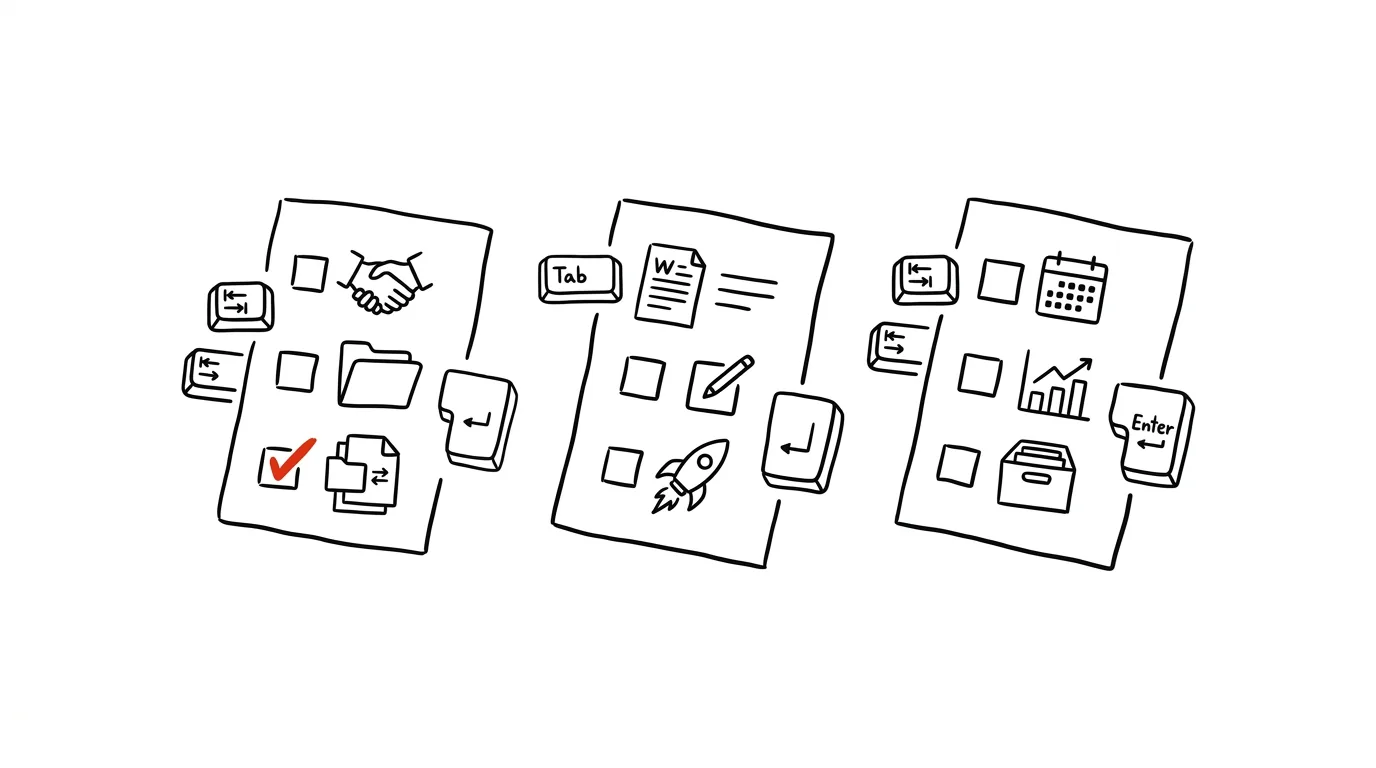
Checklists aren't for people who can't remember things — pilots and surgeons use them, people in professions where a mistake means a lot more than a wasted hour. Your head is for thinking and deciding, not for memorizing steps that repeat exactly the same way every time. Once you've done a process a second time from memory, it's only a matter of time before you skip a step — and you usually notice only once it's already costing you extra time to fix.
A typical scenario
Simona, a freelancer, onboards a new client roughly once a month — every time from memory: send the contract, set up the project, configure billing, add the client to the communication tool. On the fourth client she forgets to set up payment details, the client gets in touch, annoyed, two weeks later, and Simona spends the evening apologizing and trying to reconstruct exactly what she did and didn't do back then.
With a checklist, she goes through the same steps following a list she wrote up after her first client. Nothing gets forgotten, because she's not relying on memory from last time — she's following a concrete list in front of her. Onboarding also takes her less time overall, because she doesn't have to stop and think about what the next step is — she just checks it off and moves on.
How to do it
- The next time you go through a recurring process, write down every single step exactly as you do it — including the small things that feel obvious.
- Save this list as a permanent template, not a one-off note — Notion, a task manager with sub-tasks, or even a simple shared document.
- Order the steps the way you actually perform them, and for anything that needs specific details (contract number, login name), leave a blank to fill in.
- Next time, run the process directly off the list — don't wing it from memory, even if you're pretty sure you remember it.
- After every run, improve the checklist by one step: if you forgot something or hit an exception, add it right away while it's still fresh.
- For processes run by more than one person (a team, say), share the checklist so everyone follows it the same way — it reduces the gap in quality between different people.
The best tools
- Notion or a similar notes tool with templates — lets you save the checklist as a template you just copy and fill in for every new process.
- Todoist or another task manager with sub-tasks — useful when you want to tie the checklist to deadlines and reminders.
- Google Docs / a shared document — the simplest option when several people use the checklist and you don't want to introduce a new tool.
- Trello or a similar board with card templates — good when the process has several stages and you want to see which stage something is currently in.
What you get out of it
- Time: an estimated hour a week saved on fixing forgotten steps and cleaning up after them later.
- Fewer mistakes: you catch a skipped step right away while going through the list, not two weeks later when fixing it is much more expensive.
- A calmer head: you don't have to memorize dozens of steps — the checklist remembers them for you, and you can focus on the actual work.
- Easier handoff: once you've written a process down as a checklist, a colleague or new hire can pick it up without lengthy training.
Pro tip
Don't write the checklist as a one-off task — treat it as a living document. After each use, take thirty seconds to ask "what would I do differently next time" and add it to the list right away. After a few runs, you'll have a process that's better tuned than if you'd tried to write it perfectly from scratch in one go.
Want to go deeper? The handbook has a whole chapter on it — Core systems: inbox, priorities, reviews.
Similar tips
In-depth guide · 18 min
Deep research: competitors and market, with citations
A complete guide with prompts: phrasing the research question, a brief that returns a usable report, critical reading of the result, and five use cases.
Smart home scene: Deep Work Mode in one tap
Lights, do-not-disturb, a timer, and music with a single command. A ritual that tells your brain “it's work time now.”
In-depth guide · 19 min
Delegating with AI: assignments that don't boomerang back
A guide with prompts: an assignment template with context, deadline, and boundaries, check-ins instead of micromanagement, and an audit of your calendar.
Was this helpful?
Liked this tip?
I send one like it every week by email. Two minutes to read, hours saved.
The Top 30 tips e-book, free — it lands in your inbox right away.
Then 1 tip a week · no spam · unsubscribe in one click
Prefer a system to single tips? The free email course — seven days, seven emails, one skill a day.