Tips & tricks · Communication · Browser · ~10 min a day · 2 min read
An @ Comment in Google Docs Can Assign a Task
Last reviewed:
In this article
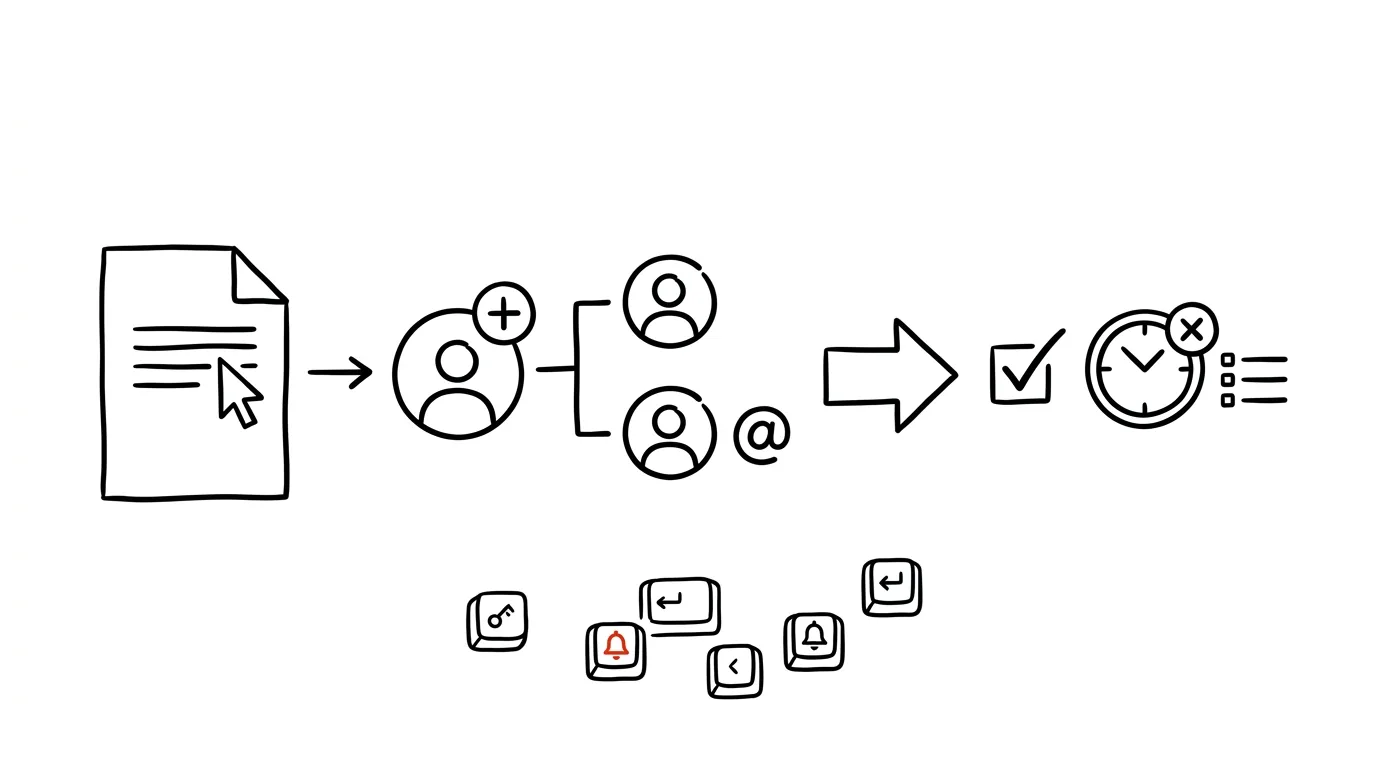
A shared document full of comments like "this could use some detail" has one flaw: nobody specific is responsible for anything, so the notes hang around for weeks. Docs, Sheets, and Slides can actually turn a comment into a real task: mention a colleague with an @, check Assign — and that person gets a notification, the task counts against them, and they're the one who can resolve it. A vague "someone should" becomes a pointed "you will."
How to do it
- Select the text (or cell, or object) the comment concerns and insert a comment — via the button, or the shortcut Ctrl + Alt + M.
- In the comment text, type @ and start typing your colleague's name or email; pick them from the suggestions.
- A checkbox labeled Assign to… appears below the comment — check it and send.
- The colleague gets an email notification with an excerpt and a link straight to the spot in the document. The comment visibly shows who it's assigned to.
- Once it's done, the assignee clicks the Mark as resolved checkmark — the thread tucks itself away but stays findable in the comment history (the comment icon top right), so you can return to it anytime.
- A task can be reassigned in a reply too — responsibility passes along, nothing falls through the cracks.
Two extra nuances: you can mention someone who doesn't have access to the document yet — Docs will offer to share it with them right away, including the access level. And anyone getting too many notifications can dial them back: the bell icon in the comments panel lets you subscribe only to comments that concern you directly.
A typical scenario
A marketing lead reviews a press-release draft. Instead of an email listing "Jane, add the quote; Peter, verify the numbers," she goes through the document and leaves an assigned comment right at each spot for whoever needs to fix it. Jane and Peter each get a notification linking straight to their sentence, and check off the task once it's fixed — and the lead can see in one place what's done and what's still hanging. No digging through email threads.
What you get out of it
Comments with an owner and a status: at a glance you can see who has to do what and what's already resolved. A whole layer of coordination emails — "did you already fix that?" — disappears, because the document runs its own review cycle. And because resolved threads stay in the history, even the reasoning behind a change is never lost.
Pro tip
The @ in comments is a sibling of @ inside the document text itself — in the body it inserts mentions and templates, in a comment it delegates. Together they make Google Docs a full-featured team review tool.
Want to go deeper? The handbook has a whole chapter on it — Professional email communication.
Similar tips
Ctrl+D in PowerPoint: a duplicate that remembers the spacing
Ctrl+D
Duplicate an object, move it into place — and the next Ctrl+D copies with the same offset built in. A row of evenly spaced elements in seconds.
The B key while presenting: black out the screen, get attention
B
Pressing B during a slideshow blacks out the screen — the audience turns to you. W does the same with white.
Slim down a presentation: compress images right inside PowerPoint
Presentation is 80 MB and won't go through email? Built-in image compression shrinks it to a fraction of the size — two clicks, no visible loss.
Was this helpful?
Liked this tip?
I send one like it every week by email. Two minutes to read, hours saved.
The Top 30 tips e-book, free — it lands in your inbox right away.
Then 1 tip a week · no spam · unsubscribe in one click
Prefer a system to single tips? The free email course — seven days, seven emails, one skill a day.