Tips & tricks · Communication · Browser · ~5 min a day · 3 min read
Mute the conversation that's no longer about you
Last reviewed:
M
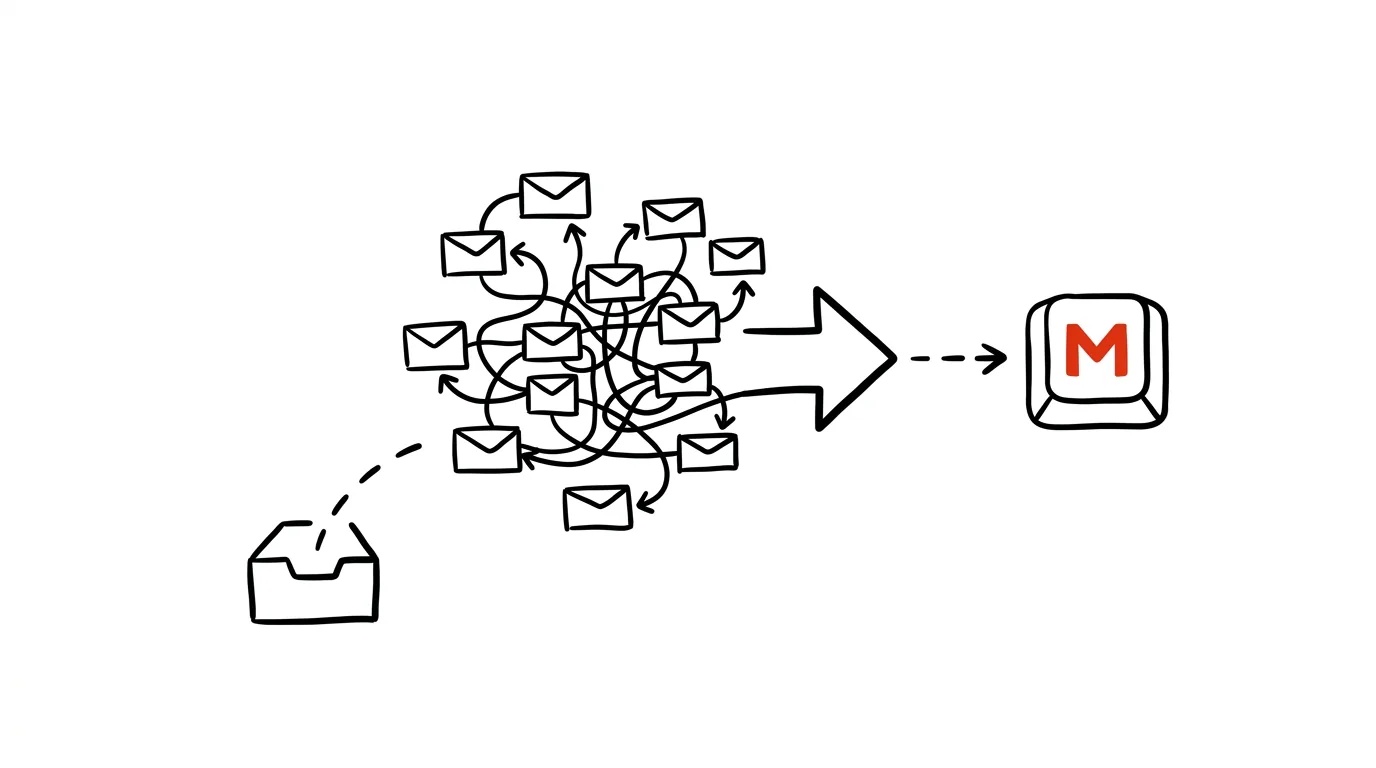
Not every thread you're cc'd on deserves your attention — and yet a notification about a new reply in an endless "reply all" discussion can break your focus just as reliably as a message that actually concerns you. Muting a conversation solves this with a single keypress, without you having to leave the thread or get removed from it by an admin.
A typical scenario
Team lead David is cc'd on a thread about planning the company party — ten people trading opinions about catering, a topic that has nothing to do with him personally. Over the course of an afternoon, fifteen "reply all" responses pile into his inbox, each one with a notification, each one a break in the work he's trying to focus on.
With a single press of M, he muted the conversation. The thread lives on, people keep writing — David just no longer sees it in his inbox and stops getting notified about it. If something in the discussion ever directly concerns him, he can find the thread again anytime.
How to do it
- Open the conversation (with keyboard shortcuts already turned on in settings) and press M, or click the three dots → Mute in the message's top bar.
- From then on, further replies in that same thread bypass your inbox — they won't show up among new messages and won't send you a notification.
- Muted messages are automatically archived, so they're not lost, just no longer shown in the main place you'd otherwise have to sift through them.
- Whenever you want to revisit a muted thread or check whether anything important got added to it, find it by searching
is:mutedin Gmail's search bar. - If it turns out the conversation does need your attention after all, open it via search and unmute it the same way, through the three-dot menu.
- Muting works at the level of the whole conversation, not a single message — if a new topic that concerns you comes up later in that same thread, it's better to move it into a separate message than to wait for it to surface in a muted thread.
- You can mute a thread even if you started it yourself and no longer care about it — the feature doesn't distinguish who started the conversation.
The best tools
- Gmail's built-in conversation muting — free, one keypress or two clicks, no setup needed besides having shortcuts turned on.
- Gmail filters — for recurring threads from the same group of people (like regular company-wide mailings), you can set up a permanent rule that skips your inbox entirely from the start.
- Notification settings by label in the Gmail mobile app — limits which message categories send alerts to your phone at all.
- Leaving a specific email group or distribution list — for threads that don't concern you long-term, leaving the group entirely may be a better choice than muting individual threads.
What you get out of it
- Time: roughly 5 minutes a day saved on opening and skimming messages that don't concern you.
- Fewer interruptions: notifications stop coming from threads that don't require a response from you, so your focus breaks less often.
- A clearer inbox: only conversations that genuinely need your action or attention remain.
- Peace of mind without missing anything: the thread doesn't disappear, it just stops demanding attention — you can return to it anytime.
- A more realistic unread count: your inbox stops growing because of discussions you'll never actually need to open.
Pro tip
Mute a thread as soon as you realize it's heading toward a long "reply all" discussion that doesn't concern you — the sooner you mute it, the fewer notifications you'll get from it in the first place.
Want to go deeper? The handbook has a whole chapter on it — Professional email communication.
Similar tips
Win + L: lock your computer every time you step away
Win+L
The fastest security habit there is. One keypress and nobody can see what you're working on.
Alt+Space: the window menu that rescues a lost window
Alt+Space
The system window menu can move a window with arrow keys — a lifesaver when a window ends up off-screen after unplugging a monitor.
Do Not Disturb can turn itself on — while presenting and in the evenings
A notification in the middle of a shared screen is a nightmare. Windows can turn on Do Not Disturb automatically while presenting, gaming, or at set hours.
Was this helpful?
Liked this tip?
I send one like it every week by email. Two minutes to read, hours saved.
The Top 30 tips e-book, free — it lands in your inbox right away.
Then 1 tip a week · no spam · unsubscribe in one click
Prefer a system to single tips? The free email course — seven days, seven emails, one skill a day.