Tips & tricks · Communication · Browser · ~30 min a week · 2 min read
A free booking page: Google Calendar can do what Calendly does
Last reviewed:
In this article
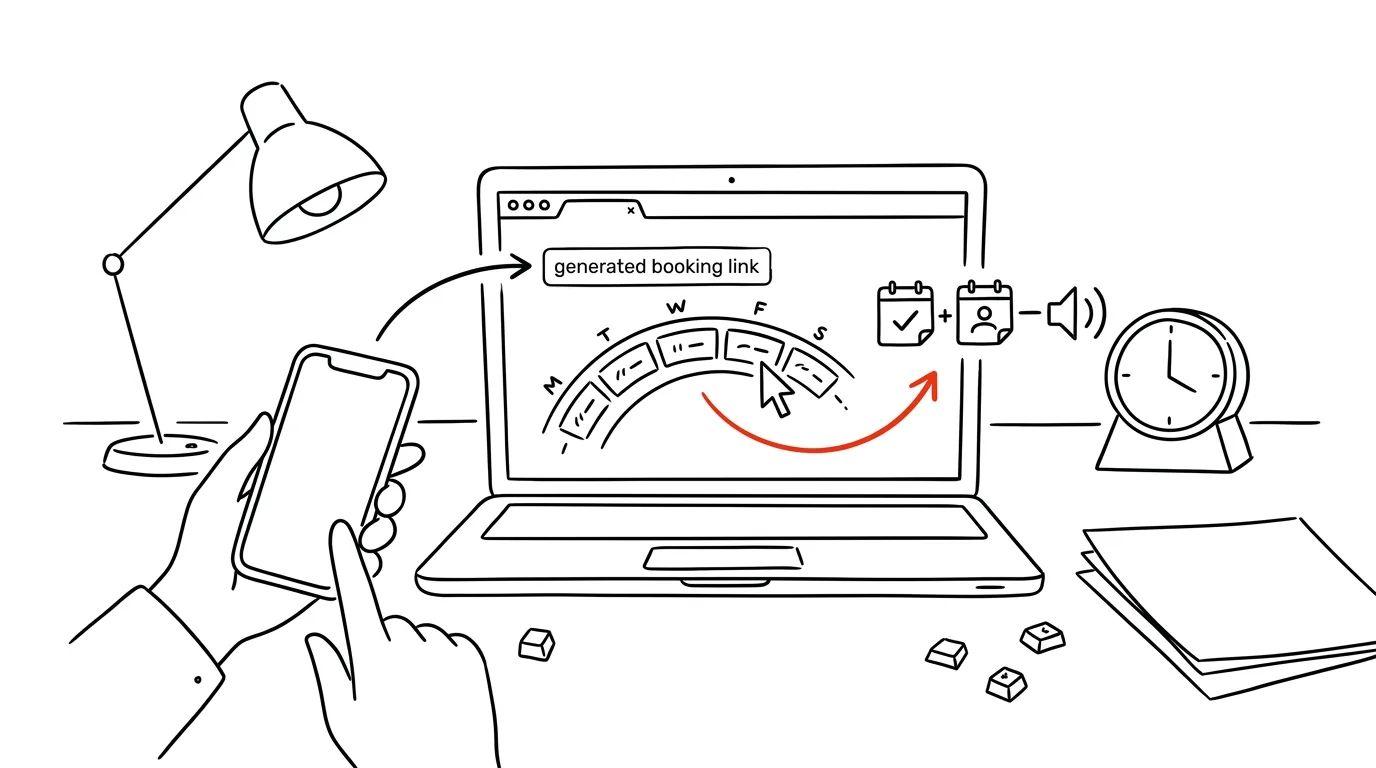
"Would Tuesday at ten work for you? No? Wednesday at two, then?" Arranging a time by email is a three-day game of ping-pong. Tools like Calendly solve it with a booking link — few people know that plain Google Calendar can do the same thing. The Appointment schedule feature builds a public page listing your open slots: send the link, the other person clicks a time that suits them, and the meeting automatically appears on both your calendar and theirs. With a free Google account you get one booking page with one meeting type — plenty for consultations or intro calls.
How to do it
- In Google Calendar, click Create in the top left and choose Appointment schedule.
- Set a name (e.g., "30-minute consultation"), the meeting length, and the days and times when you can be booked — say, only Tuesday and Thursday, 1–4pm.
- In the further options, set how many days in advance people can book, and add buffer time between meetings so calls don't stack back-to-back.
- Save, click the schedule in the calendar grid, and choose Copy link. Send that to anyone — anybody with an email address can book, no Google account required.
- Slots where you already have something on your calendar won't be offered on the page. After a booking, both sides get an email confirmation and the meeting appears on both calendars.
- When booking, the person fills in their name and email; you can also add a custom question to the form ("What would you like to discuss?") so you walk into the call prepared.
A typical scenario
An English tutor offers trial lessons. She used to trade four emails with every interested student before landing on a time. Now her email signature and website carry a single link: "Book a time here." Prospective students pick from the times she set up once, and she just checks her calendar each morning to see who's coming. The same trick works for a teacher's office hours with parents or for a freelancer arranging calls with clients.
What you get out of it
Arranging a time shrinks from days of correspondence to a single link. And because you're only offering times you set aside yourself, meetings stop popping up in the middle of focused work — you control your availability, not whoever reaches out first.
Related: office hours — availability with boundaries.
Pro tip
Put the booking link wherever people ask about your availability: your email signature, your social profile, your website. "Pick a time here" replaces the whole scheduling back-and-forth — and comes across as more professional than "let me know when works." Just make sure your calendar reflects reality: the booking page trusts whatever's on it, so log private blocks and reschedules honestly.
Want to go deeper? The handbook has a whole chapter on it — Professional email communication.
Similar tips
Freeze Panes: Keep Headers Visible Even at Row 500
View → Freeze Panes keeps the table header locked at the top no matter how far you scroll.
In-depth guide · 57 min
Company know-how out of your head: AI interviews, Lucid, and Notion
A complete guide with 25 prompts: AI interviews the owner and the foreman, draws the processes into editable maps via the Lucid connector, and saves the procedures into a living knowledge base in Notion. The company stops running on what's in Franta's head.
In-depth guide · 78 min
Your brand as a system: from brand voice through brochure and website to CRM
A complete guide for absolute beginners — with a glossary of terms, step-by-step account setup, and an honest chapter on real-world costs in dollars: turn a brand manual into a lasting Brand Voice document, a print-ready brochure in Affinity through Claude Cowork, a website on Vercel, and a locked-down CRM on Supabase. One company, one continuous story, 19 prompts to copy.
Was this helpful?
Liked this tip?
I send one like it every week by email. Two minutes to read, hours saved.
The Top 30 tips e-book, free — it lands in your inbox right away.
Then 1 tip a week · no spam · unsubscribe in one click
Prefer a system to single tips? The free email course — seven days, seven emails, one skill a day.