Tips & tricks · Communication · Everywhere · ~10 min a day · 3 min read
Remind yourself about a message when you'll have time for it
Last reviewed:
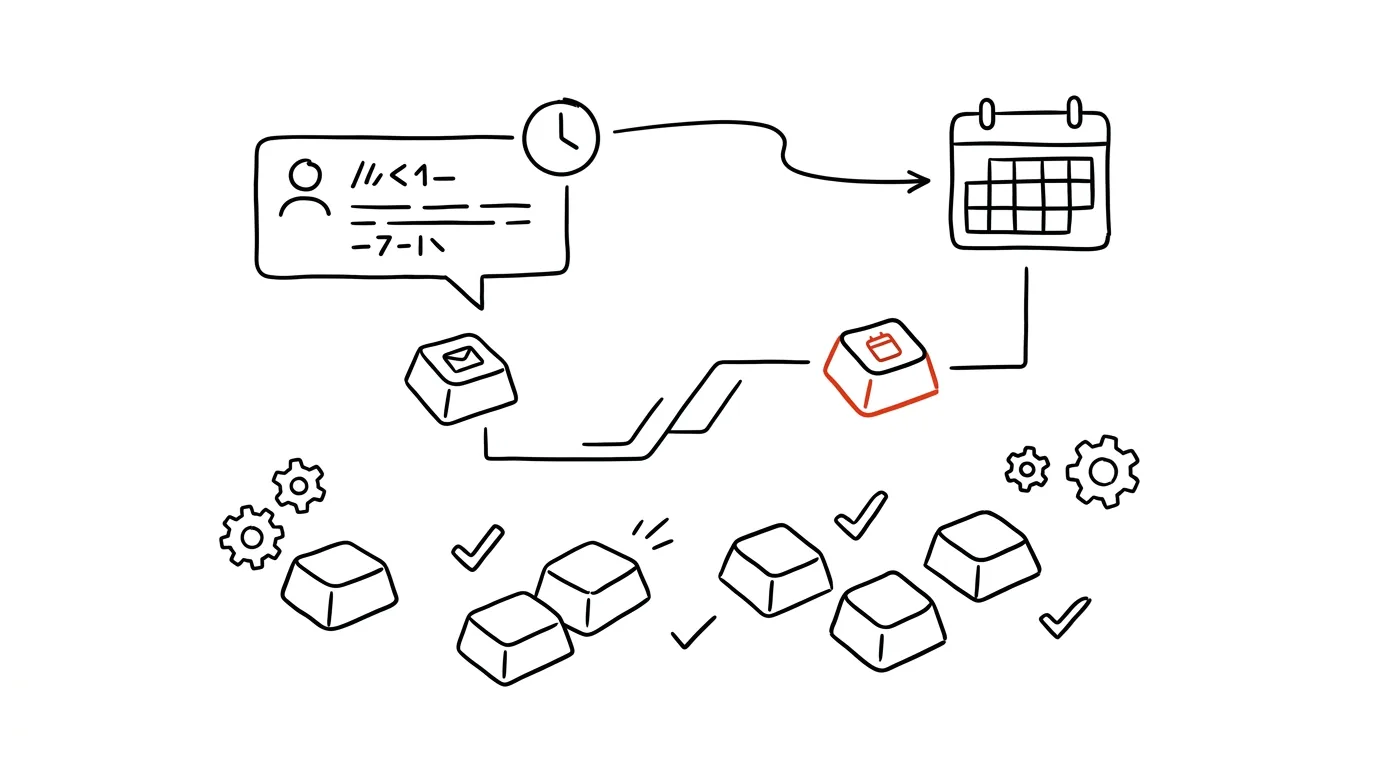
A message you'll “deal with later” is a message you'll forget. A Slack notification arrives in the middle of other work, looks simple enough, so you tell yourself “I'll reply in a bit” — and in a bit it's buried under twenty more messages. The fix isn't trying to remember more, it's letting Slack bring that message back to you itself at the right time. It's the same principle as a snoozed email, just a level faster — no switching apps, no copying anything anywhere else.
A typical scenario
Manager Jana gets a message in the middle of a meeting from a team member asking for time-off approval. She can't reply right away, interrupts herself trying to remember it, and after the meeting the message is buried under ten others. Three days later the team member asks again, a little annoyed.
With the reminder feature, Jana marks the message “remind me tomorrow morning” on the fly and goes back to the meeting without having to remember anything. In the morning, the message resurfaces on its own with a link straight to the original context. The team member gets a reply on the day they actually asked for time off, not three days later after having to follow up themselves.
How to do it
- Hover over the message you want to deal with later, click the three dots, and choose Remind me about this.
- Pick when you want the message back — in an hour, tomorrow morning, or a custom time.
- At the set time, Slackbot sends the message back to you with a link straight to the original context, so you don't have to remember what it was about.
- You can check off resolved reminders directly, much like an item in a task list — it works like a mini to-do list right inside Slack.
- All your active reminders are gathered in one overview, so even after setting several at once you have a clear picture of what's coming back and when.
The best tools
- The built-in “Remind me about this” — the fastest route, right on the specific message, no switching to another app.
- The
/remindcommand — for general and recurring reminders that don't need to be tied to a specific message. - Todoist or another task manager connected to Slack — if you want your Slack reminders to show up in the same list as the rest of your tasks.
- A calendar reminder as backup — for truly important deadlines, it's worth having a reminder outside Slack too, in case you miss it amid everything else going on.
What you get out of it
- Time: no more re-reading the same message thinking “I still haven't gotten to that” — deal with it once and the reminder handles the rest.
- Peace of mind during meetings and deep work: you don't have to deal with a message right away, one click puts it off until later.
- Nothing falls through: delegated tasks, approval requests, and promises to colleagues automatically come back, even if you'd otherwise forget.
- A better impression with your team: colleagues see that you respond reliably, even if not instantly.
- A clear head during deep work: you know the request won't disappear even though you can't deal with it right now, so you don't have to keep circling back to it in your mind before its time comes.
Pro tip
General and recurring reminders can also be set with the /remind command — for example, /remind me every Friday at 15:00 to fill out my timesheet sends you a notification every Friday without needing a specific message to attach it to.
Want to go deeper? The handbook has a whole chapter on it — Professional email communication.
Similar tips
Stop Correcting AI Forever: Edit Your Original Message Instead
Claude, ChatGPT, and Gemini can all edit a message you've already sent and answer again from a clean slate. A lesser-known button that rescues tangled conversations.
In-depth guide · 34 min
AI in the newsroom: a journalist's guide
The hub for the whole journalism section: research, public data, writing, graphics, social media, and source protection. Eighteen prompts, one hard line.
In-depth guide · 76 min
AI in the company: the complete rollout guide — from data to measurable results
Our most comprehensive guide: AI rollout from the data foundation through tools and policy to self-monitoring meetings. 50+ prompts and a 90-day plan.
Was this helpful?
Liked this tip?
I send one like it every week by email. Two minutes to read, hours saved.
The Top 30 tips e-book, free — it lands in your inbox right away.
Then 1 tip a week · no spam · unsubscribe in one click
Prefer a system to single tips? The free email course — seven days, seven emails, one skill a day.