Tips & tricks · Workflow · Windows · ~15 min a day · 3 min read
Virtual desktops: keep work and communication apart
Last reviewed:
Win+Ctrl+→
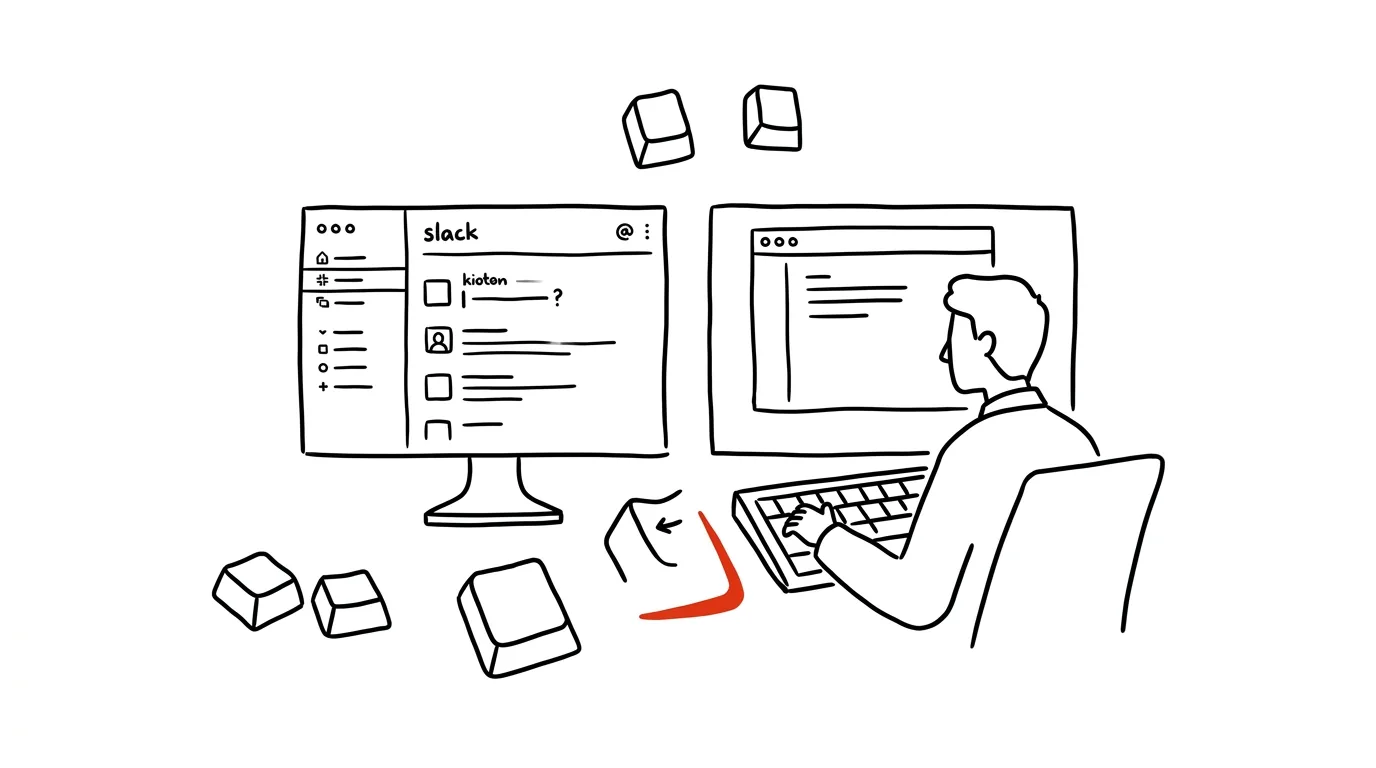
What you can't see doesn't distract you. Virtual desktops tuck communication out of sight while keeping it two keystrokes away whenever you want it back. It's one of the most effective ways to hold onto your focus without having to close anything or turn off notifications.
A window hops to the second virtual desktop — Win + Ctrl + arrows switch between contexts.
A typical scenario
You're deep in an important task, but Slack, Teams, or email is blinking on the second monitor or in the background. Even if you tell yourself you won't look, your eyes wander over there occasionally, your train of thought breaks, and getting back to focused work takes longer than you'd expect — research puts the recovery time at around twenty minutes to return to full focus after each such interruption.
With one virtual desktop for communication and another for focused work, the communication apps simply disappear from view. You can't see them, they don't catch your eye, and yet they're only two keystrokes away whenever you need to check them.
How to do it
- Press Win + Ctrl + D — this creates a new, empty virtual desktop.
- Switch to the new desktop with Win + Ctrl + → and open the apps you want to work on without distraction.
- Switch back to the desktop with your communication apps (Slack, Teams, email) with Win + Ctrl + ← whenever you want to check messages — say, once an hour, not continuously.
- See an overview of all your open desktops and their windows with Win + Tab. You can then drag windows between desktops with the mouse right from this overview.
- You can also name your desktops by clicking their name in the Win + Tab overview, which helps with orientation if you use more than two.
The best tools
- Windows' built-in virtual desktops — free, works instantly with no install, ideal for separating work contexts.
- Spaces on macOS — a similar built-in feature for Mac users, controlled with trackpad gestures or keyboard shortcuts.
- Notification-blocking apps (Focus Assist in Windows) — a complementary solution that also mutes pop-up alerts on your active desktop.
- Stage Manager (macOS) — more advanced window and context management for users who want even more control over what's visible and when.
What you get out of it
- Focus: communication apps physically disappear from view, removing the temptation to just glance at them.
- Time: roughly 10–15 minutes a day saved on the shortened return to focused work after each interruption — this adds up significantly across several interruptions a day.
- Control over when you communicate: you still check messages whenever you want — you just set the pace yourself instead of letting notifications set it for you.
- A clearer workspace: each desktop corresponds to one context (work, communication, maybe personal matters), so you don't get lost among your open windows.
Pro tip
Right-click an app in the Win + Tab overview → Show this window on all desktops — handy for a music player or another app you want at hand regardless of which desktop you're currently working on.
Want to go deeper? The handbook has a whole chapter on it — Core systems: inbox, priorities, reviews.
Similar tips
Pinning in Teams: important chats stay on top, key messages above the conversation
Right-click pins a chat to the top of the list, and a key message above the whole conversation — visible to everyone. No more hunting for a link from last week.
Set your Teams status with a duration, not just a toggle
“Do not disturb until 12:00” tells coworkers more than a permanent red dot — and it turns itself off.
Teams in meetings: mute and camera from the keyboard
Ctrl+Shift+M
Ctrl+Shift+M toggles your mic, Ctrl+Shift+O toggles your camera. When it's suddenly your turn to talk, you're not hunting for a button.
Was this helpful?
Liked this tip?
I send one like it every week by email. Two minutes to read, hours saved.
The Top 30 tips e-book, free — it lands in your inbox right away.
Then 1 tip a week · no spam · unsubscribe in one click
Prefer a system to single tips? The free email course — seven days, seven emails, one skill a day.