Tips & tricks · Communication · Everywhere · ~10 min a day · 3 min read
Outlook rules: let your inbox sort itself
Last reviewed:
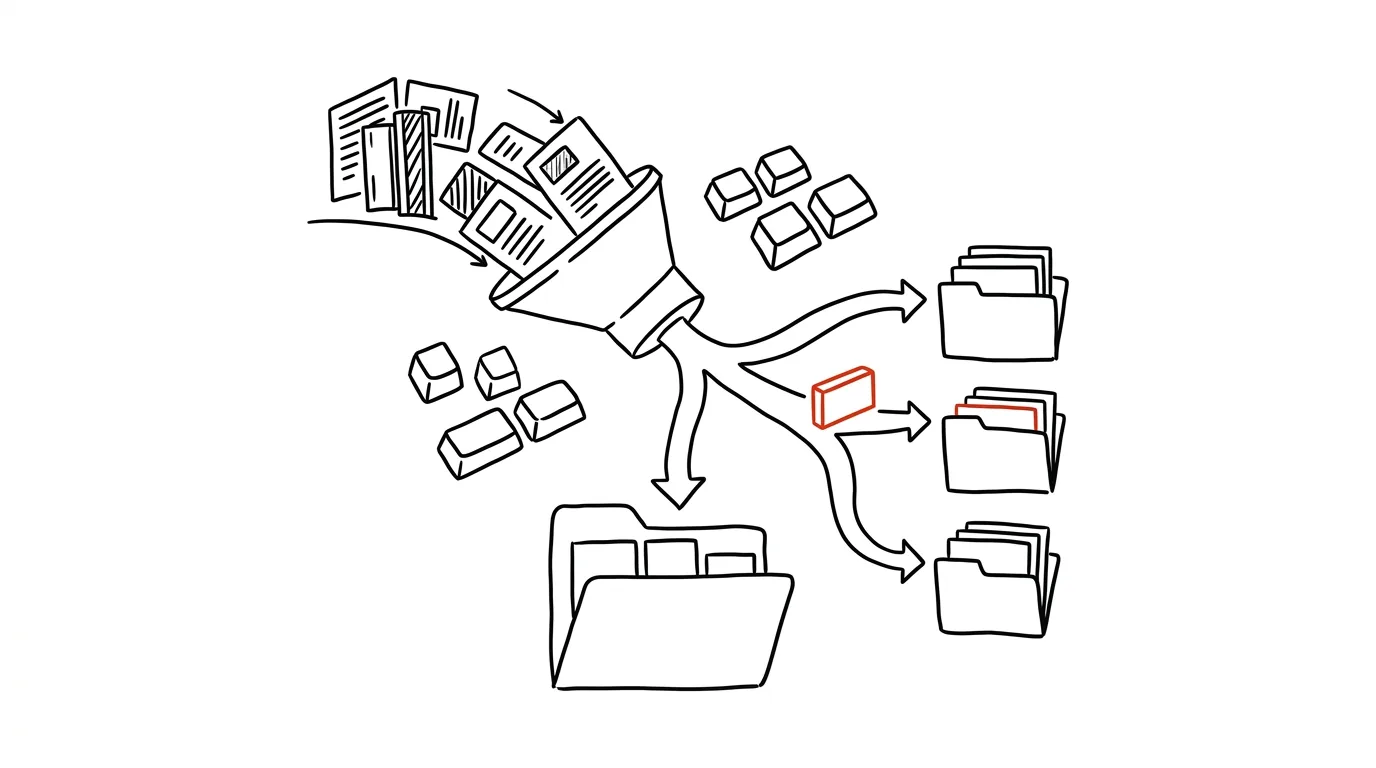
Half of what lands in your inbox doesn't need your attention at all — notifications from internal systems, automated reports, CC'd messages, alerts from tools your team uses. Yet most people let all of it pile up in the same inbox as mail from clients and colleagues, then try to sort through the mess by hand. Outlook rules can redirect this clutter automatically, the moment it arrives.
A typical scenario
Michal, an engineering lead, gets dozens of notifications a day from the tools his team uses — build completion reports, issue tracker alerts, automated monitoring reports. Without rules, these messages land in the same inbox as mail from clients, and to find something that actually matters he has to scroll past dozens of automated notices he rarely even reads. With rules in place, these notifications get diverted into a separate folder the moment they arrive — his inbox stays reserved for real messages from people, and he batches through the automated ones once a day, whenever he has time.
How to do it
- Right-click a message from the sender or type you want to sort automatically, and choose Rules → Create Rule…
- Set the condition that triggers the rule — most often the sender (a specific address or domain) or keywords in the subject line.
- Choose "move to folder" as the action — if a folder for that type of notification doesn't exist yet, you can create it right in this step.
- Route system notifications (task trackers, CI tools, your online store) into one catch-all folder — call it something like "Automated" or "Notifications" — and check it once a day in a batch instead of getting interrupted throughout the day.
- Review and adjust your rules every so often — as the tools you use change, so does the type of notifications hitting your inbox, and old rules can stop fitting or new sources can slip through without one.
- Rule order matters — Outlook evaluates them top to bottom, so if two rules could apply to the same message, the one higher in the list wins. With more complex setups, it's worth double-checking the order every so often.
The best tools
- Outlook Rules — built in, free, works on desktop and web without any extra tool.
- Categories paired with rules — a rule can tag a message with a category instead of just moving it, so you keep some visibility even in the main folder.
- Focused Inbox — Outlook's built-in feature that tries to do similar sorting automatically without manual rules; treat it as a complement to your own rules, not a replacement.
What you get out of it
- Time: roughly ten minutes a day saved by not scrolling past notifications mixed in with real messages one by one.
- Fewer interruptions: notifications stop pinging and popping up all day long — they wait in a batch until you make time for them.
- A cleaner inbox: only messages that genuinely need your attention or a reply stay in it.
- Less risk of missing something important: real messages from people don't get buried among dozens of automated notices.
Pro tip
The easiest way to create a new rule is straight from the message you want to sort automatically next time — Outlook pre-fills the sender as the condition, so you only need to fine-tune the action and save.
Want to go deeper? The handbook has a whole chapter on it — Professional email communication.
Similar tips
Paste the Error Message Into AI, Not a Search Engine
Instead of trawling ten-year-old forum threads, paste the error message — or a screenshot of it — into AI and ask three things: what it means, what to do, and what not to do.
Text With Missing Accents? AI Restores Them
An email typed on the wrong keyboard layout or an export from an old system: paste the text into AI and get it back with the accents in the right place. It works in reverse too.
In-depth guide · 14 min
Excel and Sheets with AI: Formulas, Errors, Structure, and Macros
A complete guide with prompts: describe a formula in plain words and get a working fix, debug errors, design a table that holds, and when to use a macro.
Was this helpful?
Liked this tip?
I send one like it every week by email. Two minutes to read, hours saved.
The Top 30 tips e-book, free — it lands in your inbox right away.
Then 1 tip a week · no spam · unsubscribe in one click
Prefer a system to single tips? The free email course — seven days, seven emails, one skill a day.