Tips & tricks · Communication · Everywhere · ~5 min a day · 3 min read
Essential Outlook shortcuts: reply, send, switch modules
Last reviewed:
Ctrl+R
Outlook can largely be driven without a mouse, and yet most people operate it entirely by clicking — switching between mail and calendar with the mouse, hunting for the send button in the top bar, clicking reply. A handful of basic shortcuts cover ninety percent of what you do in your inbox all day, and they keep your hands on the keyboard between typing and sending, with no wasted trips to the mouse and back.
A typical scenario
Vojtěch, a consultant, spends most of his workday in Outlook — replying to emails, switching to the calendar to check availability, switching back to mail. Without shortcuts, that's dozens of small hand movements between keyboard and mouse a day, which doesn't seem like much for a single email, but adds up to real lost time and fatigue from unnecessary switching across a whole day. With shortcuts, he replies to an email, sends it, and jumps to the calendar to check a date without his hands ever leaving the keyboard — and he's back in his inbox just as fast.
How to do it
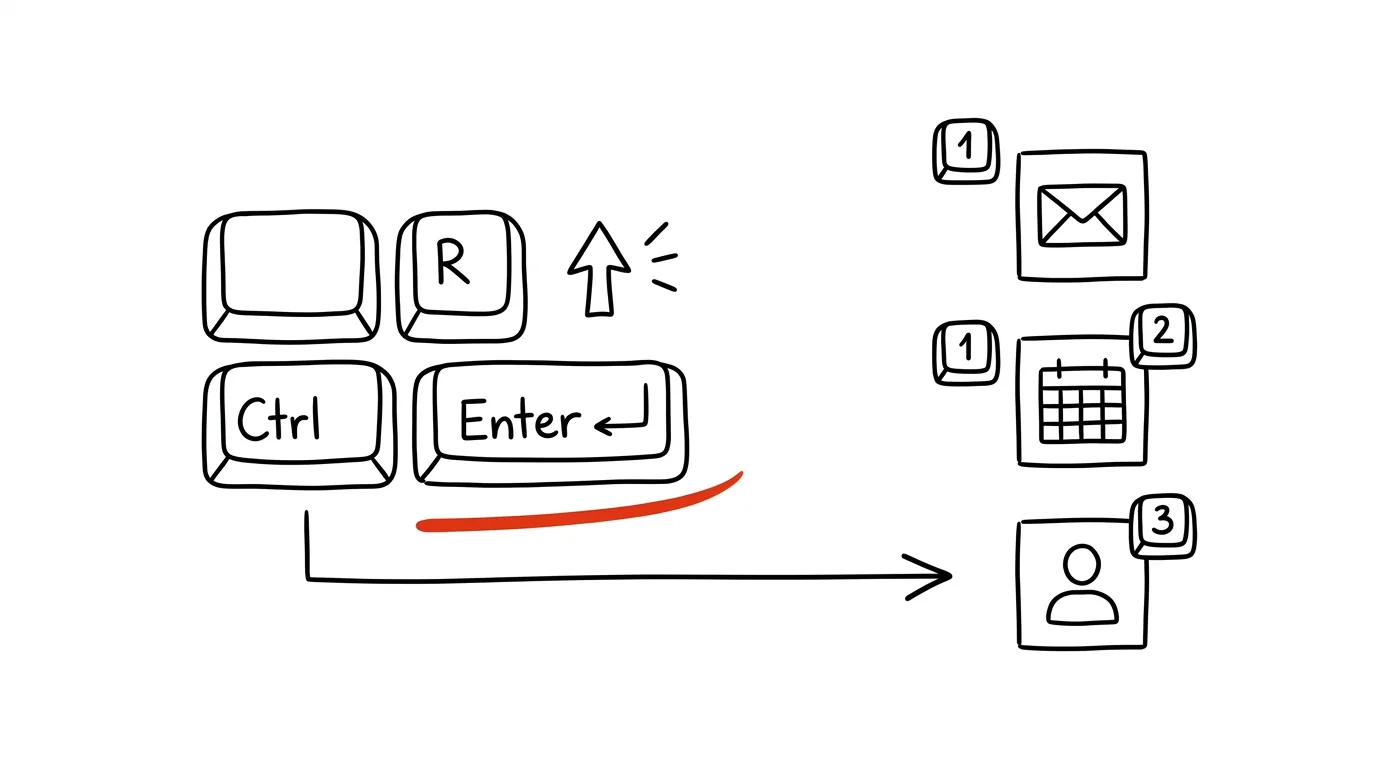
- Ctrl + R replies to the sender, Ctrl + Shift + R replies to everyone in the conversation, Ctrl + F forwards the message.
- Ctrl + Enter sends the message you're drafting without having to reach for the Send button in the message window.
- Ctrl + 1 switches to the Mail module, Ctrl + 2 to Calendar, Ctrl + 3 to Contacts (People) — jumping between Outlook's main modules without clicking icons in the left-hand panel.
- Ctrl + Shift + M opens a new message from anywhere in Outlook, even when you're not in the Mail module.
- Shortcuts chain into a smooth flow: Ctrl + R to reply, type your text, Ctrl + Enter to send — a whole reply without a single mouse click.
- Ctrl + Shift + A creates a new calendar event from anywhere, similar to the new-message shortcut — handy when you want to log a date right away without manually switching modules.
The best tools
- Outlook's built-in shortcuts — free, work immediately, nothing to install or configure.
- The shortcut list in Outlook's help — for the full list beyond the most-used ones; worth a one-time read to pick a few more suited to your own work.
- Quick Steps — for sequences of multiple actions at once that a simple shortcut doesn't cover; see the separate tip on Quick Steps.
What you get out of it
- Time: roughly five minutes a day from fewer trips between keyboard and mouse over the course of a workday.
- Flow: writing and sending emails without breaking your train of thought to hunt for a button.
- Less fatigue: dozens of small hand movements to the mouse and back add up over a day, even though each one looks negligible on its own.
- Faster work under pressure: on high-volume mail days, the difference between clicking and using shortcuts is noticeable in your total time spent in the inbox.
- A transferable skill: the same or very similar shortcuts work in other Microsoft 365 apps, so the time invested in learning them pays off beyond Outlook too.
Pro tip
You don't need to learn all the shortcuts at once — start with Ctrl + R and Ctrl + Enter, reply and send, since you'll use those most of all. Add the rest gradually, once the first two become automatic.
Want to go deeper? The handbook has a whole chapter on it — Professional email communication.
Similar tips
In-depth guide · 17 min
Custom instructions: set up AI once, it applies forever
A complete guide to standing instructions: what belongs in them, how they differ from a Project, testing them — and ready sets for common professions.
Ask AI What It Assumed
Gaps in your prompt get silently filled with the model's own assumptions. Have them listed out — see what the answer is standing on before you build work on top of it.
In-depth guide · 28 min
AI for complete beginners: what to install on your computer and phone, and the difference between chat, Cowork, and Claude Code
A complete guide with prompts: installing Claude and ChatGPT on computer and phone, chat versus Cowork versus Claude Code — and who can actually draw.
Was this helpful?
Liked this tip?
I send one like it every week by email. Two minutes to read, hours saved.
The Top 30 tips e-book, free — it lands in your inbox right away.
Then 1 tip a week · no spam · unsubscribe in one click
Prefer a system to single tips? The free email course — seven days, seven emails, one skill a day.