Tips & tricks · Workflow · Everywhere · ~2 min a day · 2 min read
Two exclamation marks repeat your last command — even with sudo in front
Last reviewed:
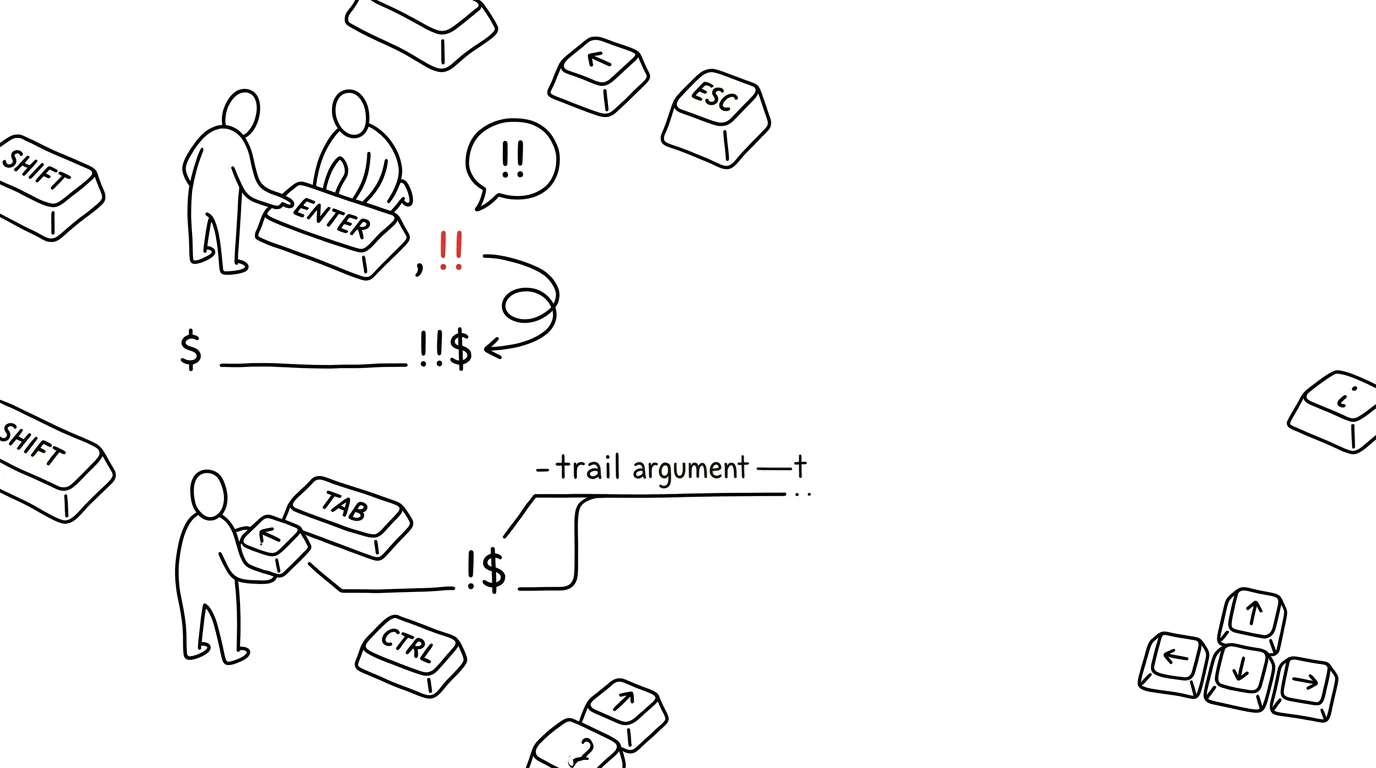
Anyone who works with a terminal knows the moment: you run a command, the terminal replies Permission denied — and you realize you forgot sudo again. Instead of the up arrow, jumping to the start of the line, and retyping, just type sudo !!. In bash and zsh, the double exclamation mark expands to the entire previous command, so the same thing runs again, just this time with admin rights. History expansion has one more trick worth knowing for daily use: !$ means “the last argument of the previous command” — typically a file path, so you don't have to type it twice.
How to do it
- You run a command that fails on permissions — say, writing to a system folder. Type
sudo !!and press Enter: the shell first prints what's actually about to run, then executes the previous command withsudoin front. !!works elsewhere too, not just with sudo:echo !!just prints the previous command, handy for checking before you insert it anywhere.!$inserts the last argument of the previous line. Aftermkdir ~/projects/new-site, justcd !$— and you're inside the folder you just created. Afterls -l /long/path/to/file.conf, open the same file withnano !$.- If you're not sure what will expand, add
:pat the end —!!:pjust prints the command and adds it to history, without running it. The interactive equivalent: Alt + . inserts the last argument directly on the line, and repeated presses cycle through older ones. - The exclamation marks belong to bash and zsh — on Windows you get them in Git Bash or WSL; this shortcut doesn't exist in PowerShell.
A typical scenario
An admin installs a package: apt install htop, the reply is “are you root?” He types sudo !!, done — faster than any clicking or retyping. A minute later he's unpacking an archive into a new folder: mkdir /opt/app/v2 and right away cd !$, tar -xzf package.tar.gz. He typed the long path exactly once; the exclamation marks did the rest. A dozen such moments pile up over a day — and each one means one path not retyped (and not mistyped).
One word of caution: the exclamation mark expands inside quotes too, so when you're writing text that contains exclamation marks (say, a commit message from an excited debugging session), use single quotes — git commit -m 'Finally works!' goes through fine, while double quotes would make the shell try to expand ! as history. This, incidentally, is the most common source of the mysterious event not found error.
What you get out of it
The most common small failures in the terminal — forgetting sudo and typing a path twice — shrink to a handful of characters. Fewer typos, because you type long arguments only once. And the good news to close on: these shortcuts work on every server you log into, with no installation or configuration required.
Want to go deeper? The handbook has a whole chapter on it — Core systems: inbox, priorities, reviews.
Similar tips
A written status instead of a status meeting
Three questions in a form on Friday: what went well, what's in progress, what's stuck. Suddenly the 45-minute status meeting is unnecessary.
Delegate the outcome, not the process
A good assignment has four parts: what needs to exist, why, by when, and how you'll know it's done. Leave the process to the person doing it.
1:1s with a standing document
A shared document both sides keep adding to between meetings. The meeting has structure, and the history is easy to find.
Was this helpful?
Liked this tip?
I send one like it every week by email. Two minutes to read, hours saved.
The Top 30 tips e-book, free — it lands in your inbox right away.
Then 1 tip a week · no spam · unsubscribe in one click
Prefer a system to single tips? The free email course — seven days, seven emails, one skill a day.