Tips & tricks · Workflow · Windows · ~2 min a day · 2 min read
PDFs opening in the wrong app? Change your default apps once and for all
Last reviewed:
In this article
Double-click a PDF — and Edge opens, even though you read PDFs in a different program. Double-click a photo — and some app you never chose pops up. Plenty of people spend years working around this: right-click, Open with, pick from the list… for every single file. Yet this is a setting you change once — and from then on, every file type opens exactly where you want it to.
How to do it
- The fastest route is through the file itself: right-click it, choose Open with → Choose another app, pick the right one, and confirm that it should be used always for this file type.
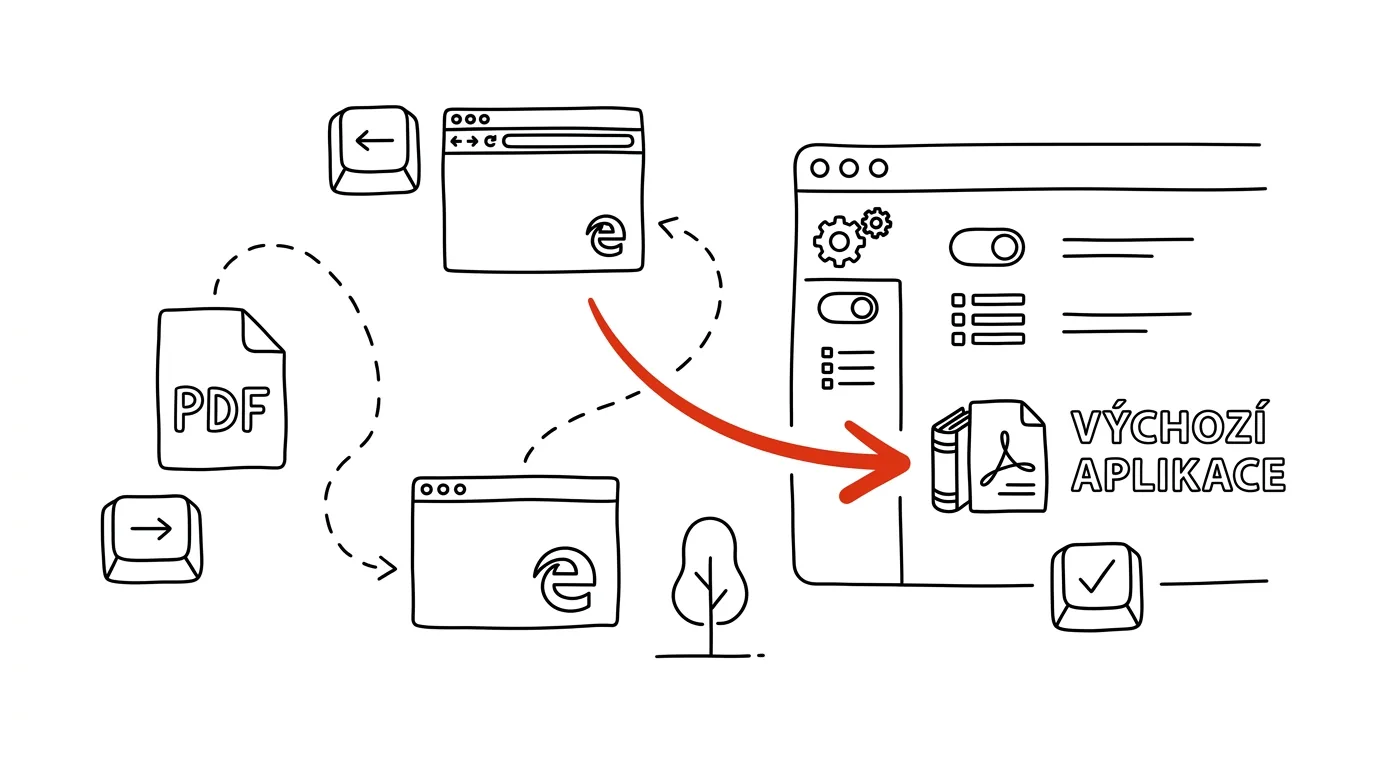
- To handle it in bulk, go to Settings → Apps → Default apps: pick an app (say, your PDF reader or browser) and assign it the file types it should handle.
- It also works from the other direction — on the same Settings page's search box you can type an extension (say
.pdf) and assign it an app directly. - Don't forget your default browser: if you want links from mail and documents to open in a different browser, you set that on the same page with one button.
- After major system updates or installing new programs, some assignments occasionally get “reset” — when files start opening somewhere else, come back here and fix it in two clicks.
A typical scenario
A teacher opens dozens of PDFs a day: tests, guides, scanned assignments. Every one, though, opens in a browser that can't properly annotate, so he manually reopens each file in his reader — ten extra seconds, thirty times a day. One trip to Default apps and a double-click does exactly what it should from then on.
The same relief awaits anyone whose Outlook links stubbornly open in the “wrong” browser with no accounts signed in — after changing the default browser, the world falls back into order.
What you get out of it
- No more daily workaround: double-click goes back to meaning “open this where I work,” not “open this somewhere and I'll move it over.”
- Seconds that add up: ten seconds times dozens of files a day is minutes — and above all, that small, repeated irritation disappears.
- Predictability: files and links behave the same way everywhere in the system, including email attachments.
Pro tip
Before hunting for a PDF reader, you might already have one: office suites, browsers, and plenty of apps can read PDFs — but only some can comfortably add annotations and sign. Pick the one app that handles everything you do with PDFs, and set that as your default — bouncing between three readers is worse than any one of them alone.
Want to go deeper? The handbook has a whole chapter on it — Core systems: inbox, priorities, reviews.
Similar tips
Hold an app icon: quick actions without opening it
A long press on an icon opens a shortcut menu: new email, selfie, private tab, navigate home. One tap instead of hunting inside the app.
Share your Wi-Fi password without reading it out loud
iPhone offers to share the password automatically as soon as someone nearby tries to connect. Android generates a QR code that scans and connects.
Battery saver turns itself on when your charge drops
Android can trigger battery saver by percentage. iPhone has no built-in schedule — but a Shortcuts automation turns on Low Power Mode entirely on its own.
Was this helpful?
Liked this tip?
I send one like it every week by email. Two minutes to read, hours saved.
The Top 30 tips e-book, free — it lands in your inbox right away.
Then 1 tip a week · no spam · unsubscribe in one click
Prefer a system to single tips? The free email course — seven days, seven emails, one skill a day.