Tips & tricks · AI · Everywhere · ~30 min a day · 19 min read · in-depth guide, doing it ~2 h
Dictate your thoughts, let AI turn them into text
Last reviewed:
Facts verified against the tools:
Change history for this guide →
In this article
- A typical scenario
- Setup that takes five minutes
- Phase 1: how to talk so it can be turned into text
- Phase 2: prompts by output purpose
- Phase 3: long texts, block by block
- Phase 4: walks, driving, waiting in line — where dictation works best
- Phase 5: making the result sound like you
- Common mistakes
- The best tools
- What you get out of it
- Pro tip
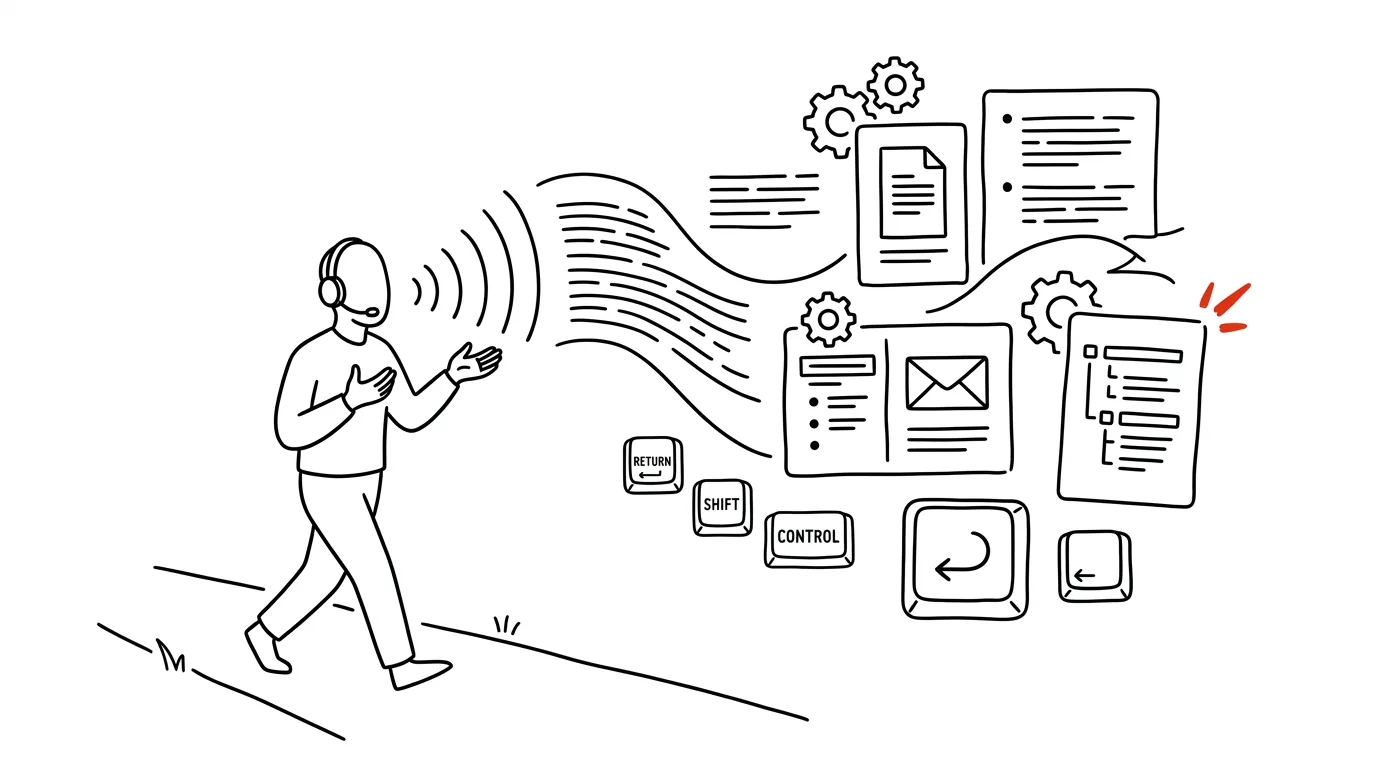
Talking is roughly three times faster than typing. Most people speak around 130 words a minute, type about 40, and for text that has to make sense, even fewer — because typing forces you to compose and think at the same time. Dictation splits that double task in two: first you get the thoughts out, only then does someone organize them. And that someone doesn't have to be you.
The core idea of this whole guide is that a raw transcript is not a text — it's raw material. Anyone who dictates expecting a finished paragraph to come out of their mouth will be disappointed and go back to the keyboard. Anyone who dictates like they're talking into a notebook, then has the output tidied up with a prompt built for the purpose, saves half an hour or more every day and stops fearing the blank page. The difference isn't the tool — it's how you talk and what you ask AI for.
The guide is built so you can work through it in parts: setup and speaking technique, then the core — cleanup prompts and prompts by output purpose — and finally long texts, dictating on the move, and making the result sound like you instead of a robot. Every phase has at least one complete, copy-ready prompt — just fill in the brackets. One rule sits above all of it: AI proposes, the human approves — only you get to send the email or publish the text, after reading it.
A typical scenario
Petr runs a sales team, and every Thursday afternoon he writes a summary for leadership: numbers, project status, risks. It takes him an hour and a half, because he doesn't sit down to a blank page rested — he sits down to it after five back-to-back meetings. He spends half the time hunting for the first sentence and another quarter rearranging paragraphs he wrote in the wrong order. The result is about two pages that nobody praises and nobody criticizes.
Since he started dictating, Thursday looks different. On the twelve-minute walk from his last meeting back to the office, he dictates into his phone everything that comes to mind about the quarter: numbers by region, where a big deal got stuck, what he needs from production, what's bugging him about the reporting. He talks with no structure, backtracks, corrects himself out loud. What comes out is about 1,600 words of total chaos, full of filler, tangents, and three unfinished sentences.
At his desk, three steps follow. First, cleanup: a prompt that strips out the filler and repetition without dropping any content. Then structuring by purpose: “this is a briefing for leadership, I want a half-page summary plus three risks with proposed countermeasures.” Finally, a check — Petr fixes two spots where the model turned his “we probably won't make it” into “the deadline is at risk.” Twenty minutes total, twelve of them spent walking. The saved hour isn't even the main win; the main win is that the briefing comes straight from what occurred to him while it was still fresh.
Setup that takes five minutes
Dictation most often fails because you have to hunt for how to turn it on every single time, figure out where the text is landing, and give up after three tries. The goal of this section is that you can start talking within two seconds of an idea hitting you.
Where to turn dictation on
On Windows it's built in under Win + H and works in any text field — Word, email, an AI chat. On Mac it's turned on with a keyboard shortcut set in system settings; on newer systems recognition runs right on the device, so it works even without an internet connection.
On mobile you have a microphone right in the keyboard, on both Android and iPhone. It's the fastest way to capture an idea, because your phone is always with you. There's a practical walkthrough in the tip dictate instead of typing.
Directly inside an AI app. The ChatGPT, Claude, and Gemini mobile apps all have their own voice input — you talk and the text appears right in the chat field. The advantage is that transcription and processing happen in one place, so there's no copy-pasting. The downside is that the raw transcript stays mixed in with the outputs in your chat history; if you dictate a lot, keep your source material outside the chat.
Google Docs has its own voice typing, which is calmer for long texts than system-level dictation: it types straight into a document that saves itself.
Where the transcript lands
Pick one place and stick with it. What works best is a single “catch-all” notebook — a notes app you have on both phone and computer that syncs on its own. Everything raw goes in there, ideally with a date and a two-word tag at the top (“Nováková meeting,” “newsletter idea”). Processed material moves on to an email, meeting notes, or a document; the notebook stays a dumping ground, not an archive. If you already have a quick-capture system for ideas, hook dictation into it.
Microphone and environment
Transcript quality depends more on your input than on the model. Three things help the most: speaking up close (phone near your mouth, not in your pocket), avoiding background noise that competes with speech (a café is worse than a busy street, because a café has other voices in the background), and speaking at a normal volume — over-enunciating actually hurts the transcript, because it breaks your natural speech rhythm. Earbuds with a mic near your mouth are noticeably better than a bare phone for dictating on the move.
Phase 1: how to talk so it can be turned into text
This is the one skill you actually need to learn for dictation. It takes about three tries and then it's automatic.
The three sentences at the start that decide the quality of the output
Before you start talking about the content, say three things out loud: what this will be (email, notes, a memo, a draft), who it's for, and what the output needs to accomplish. They sound like a formality, but they change everything — because they end up in the transcript and AI then uses them as the brief. Without them the model guesses, and it usually guesses a generic summary that fits nobody.
In practice it sounds like this: “This is going to be an email to our client Novák, who asked about the delivery date. I want to reassure him but not promise a date I don't have confirmed. Tone: polite, not servile. Now the content…”
Talk in blocks, not in sentences
The most common mistake is trying to dictate finished sentences. It leads to getting stuck on phrasing, going silent, losing the thread, and ending up with a half-empty recording. Instead, talk in blocks of thought: one topic, for as long as something occurs to you about it, then move to the next. Let the filler, repetition, and tangents stand — removing them is exactly the work AI does well and fast.
When you misspeak or change your mind, don't correct yourself silently — correct yourself out loud: “No, actually — the main reason is…” The model can handle that fine, as long as you tell it in the prompt that the last version wins.
Voice tags
This is the trick that makes the biggest difference between a usable and an unusable transcript. While talking, drop in short spoken tags that AI later reads as instructions:
- “New section: …” — marks a topic boundary, which becomes a heading.
- “Main point: …” — this needs to be at the top of the summary.
- “Note to self: …” — shouldn't go into the final text, just my own notes.
- “Task: … by …” — gets pulled out as an item with a deadline and an owner.
- “Quote: …” — don't paraphrase this wording, keep it verbatim.
- “Verify: …” — a number or name I need to confirm before this goes out.
Then you just explain in the prompt what the tags mean, and the output splits into the right parts on its own. It costs two extra seconds of talking and saves minutes of rearranging.
Punctuation: dictate it, or leave it to AI
System-level dictation can transcribe spoken punctuation (“comma,” “period,” “new paragraph”). It's worth it for a short message typed straight into a field. If the transcript is heading into AI anyway, don't bother with punctuation — it breaks up the flow of speech, and AI will add it better than you'd dictate it.
Cleaning up the raw transcript
The first prompt worth saving. It doesn't do anything clever — it just strips out the clutter without dropping anything. Most people end up using it ten times a day.
This is a raw transcript of my dictation. I spoke without
preparing, so it's messy.

Clean it up into readable text following these rules:
- remove filler, false starts, and verbal padding
  (“um,” “like,” “basically,” “so anyway”), repetition
  of the same idea in different words, and unfinished
  tangents
- fix grammar, punctuation, and word order into standard
  written form
- break it into paragraphs by topic
- when I corrected myself (“no, actually, more like this”),
  keep only the final version
- if a passage is unintelligible, don't guess at it — mark
  it as [unclear: approximate wording]

Don't drop any content, don't add your own thoughts, and
don't add an intro or closing sentence. Keep my phrasing and
vocabulary, don't make it more formal than it is.

Transcript:
[paste text]
It returns text that's readable and ready to send on. Check two things in particular: whether any factual detail disappeared (typically a number or a name inside a tangent the model judged as filler) and whether your statements got more confident than you meant — “we'll probably make it” easily turns into “we'll make it.” When that happens often, add a line to the prompt: “don't increase the confidence of my claims, keep words like probably, maybe, likely.”
Checking fidelity
When accuracy matters, have the model list what changed after cleanup. It's one extra step, but it exposes exactly the spots where an edit could get you into trouble.
Compare my raw transcript and your cleaned-up version.

List, in a table, every place where the MEANING changed, not
just the wording: columns = original wording | your version |
type of change.

Types of change I care about:
- confidence going up or down (probably → definitely,
  maybe → likely)
- a changed number, date, name, or amount
- information added that I didn't say
- information dropped that wasn't filler
- a question turned into a statement, or the reverse

Skip pure style edits. If you didn't change the meaning
anywhere, say so in one sentence.

Raw transcript:
[paste text]

Cleaned-up version:
[paste text]
It returns a short table you can scan in thirty seconds. Added information is the most dangerous item on it — the model likes to “help” with a sentence that sounds logical, one you never actually said.
Phase 2: prompts by output purpose
This is where it's decided whether dictation saves you ten minutes or an hour. A generic “tidy this up for me” returns generic text you'll have to rewrite anyway. A prompt built for the purpose returns something you can actually send.
The most common use. What matters is stating not just what the email needs to say, but your relationship with the recipient and what the email needs to accomplish.
Turn my dictated transcript into an email.

Recipient: [name and role, e.g. a client we've been in
touch with for a year]
Relationship: [formal / friendly-professional / long-time
and casual]
Goal of the email: [what the recipient should do or know
after reading it]
Longer context the recipient already has: [what I don't
need to explain]

Requirements:
- a subject line that describes the matter, not a generic
  “Update”
- no more than [180] words, no long opening pleasantries
- a specific ask or next step in its own paragraph at the end
- don't promise anything on my behalf: where I wasn't
  specific in the transcript, leave it vague or mark it
  as [fill in]
- polite tone, but not apologetic — no “sorry to bother you”

At the end, attach a list of things I should verify or fill
in before sending.

Transcript:
[paste text]
It returns an email that's usually ready on the first read. Watch for promises: if you said “we'll try to have it by Friday” in the transcript, the model can easily turn that into “we'll deliver it Friday.” A longer guide to writing emails from rough notes is in the tip AI writes the first draft, you write the final one.
Meeting or call notes
Right after a meeting, dictate what you remember while it's fresh — ideally on the way back to your desk. The prompt then turns that into notes you can actually send to other people.
This is my dictated record of what I remember from a
meeting. It's not a transcript of the meeting — it's my
own recollection, so it's disorganized and out of order.

Turn it into notes in this format:
1. Context: who, when, about what (one sentence)
2. Decisions: what was decided — each as one sentence
3. Tasks: table task | who | deadline | note
4. Open questions: what's still unresolved and who needs
   to move it forward
5. Context for absentees: 3 sentences for someone who
   wasn't there

Rules:
- distinguish decisions from ideas that were merely floated;
  if it's not clear from my recollection which one it was,
  put it under open questions
- where an owner or deadline is missing, write [missing] —
  don't assign one by guessing
- passages I marked with “note to self,” put at the very
  end under a My Notes section (won't go out to others)

Record:
[paste text]
It returns notes where all that's left to fill in is any missing names and deadlines. A more systematic approach for recurring meetings is in the tip from a meeting recording to notes with tasks.
Notes and tasks for your task system
When you dictate “everything on my plate,” you want items on the output, not prose. The key is forcing a shape you can paste straight into a task manager.
Pull the actions out of my dictated stream of thought.

Split the output into three lists:
A) Tasks with a deadline — format: verb + object +
   [deadline]. Calculate deadlines from today's date
   [date]: convert “by the end of the week” into an
   actual date.
B) Tasks without a deadline — same format, no date.
C) Ideas and things to consider — these aren't tasks,
   don't turn them into any.

Rules:
- one item = one action; if I said two things in one
  sentence, split them
- start with a verb (“send,” “verify”), not a noun
  (“sending”)
- if it's not clear from my wording whether something is a
  task or an idea, put it under C
- at the end, list what needs a decision from me before it
  can become a task

Transcript:
[paste text]
It returns a list you can drop into any task manager. Don't discard column C — it's often where the interesting stuff lives, the things that would get lost if forced into a task.
A draft article, post, or longer piece
This is where the biggest savings and the biggest risk both live — the risk that the result sounds like generic AI prose. The fix is simple: ban original content and let the model only assemble.
This is my dictated raw material for a piece on the topic
of [topic]. Target format: [blog post / LinkedIn post /
internal document], length [1200] words, reader: [who they
are and what they already know].

Turn it into a DRAFT:
- find the main idea in my stream and put it in the first
  paragraph
- organize the rest into [4-6] sections with headings,
  ordered so they flow into each other
- where I gave an example or a story, keep it whole and
  don't shrink it to one sentence — that's the most
  valuable part

Strict rules:
- use ONLY what I actually said; don't add general truths,
  examples, or statistics
- where an idea is unfinished, write on its own line
  TODO: [what to add] — don't invent filler
- no phrases like “in today's world,” “plays a key role,”
  “it's important to recognize”
- keep my own phrasing wherever it makes sense

At the end, list every TODO and three questions the text
doesn't yet answer.

Transcript:
[paste text]
It returns a skeleton of the text with your content and honestly marked gaps. The TODO list is the whole reason it's worth doing: it shows exactly where you wandered off in dictation and never finished the thought. A rule worth holding onto: a draft from dictation is a semi-finished product, not the final text — before you publish it, read it out loud and rewrite the spots that don't sound like you.
A brief for a colleague
An underrated use case. Explaining a task out loud takes two minutes; writing a clear brief takes twenty — and the gap between a good brief and a bad one decides how many times the work bounces back.
I dictated what I need from a colleague. Turn it into a
brief they can understand without having to ask follow-up
questions.

Structure:
- What the goal is (one sentence, the outcome, not the
  activity)
- Why we're doing this (context that helps them make
  decisions)
- What exactly needs to be produced (format, scope, where
  to save it)
- What's already done and where to find it
- Deadline and why it's set where it is
- What is NOT part of this brief
- Where they should decide on their own and where they
  should ask me

Rules:
- where I wasn't specific, write [clarify: what] instead
  of guessing
- at the end, add 5 questions a colleague would probably
  ask, so I can answer them up front

Transcript:
[paste text]
It returns a brief plus a list of questions that's often more valuable than the brief itself — it shows what you assumed was obvious.
Phase 3: long texts, block by block
Dictating for half an hour straight is a bad idea. The transcript will run several thousand words, the model will turn it into mush, and you'll lose track of what's actually in it. Long texts get dictated in blocks — and stitched together only at the end.
Skeleton first, content second
Before you dictate the content, spend one minute dictating just the structure: “This piece will have five parts. First, why we're dealing with this. Second, what we've tried. Third…” Have this one-minute recording turned into an outline and approve it. Only then dictate the individual parts — each one separately, each with its own transcript.
The advantage is threefold: blocks stay short (three to five minutes), you know what you've already covered, and if one block doesn't come out right, you only have to redo that one.
A context header for every block
Start every block with one sentence that places it: “This is part three, about what we tried that didn't work. It follows the part about the original brief.” The model then knows, when processing that block, where it belongs, and doesn't try to turn it into a standalone piece with its own intro and conclusion.
Stitching the blocks together
Once every block has been cleaned up, comes the merge. It's the one step where it makes sense to let the model loose on the whole thing — and you need to bind it with rules, or it'll rewrite the text its own way.
Here are [5] separately processed blocks of one piece.
Each one came from a separate dictation, so intros repeat,
transitions are missing, and some ideas show up in two
places.

Stitch them into one continuous text following this outline:
[paste outline]

What to do:
- remove repetition: when the same idea appears in two
  blocks, keep it wherever it's developed better and drop
  it in the other spot (tell me where you did this)
- add transition sentences between sections, at most one
  per seam
- unify terminology: where I used different words for the
  same thing, pick one and tell me what you unified
- unify point of view and tense throughout

What NOT to do:
- don't rewrite my sentences into a “better” style
- don't add an intro or conclusion if the blocks don't
  have one
- don't fill in content that's missing from the blocks —
  just write TODO: [what's missing] in the right spot

Blocks:
[paste blocks, each headed with its own heading]
It returns a continuous text plus two lists — what it removed as a duplicate and what it unified. Check both; occasionally the version that got dropped was the better one.
A coherence pass
For anything longer than two pages, it's worth one last pass that doesn't hunt for sentence-level errors but for gaps in logic.
Read this text as a first-time reader who knows nothing
about the topic. Don't rewrite anything, just list findings
with a pointer to where in the text they occur:

1. Where the text claims something it never introduced
   (an unexplained term, acronym, or name used without
   context).
2. Where two adjacent passages don't connect — it jumps to
   a different topic with no transition.
3. Where the same thing is said twice in different words.
4. Where I promise something I never deliver on (“I'll come
   back to this,” “more on this below”) and never do.
5. Where a sentence is so long or tangled that I had to
   read it twice.

For each finding, one sentence on why it's a problem. Don't
propose fixes.

Text:
[paste text]
Banning fixes is intentional: if you let the model rewrite the text, you'd trade your own phrasing for its, and the text would lose the very thing you dictated it to preserve.
Phase 4: walks, driving, waiting in line — where dictation works best
The biggest gain from dictation isn't typing speed. It's time that used to be wasted.
Walking
Walking is unusually good for thinking out loud: your speaking pace evens out, thoughts line up one after another, and there's no screen in front of you. Twelve minutes of walking produces roughly 1,500 words of raw material, which comes out to two or three pages once it's cleaned up. Practical rules: earbuds with a mic, phone in your pocket, the app running before you set off, and above all, don't check whether the transcript is coming out right — glancing at the text is what makes you stop talking. The check happens back at your desk.
Driving
One rule applies in the car: driving comes before the idea. Dictate hands-free, start recording with a voice command before you pull out, and talk in short blocks with pauses — in heavy traffic you simply stop talking and pick back up once it clears. Don't look at the screen, don't correct the transcript. The car is for capture, not for processing.
A line and the three minutes between meetings
Short windows are ideal for one thing: emptying your head. Dictate thirty seconds of “what's on my mind right now” and let it drop into your notebook; in the evening a batch pass turns it into tasks and notes.
Evening batch processing
Here it's worth having one prompt that processes everything in one pass. Gather your notes from the whole day into a single input and run them through in one go.
This is [7] voice notes I dictated throughout the day in
different situations. They're separated by a --- line.
They're unrelated, some are fragmentary and recorded on
the move.

Process them like this:
1. For each note, write one sentence on what it's about
   and sort it into a category: task / idea / information
   to remember / something to tell someone / unintelligible.
2. Then build summary lists across all the notes:
   - tasks (verb + object + deadline, where one was stated)
   - people I need to talk to, and about what
   - ideas worth thinking over
   - things I need to verify
3. Find connections: where two notes touch on the same
   thing, merge them and say so.

Rules: don't guess anything, mark unintelligible passages
and leave them be. Don't turn vague statements into
definite ones.

Notes:
[paste notes separated by ---]
It returns an overview of the whole day in one pass. If you do this regularly, it can be automated with a scheduled routine that runs over the notes folder every evening on its own.
Once you notice that talking works better for you than writing, you can flip it: schedule a walk for the sake of dictating, not the other way around. Twenty minutes outside with one topic in your head is a legitimate work block. If you also want answers back while you walk, not just recording, the next step is AI voice mode.
Phase 5: making the result sound like you
Dictation has one big advantage — your spoken voice is more authentic than your written one. And one big risk: the model polishes it during “cleanup” into a neutral shape nobody would recognize as you.
A sample of your own style
The most effective defense is giving the model examples of how you write — not a description (“write friendly but professional”), but actual texts.
Here are [3] pieces I wrote myself and I'm happy with them.
Analyze my style from them and write it up as an instruction
I'll keep using going forward.

Describe, concretely and measurably:
- typical sentence and paragraph length
- how many technical terms I use and how I introduce them
- how I open pieces (what kinds of first sentences)
- how I give recommendations: directly, or with hedges
- words and turns of phrase I use repeatedly
- what I avoid (superlatives, questions as headings,
  exclamation points)
- how I close

Output: an instruction of at most 200 words, phrased as a
brief for you (“write …”), plus 5 example sentences that
are typical of me, and 5 sentences I'd never write.

Texts:
[paste texts]
It returns a style description worth saving and attaching to every cleanup prompt — or better, worth putting straight into your custom instructions. See the tip custom instructions.
Saving prompts so they don't have to be hunted down
If you're going to dictate daily, you need three to five prompts at hand, not buried in chat history. A plain text file with sections for “cleanup,” “email,” “notes,” “tasks,” “draft” — kept open next to the chat — is enough.
The check before you send
The one step you must never skip: read the text. Not skim — read, and for emails and notes going out to other people, read them out loud. It's the fastest way to catch sentences that don't sound like you, and it also catches spots where the model bumped up the confidence of a claim. One rule runs through this whole guide: a human hits send. Automatically sending emails straight from dictation is the fastest way to send a client your private note to yourself.
Sensitive information
A client's name or a contract number can easily slip into a stream of dictated speech. Before you feed the transcript into AI, replace specific identifiers with a more general description (“client A”) — it doesn't affect how the text gets organized. Genuinely sensitive content belongs only in a paid account with a contractual data-protection agreement, never a freely available chat.
Common mistakes
- Trying to dictate finished sentences. Leads to getting stuck, long pauses, and half a transcript's worth of material. Dictate thoughts, not phrasing — phrasing is the next person's job.
- A one-size-fits-all prompt for everything. “Clean up this text” returns a generic output you'll rewrite anyway. The prompt needs to know what's being produced, for whom, and what it's supposed to accomplish.
- Not checking what changed. Models raise the confidence of claims, add logical-sounding sentences you never said, and shrink examples down to one sentence. For content that matters, have it list the differences.
- Dictating for half an hour straight. A long transcript turns to mush. Blocks of three to five minutes, each with a context header, stitched together only at the end.
- Letting the text get “improved” into something neutral. When the output sounds like any other text on the internet, you've lost the main advantage of dictating — your own voice. Give the model samples of your writing and forbid it from raising the formality.
- Sending without reading. Dictation plus AI is fast enough to tempt you into skipping the check. That's exactly why mistakes travel further in it than in text you typed by hand.
The best tools
- Your system's built-in dictation (Win + H on Windows, dictation on Mac, the microphone in the mobile keyboard) — free, nothing to install, and it works in any text field; this alone covers ninety percent of the workflow.
- The ChatGPT, Claude, or Gemini mobile app — voice input and processing in one place, so there's no copying between apps; the fastest path from idea to a finished email.
- A syncing notes app (Notes, Google Keep, Obsidian) — a catch-all for raw transcripts from your phone, from which an evening pass produces a processed output.
- Otter.ai or another meeting transcriber — for longer recordings and multi-speaker conversations where you need to tell who said what.
- Google Docs with voice typing — for long texts dictated at your desk: it types straight into a document that saves itself, so nothing gets lost.
- Earbuds with a mic near your mouth — the one piece of gear that actually changes transcript quality while walking.
What you get out of it
- Time: a typical work email or briefing that would take twenty to thirty minutes to write comes out of dictation in five to eight minutes, including the check. At three such texts a day, that's half an hour to an hour saved.
- Reclaimed time: twelve minutes of walking or driving that used to be wasted time turns into two or three pages of raw material. Over a week, that's several hours you didn't have to take from anywhere else.
- Sanity: the blank page disappears. You can talk even tired and unmotivated, which isn't true of writing — and a stuck piece of text is one of the most reliable sources of procrastination.
- Quality: thoughts captured in the moment are more concrete, come with examples, and sound like you. Text squeezed out at the keyboard under pressure tends to be more generic, because details get lost while you're still forming the sentence, before you manage to type it.
Pro tip
An advanced trick that turns dictation from “faster typing” into a thinking tool: dictate the things you don't understand yet, too. When you get stuck on something, hit record and describe the problem out loud as if explaining it to a colleague — including what you don't know and what you've already tried. Then have AI pull out of the transcript exactly where the snag really is and what information you're missing. Very often you'll find the problem isn't a decision at all, but a single unanswered question that a ten-minute check would resolve.
And a closing rule that sits above everything else: the raw transcript is yours, and the final text is yours too. In between is a tool that rearranges words. Whenever the output contains an idea you didn't say, or phrasing you'd never use, that's a workflow bug, not an improvement — delete it and write it your own way.
Want to go deeper? The handbook has a whole chapter on it — AI and automation.
Similar tips
In-depth guide · 21 min
Rehearsing a hard conversation: AI plays the other side
A complete guide with prompts: set up the other side's role, run the rehearsal for real, and handle six of the toughest talks — from a raise to a layoff.
In-depth guide · 17 min
Newsletter from Zero: Growth, Content, Automation
A complete guide with prompts: a lead magnet people want, a welcome sequence, drafts in your voice, deliverability, and GDPR consent — with a case study.
In-depth guide · 21 min
NotebookLM: an AI that only knows your documents
A guide with prompts: how a notebook grounded in your sources differs from chat, asking so answers can be verified — and when to use Claude instead.
Common questions
Do I have to dictate in finished sentences?
No — trying to dictate finished sentences leads to getting stuck on phrasing, long silences, and a half-empty recording. Talk in blocks of thought instead: one topic for as long as something occurs to you, then move to the next. Let the filler, repetition, and tangents stand — removing them is exactly the work AI does well and fast.
Should I dictate punctuation (“comma,” “period”)?
For a short message typed straight into a field, spoken punctuation is worth it. If the transcript is heading into AI anyway, don't bother — it breaks up the flow of speech, and AI will add it better than you'd dictate it.
What if the model adds something to the text I never said?
That's exactly the biggest risk: models make claims more confident (“we'll probably make it” turns into “we'll make it”) and add logical-sounding sentences you never said. When the content matters, have the model list every place where the meaning changed, and always read the text before sending — the human sends.
How do I dictate a longer text, like an article?
Not in one half-hour take — a long transcript turns to mush. First dictate a one-minute skeleton and approve the outline, then dictate in blocks of three to five minutes, each with a context header, and finally have them stitched together with a prompt that bans rewriting your sentences and adding content.
How do I keep the result from sounding like generic AI prose?
Give the model real samples of your writing, not a description of your style — have it turn them into an instruction and attach it to every cleanup prompt, or put it straight into your custom instructions. Whenever the output contains a phrasing you'd never use, that's a workflow bug, not an improvement.
Can I say client names and contract numbers while dictating?
They slip into a stream of speech easily, but before you feed the transcript into AI, replace specific identifiers with a more general description (“client A”) — it doesn't affect how the text gets organized. Genuinely sensitive content belongs only in a paid account with a contractual data-protection agreement, never a freely available chat.
Was this helpful?
Liked this tip?
I send one like it every week by email. Two minutes to read, hours saved.
The Top 30 tips e-book, free — it lands in your inbox right away.
Then 1 tip a week · no spam · unsubscribe in one click
Prefer a system to single tips? The free email course — seven days, seven emails, one skill a day.