Tips & tricks · Shortcuts · Mobile · ~2 min a day · 3 min read
Android: customize your Quick Settings tiles
Last reviewed:
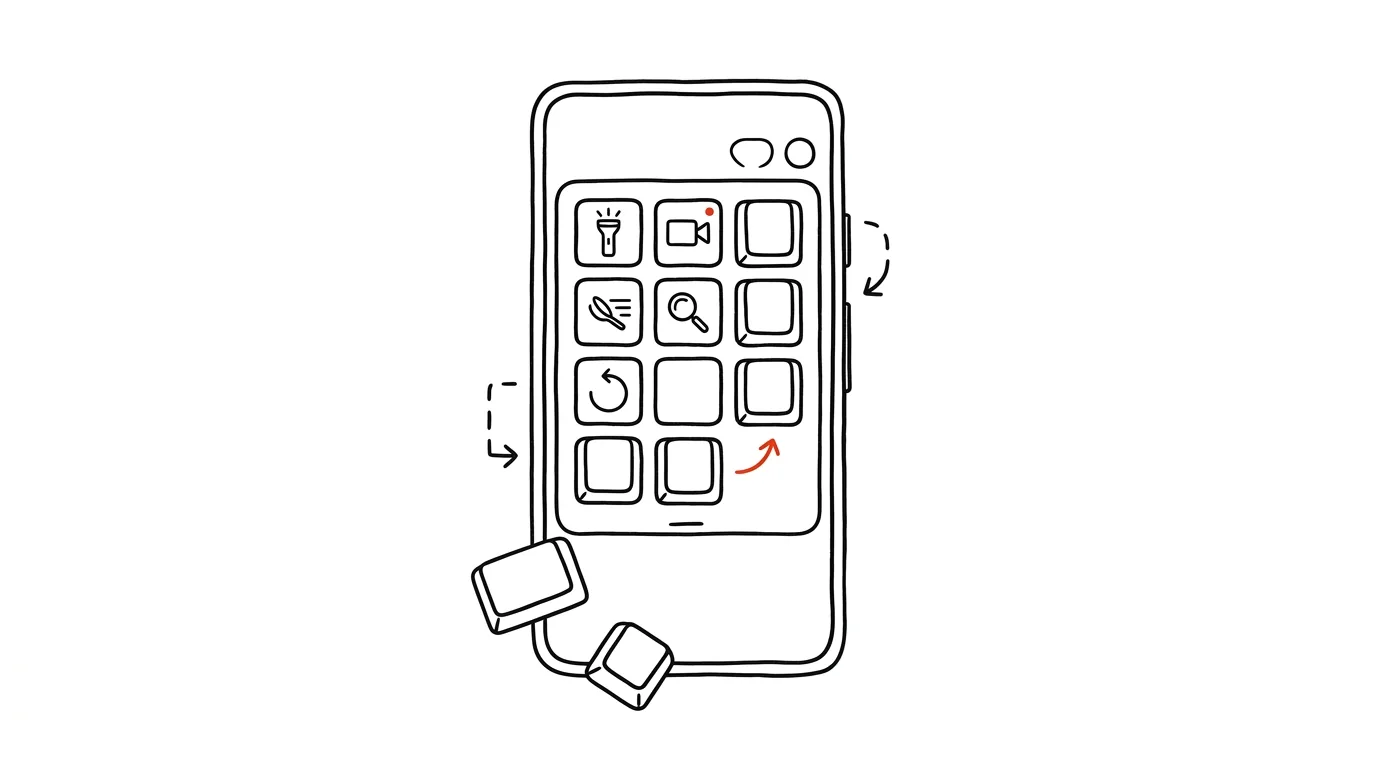
Two swipes and three hunts just for the flashlight? Unnecessary. Android's Quick Settings panel ships arranged the way the manufacturer thinks you'll need it — not the way you actually use it. Rearranging it takes a minute and saves you that minute again, every single day.
A typical scenario
Tomáš, a warehouse worker, often needs to turn on the flashlight and scan a QR code on a box during his shift. In the default layout, he has to pull down the panel, expand it with a second swipe because the flashlight isn't among the first tiles, then find it among ten icons. It's the same story with the QR scanner, only with even more hunting, since there's no tile for it at all and he has to open a separate app. Over a shift, he goes back to both dozens of times, and each time it's the same double swipe and a moment of visual searching.
After rearranging the tiles, the flashlight and screen recording sit among the first four, reachable with one swipe down and no expanding needed. What used to mean two swipes and a moment of hunting is now one thumb movement — and over a whole shift, that adds up to a noticeably pleasant difference, even though each single use only saves a few seconds.
How to do it
- Pull down the Quick Settings panel (swipe down from the top edge of the screen, twice on some phones).
- Find and tap the pencil icon or the three dots that open edit mode.
- In edit mode, all available tiles appear — flashlight, screen recording, Do Not Disturb, hotspot, data saver, and more depending on your phone's manufacturer.
- Drag the ones you actually use to the top and reorder them by how often you use them — put the most frequent ones right at the top.
- Drag tiles you don't need to the bottom or remove them, so you're not searching among icons you'll never tap.
- Remember that the first four tiles are reachable with a single swipe, without expanding the whole panel — that's where whatever you reach for most often belongs.
The best tools
- The built-in Quick Settings editor — part of every Android, nothing extra to install.
- Manufacturer settings (One UI on Samsung, ColorOS, MIUI) — some phones offer even more tiles than stock Android, including manufacturer-specific features.
- Tasker — for more advanced users, it lets you create custom tiles that trigger your own automations, not just system features.
- Button Mapper or a similar app for physical buttons — if even a customized panel isn't fast enough, you can assign a physical button on the phone to launch the flashlight or scanner directly, with no panel at all.
What you get out of it
- Time: a few seconds saved every time you reach for the flashlight, hotspot, or screen recording, which adds up to a few minutes a day with regular use.
- Less annoyance: you don't have to remember where a feature got moved to after the last system update.
- Faster response in the field: for things like the flashlight or QR scanner that you need instantly, one extra swipe is what decides it.
Pro tip
Rearrange the tiles right after every major system update — manufacturers occasionally add new default tiles that shuffle your order, and it's quicker to fix it right away than to live with it for the next few months. The same move is worth repeating after buying a new phone — the default layout never matches what you actually use, and a few minutes of setup on day one saves a lot of small-scale hunting in the weeks that follow.
Want to go deeper? The handbook has a whole chapter on it — The app categories that matter.
Similar tips
Swipe along the bottom edge: Alt+Tab for your phone
Swiping right along the bottom edge of the screen switches to your previous app — on iPhone and on Android with gesture navigation. No app switcher needed.
The Action Button: A Physical Shortcut on the Side of Your iPhone
Newer iPhones have a programmable button above the volume controls. Voice memo, flashlight, camera, or a custom shortcut with one press-and-hold.
Double space: a period, a space, and a capital letter at once
Tap the space bar twice at the end of a sentence — your phone inserts a period and a space, then capitalizes the next sentence. iPhone and Android.
Was this helpful?
Liked this tip?
I send one like it every week by email. Two minutes to read, hours saved.
The Top 30 tips e-book, free — it lands in your inbox right away.
Then 1 tip a week · no spam · unsubscribe in one click
Prefer a system to single tips? The free email course — seven days, seven emails, one skill a day.