Tips & tricks · Apps · Everywhere · ~15 min a day · 3 min read
Dictate instead of typing: you talk 3x faster
Last reviewed:
Win+H
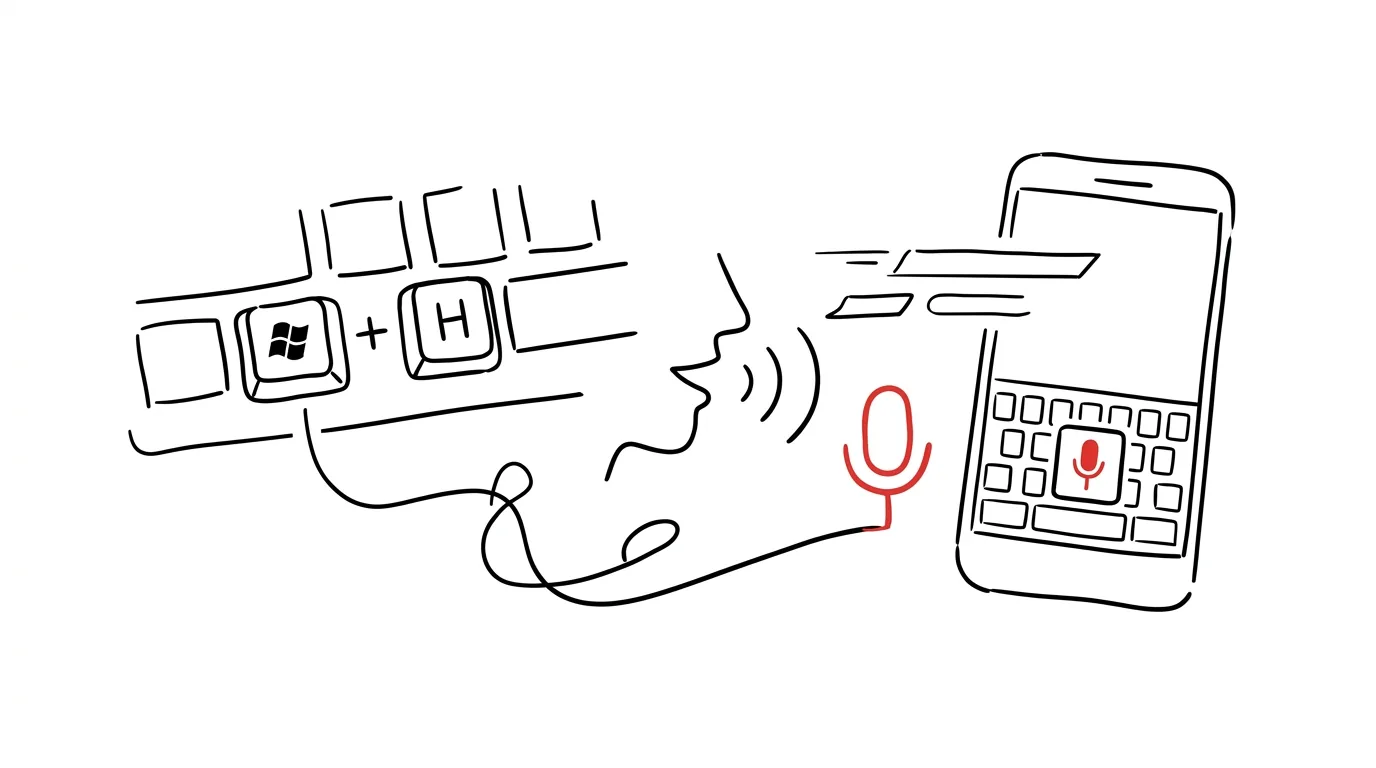
The average person types around 40 words a minute but speaks more than 130. That gap is free — you just have to start using it. Dictation today works reliably in English, built right into your system or your phone's keyboard, with no special installation or paid service required.
A typical scenario
You need to write a longer email explaining some situation to a coworker or a client. Typing it out takes ten minutes of focused tapping, forming sentences on the fly, and fixing typos. Dictating the same content — in a rough, unpolished form — takes a third of the time, because speaking is naturally faster than typing. You then just skim the text for a couple of minutes, fix the punctuation, and send it.
How to do it
- Windows: press Win + H anywhere the text cursor is blinking — in a document, an email, a notepad, or a web form. A small panel with a microphone opens, and dictation starts as soon as you grant microphone access.
- Mac: pressing Fn twice quickly starts dictation right where you're typing. You can turn on or find the feature under Settings → Keyboard → Dictation if the double-press doesn't work by default.
- Mobile: on your phone's keyboard (iOS and Android alike), just tap the microphone icon, usually next to the space bar or in the top bar of the keyboard, and speak — it works in every app where you can type text.
- In all three cases, you'll often need to say punctuation out loud (“comma,” “new line,” “question mark”) or add it manually afterward — automatically detecting punctuation from your tone of voice still isn't reliable across every language and situation.
- Dictation also works offline, albeit with lower accuracy — for Windows and mobile keyboards, it depends on whether the device has downloaded a language pack for speech recognition without an internet connection.
The best tools
- Windows' built-in dictation (Win+H) and dictation in macOS (Fn Fn) — free, work offline and online, nothing extra to install.
- Dictation on your phone's keyboard (Gboard on Android, the built-in keyboard on iOS) — the same thing in your pocket, ideal for quick messages on the go.
- Voice typing in Google Docs — an alternative right in the browser, useful when you're already writing directly in Docs and don't want to switch apps.
- A voice recorder or voice memos on your phone — for a longer stream of thought you want to record in full and transcribe to text later, say during a car ride or a walk.
What you get out of it
- Time: for longer texts, a real savings of several minutes on every email or note — over a typical workday, that adds up to a quarter hour or more.
- Less hand fatigue: long typing sessions wear on your wrists and fingers less, which especially benefits people who write all day.
- A faster first draft: dictated text still needs a read-through and a cleanup pass, but simply “getting the thoughts out” is much faster than hunting for words on a keyboard.
Pro tip
Dictate a rough stream of thought regardless of form and let AI clean up the text into something coherent afterward. Combining dictation with a prompt like “turn this into a clear email” is one of the fastest ways to write today — but if you're feeding sensitive details into the AI (client names, contract numbers, personal information), strip or replace them with a generic description first. It's also worth trying dictation once on something you normally write routinely, like a weekly status update for your team — you'll quickly find out whether this way of writing suits you better than the keyboard, or the other way around.
Want to go deeper? The handbook has a whole chapter on it — The app categories that matter.
Similar tips
Find and Replace in Word: more than just text
Ctrl+H
Ctrl+H can also replace formatting, double spaces, and paragraph marks. Cleaning up a whole document in a few clicks.
Shift+F3: change letter case without retyping
Shift+F3
Caps Lock stuck on by accident? Select the text and Shift+F3 cycles between lowercase, Title Case, and UPPERCASE.
Shift+F5 in Word: jump to your last edit
Shift+F5
Open a document and Word dumps you at the start. Shift+F5 jumps exactly to where you last stopped writing.
Was this helpful?
Liked this tip?
I send one like it every week by email. Two minutes to read, hours saved.
The Top 30 tips e-book, free — it lands in your inbox right away.
Then 1 tip a week · no spam · unsubscribe in one click
Prefer a system to single tips? The free email course — seven days, seven emails, one skill a day.