Tips & tricks · Gear · Everywhere · ~5 min a day · 3 min read
A docking station: one cable and you're working
Last reviewed:
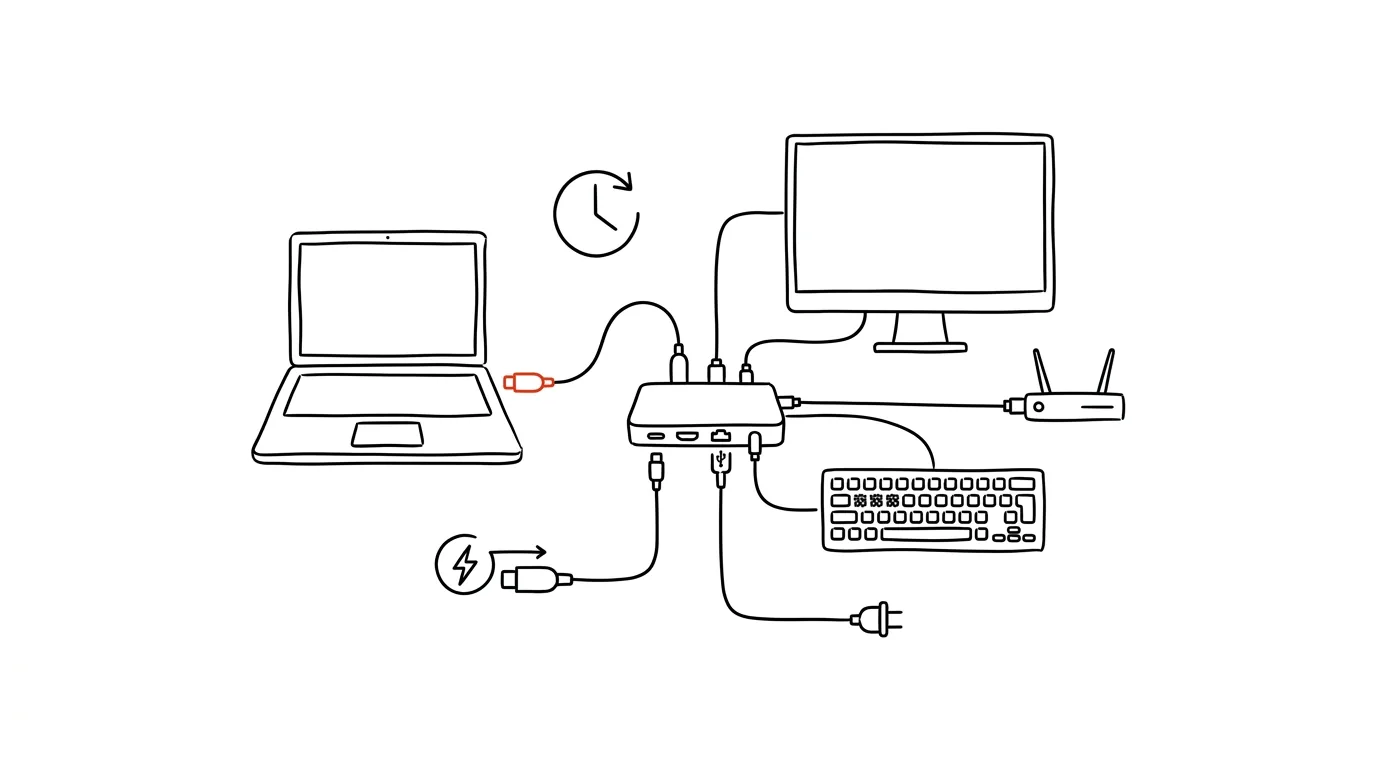
Plugging in four cables every day is friction you don't have to pay. A cable to the monitor, a cable to the charger, a cable to the network, a cable to the keyboard or mouse — all of it every morning when you sit down to work, and again in reverse every evening when you pack up your laptop to take it home. A docking station shrinks that whole ritual down to a single cable.
A typical scenario
You arrive at your desk in the morning with your laptop in your bag. Without a docking station, the familiar ritual follows: plug in power, connect the monitor cable, plug in the network cable, swap over the USB cable for your keyboard and mouse — four or five steps before you even start working. In the evening, it all happens in reverse, since you're taking the laptop home. With a docking station, all it takes is one cable (usually USB-C) that carries video, data, and power all at once. Connecting and disconnecting is a single motion.
How to do it
- Get a docking station or a USB-C hub with power delivery support (labeled PD, Power Delivery) — one that can carry video to your monitor, data from USB devices, an ethernet connection, and charge your laptop, all at the same time.
- Plug your monitor, keyboard, mouse, ethernet cable, and charger into the dock permanently, and leave them there for good — don't unplug them when you leave.
- Then connect your laptop to your whole setup with a single cable running from the dock. Disconnecting when you leave is just as simple — pull one connector and take the laptop with you.
- If you split your time between home and the office, consider getting a second, identical (or compatible) dock for both places — that way, connecting is identical in both spots and you never have to think about which cable goes where.
- When choosing a dock, make sure it supports enough charging power for your specific laptop (more powerful machines need higher wattage) — an underpowered dock will only charge your laptop slowly, or not at all.
- Also check the number and type of ports you actually need — some people appreciate an extra memory card reader or more USB ports for external drives, while others are fine with just the basics: video, network, charging.
The best tools
- A USB-C docking station with power delivery (PD) support — the standard solution for most modern laptops with a single USB-C port, handling video, data, and charging all at once.
- A Thunderbolt dock — a more capable option for demanding use, like connecting two monitors at once or fast external drives.
- An unpowered USB-C hub — a cheaper, smaller alternative for trips when you don't need the full functionality of a desk dock, just a few extra ports.
- A dock with a built-in laptop stand — combines cable connections with raising your laptop to eye level, useful if you also use the laptop as a second monitor.
What you get out of it
- Time: you save several minutes a day on plugging and unplugging cables, which adds up to hours over a year.
- Less port wear: frequently plugging and unplugging multiple cables strains your laptop's ports more than a single sturdy dock cable does.
- A tidier desk: cables stay permanently plugged into the dock, so there's no daily tangle of connectors on your desk.
- The same experience at home and the office: with the same setup in both places, you never have to think about how anything connects — it's the same everywhere.
Pro tip
When choosing a dock, favor a model with enough charging wattage for your specific laptop — for more powerful machines (typically work laptops with a beefier processor), an underpowered dock won't keep up with charging, and the laptop will slowly drain even while plugged in. Before buying a dock, check the exact charging power your laptop requires in its technical specs — from the manufacturer, or in your system settings, where it's usually listed alongside battery information.
Want to go deeper? The handbook has a whole chapter on it — The complete guide to an effective home office.
Similar tips
A Forgotten Password? Your Browser Knows It
A password your browser once saved can be revealed anytime — uncovering a login you thought was lost for good.
Voice capture: write down an idea even when you can't type
In the car, on a walk, with your hands full of groceries: “Hey Siri, add…” and the thought is in the system.
Shift+Click on the Taskbar Opens a Second Window of an App
Clicking a running app's taskbar icon just brings it to the front. Shift+click opens a new window, Ctrl+Shift+click launches it as admin — three tricks in one icon.
Was this helpful?
Liked this tip?
I send one like it every week by email. Two minutes to read, hours saved.
The Top 30 tips e-book, free — it lands in your inbox right away.
Then 1 tip a week · no spam · unsubscribe in one click
Prefer a system to single tips? The free email course — seven days, seven emails, one skill a day.