Tips & tricks · Workflow · Everywhere · ~20 min a day · 4 min read
The two-minute rule for your inbox
Last reviewed:
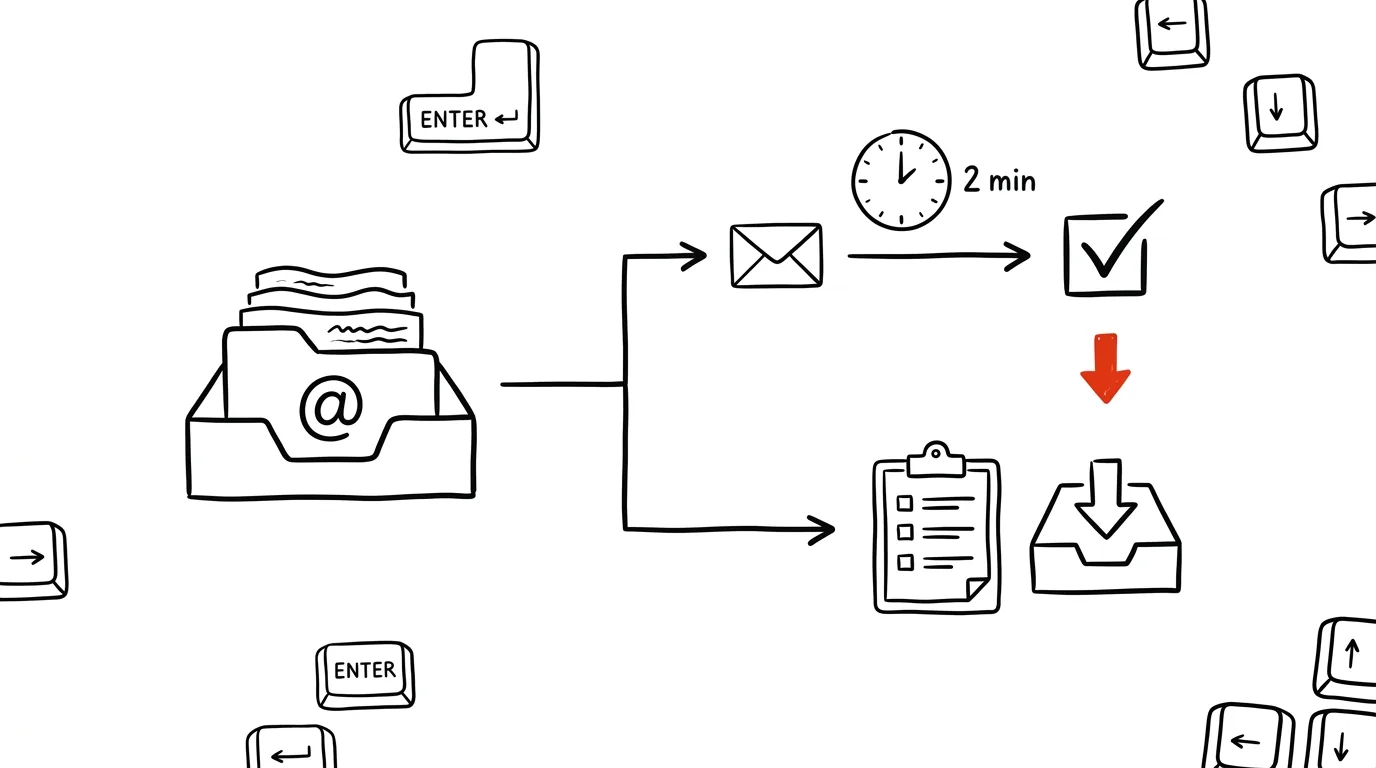
Reading an email and leaving it in your inbox “for later” means reading it twice — once now, and again once you come back to it and have to reconstruct the context from scratch. The two-minute rule breaks that cycle with a simple test: if a task takes less than two minutes, you do it right away. If it takes longer, it goes to your task list with a deadline, and the email disappears from your inbox. The result is an inbox you read once, for good.
A typical scenario
Jana runs a small team and opens her inbox in the morning to find forty unread messages. Without the rule, the scenario is always the same: she clicks through the first three emails, doesn't have a ready answer for the fourth, leaves it “for later,” and opens the fifth. An hour later, she's read twenty messages, replied to three, and is left with a vague sense that something's hanging over her — but she'll have to dig around again to remember exactly what.
With the rule, it looks different. Jana goes through the same forty emails, but decides on each one immediately: a short reply gets written on the spot, a bigger task gets moved to her task list with a deadline, a purely informational message just gets read and archived. After the same hour, her inbox is empty and her task list has three new items with clear deadlines — instead of twenty unresolved threads.
How to do it
- Only open an email when you actually have time to do something about it — skimming “just quickly” between meetings is exactly the habit this rule is meant to fix.
- The moment you open an email, decide right away how much time it needs. A short reply, a forward, or a confirmation under two minutes → handle it right now and archive the email.
- Anything over two minutes (you need supporting material, need to think through a response, need to ask a coworker) → create a task in your task list with a deadline and archive the email immediately — it doesn't stay in your inbox as a reminder.
- Purely informational messages (CCs, newsletters, order confirmations) → read and archive, no further step needed.
- The goal is an inbox that ends up empty or nearly empty after you go through it — not because you deleted work, but because every message already has its place: either it's done, or it's waiting on your task list with a deadline.
The best tools
- One-key archiving (Gmail, Outlook) — both apps have a built-in shortcut for archiving without deleting; it's worth finding it in your shortcut settings and using it automatically.
- Quick Steps in Outlook / canned responses in Gmail — for recurring short replies (confirmations, forwards), these save writing from scratch every time.
- Todoist, Microsoft To Do, or another task manager — this is where everything over two minutes belongs; integration with email (adding a task with one click from an email) speeds the rule up significantly.
- Snooze — if an email needs handling but not today, snoozing it is better than leaving it sitting in your inbox as visual clutter.
What you get out of it
- Time: roughly 15–20 minutes a day that would otherwise go to rereading the same messages and figuring out what you actually meant to do with them.
- Peace of mind: an empty inbox isn't about aesthetics — it's confirmation that nothing is left hanging, because every message has a decision attached to it.
- Fewer forgotten tasks: anything that requires time gets a deadline on your task list, instead of just the hope that you'll remember it next time you're scrolling through your inbox.
Pro tip
Your inbox is not a task list: a task like “reply to Smith about the proposal” belongs in your task system, where it has a deadline and a priority, not in your email, where it gets lost among dozens of other messages. When “to handle” messages start piling up in your inbox, that's a signal you're not applying the rule in that moment — go back to step 2 and decide on each one again.
Want to go deeper? The handbook has a whole chapter on it — Core systems: inbox, priorities, reviews.
Similar tips
Swiped Away a Notification by Accident? Android Has a History
Notification history shows everything from the last 24 hours — including notifications you swiped away before you had a chance to read them.
Quick Share: Files From Android to Windows, No Cable
AirDrop's counterpart is built into every newer Android phone — and with a free app from Google it sends photos and files to Windows too.
Android: two apps on screen at the same time
Notes next to your browser, or a calendar next to email — split screen is genuinely usable on bigger phones.
Was this helpful?
Liked this tip?
I send one like it every week by email. Two minutes to read, hours saved.
The Top 30 tips e-book, free — it lands in your inbox right away.
Then 1 tip a week · no spam · unsubscribe in one click
Prefer a system to single tips? The free email course — seven days, seven emails, one skill a day.