Tips & tricks · Shortcuts · Mobile · ~5 min a week · 3 min read
Android: two apps on screen at the same time
Last reviewed:
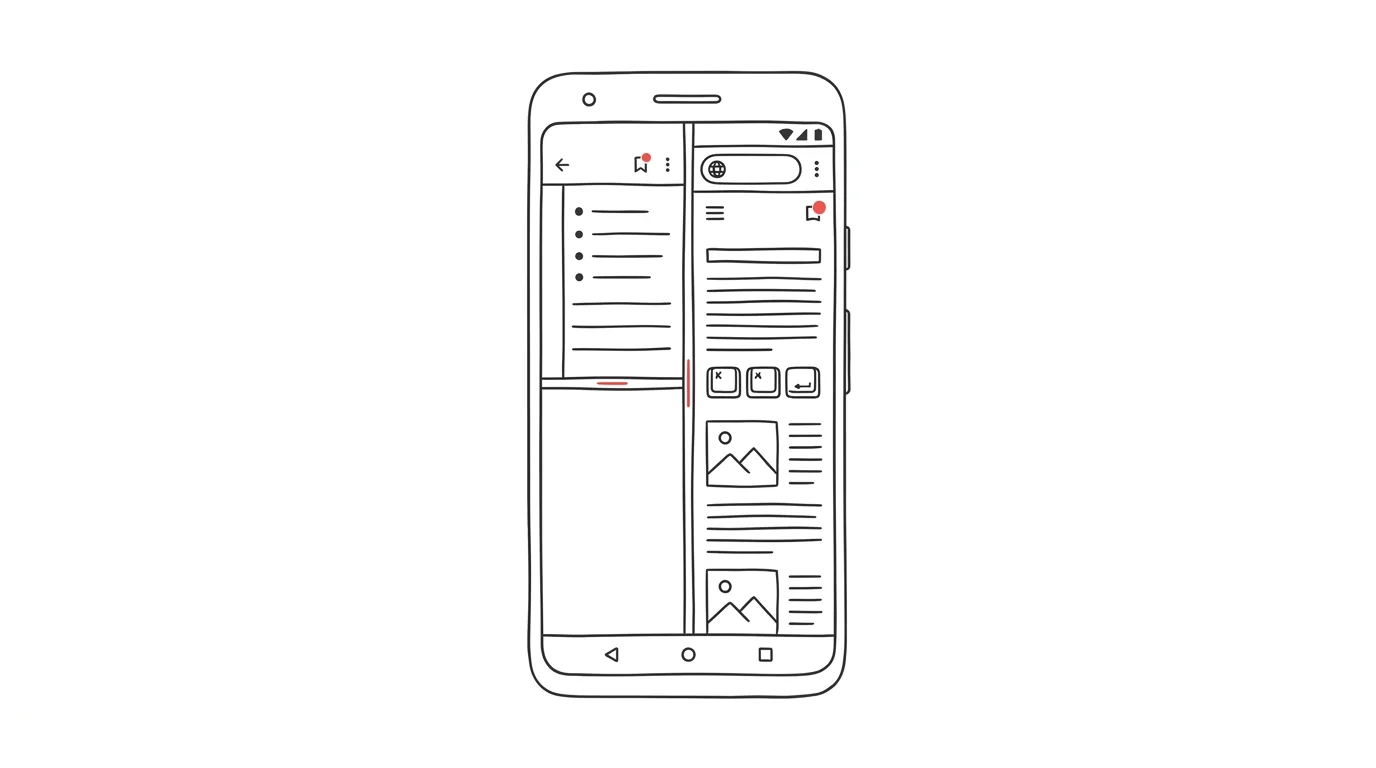
Copying data between two apps by switching back and forth is a hassle — open one, remember the number or sentence, switch, paste, and if you're not sure, switch back and forth again just to check. On larger phones you don't have to do that at all anymore: split screen shows both apps side by side.
A typical scenario
Nikola, an assistant, gets a meeting time by email and needs to add it to her calendar. Without split screen that means: open the email, memorize the date and time, switch to the calendar, create the event, switch back to the email to check she remembered the date correctly — and often finds out she got the hour wrong.
With split screen, she has the email up top and the calendar at the bottom, both at once. She copies the time exactly as she sees it, with no detour through memory. What used to mean four switches and a risk of error is now one glance at both apps together.
How to do it
- Open the app overview — on most phones, a swipe up from the bottom edge and hold, or the app-overview button if your phone has one.
- Find the first app you want to use, press and hold its icon at the top of the preview, and choose Split screen from the menu.
- The phone will prompt you to pick a second app — choose it from the list or from the home screen.
- Both apps appear side by side (stacked when in portrait, side by side in landscape), and you can drag the divider between them with your finger, depending on which app needs more room.
- This combination works especially well for pairs like notes and browser, calendar and email, or chat and a document you're copying information into.
- Exit split screen by dragging the divider all the way to one side, or by picking a different combination from the app overview.
The best tools
- Android's built-in split screen — works with no installation on most phones with a big enough display, just find it in the app overview.
- Samsung — Multi Window and floating windows — on Samsung phones it also allows a third window as a floating bubble on top of the two split apps.
- Apps for moving content between apps (e.g. sharing or clipboard) — combined with split screen, they let you drag text or an image straight from one half to the other with your finger, no copy-paste needed.
- Android tablets (Samsung Galaxy Tab and similar) — split screen is more comfortable on a larger diagonal than on a phone, and works well for longer sessions too, not just quick copying.
What you get out of it
- Time: a few tens of seconds saved on every copy between apps, which adds up to a comfortable 5 minutes a week with regular use.
- Accuracy: less risk of a typo or mixing up a number or date, because you see both apps at once instead of relying on memory.
- Clarity: also useful for comparisons — two offers, two emails, or two versions of a text side by side instead of switching back and forth.
Pro tip
On phones that support it, you can pin a chosen pair of apps so it opens together again next time — handy for combinations you use regularly, like notes and email. Also try landscape orientation (phone turned sideways) — for some app pairings, side by side is clearer than stacked, especially if one of them shows longer text.
Want to go deeper? The handbook has a whole chapter on it — The app categories that matter.
Similar tips
Google Sheets: filtering that doesn't wreck your teammates' view
A filter view filters data just for you — everyone else in the shared sheet sees everything unchanged.
Version history: who changed what, and when
Ctrl+Alt+Shift+H
Google Sheets and Docs save every single change. Ctrl+Alt+Shift+H opens a timeline — and you can revert to any point.
IMPORTRANGE: connect two Google Sheets live
One function pulls data from another spreadsheet into yours — and keeps it current. No more manually copying numbers between files.
Was this helpful?
Liked this tip?
I send one like it every week by email. Two minutes to read, hours saved.
The Top 30 tips e-book, free — it lands in your inbox right away.
Then 1 tip a week · no spam · unsubscribe in one click
Prefer a system to single tips? The free email course — seven days, seven emails, one skill a day.