Tips & tricks · Apps · Browser · peace of mind · 3 min read
Version history: who changed what, and when
Last reviewed:
Ctrl+Alt+Shift+H
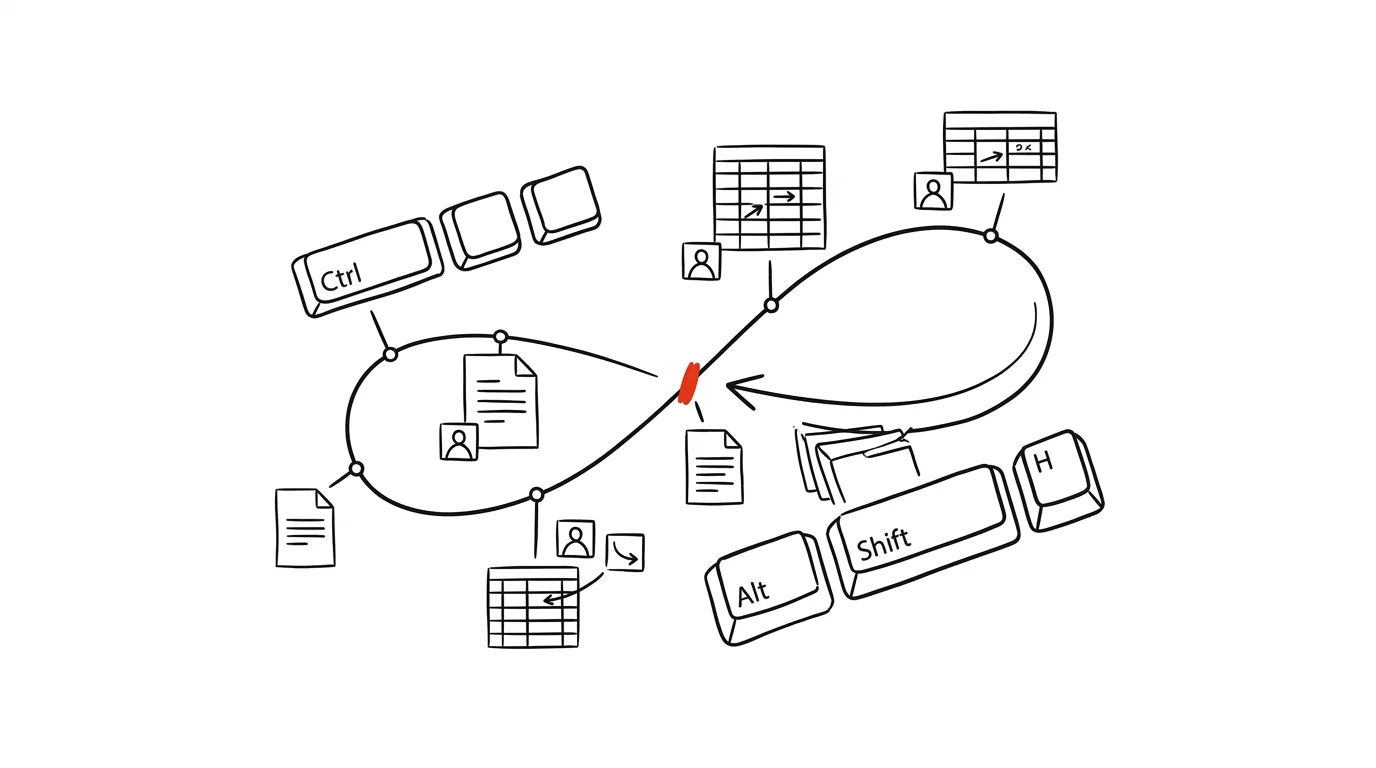
“Who overwrote this?!” always has an answer in Google. Sheets and Docs quietly save absolutely every change anyone makes to a shared file — and you can open that history at any time, browse it like a timeline, and, if needed, revert to any previous state, without ever having to back anything up by hand.
A typical scenario
You share a budget spreadsheet with the whole team, and the next day you notice a completely different number has appeared in one cell than what should be there. Nobody admits to it, and without version history you'd just be guessing who changed it and when — or, worse, the data might genuinely be lost if nobody remembers the original value. With version history, you open the timeline, see in color who edited that specific cell and when, find the exact moment of the change — and if needed, revert the whole document (or just check the value) to the state before that edit.
How to do it
- Press Ctrl + Alt + Shift + H in an open sheet or document — or go through the menu File → Version history → See version history.
- A panel opens on the right with a list of all saved versions, sorted by time, each one labeled with the name of who made the change.
- Clicking a specific version temporarily switches the sheet or document's content to how it looked at that moment — changes are also color-coded by who made them, so you can easily tell whose edit it was.
- If you need to revert the document to a past state, click Restore this version — the current content gets replaced with the selected historical version, while the history itself stays intact, so you can revert back again if needed.
- History is saved automatically with no limit on the number of versions — there's nothing to run or turn on manually, it works from the very first time the file is saved.
The best tools
- Built-in version history in Google Sheets and Docs — free, works automatically with no setup at all.
- Version history in Excel Online / OneDrive — an equivalent feature for Microsoft 365 users, accessible via File → Version history.
- Regular exports or file copies — as a supplement for especially critical documents where you want an independent backup outside the app's own history.
What you get out of it
- Peace of mind: nothing in a shared file is ever permanently lost — a mistake can always be traced and fixed.
- Faster dispute resolution: instead of arguing over “who did this,” you have a clear, time-ordered trail with names attached.
- Confidence to experiment: you can try bigger edits without worry, because reverting to a previous state is a matter of a few clicks.
- Insight into a document's evolution: on long-running shared sheets, you can see how the data changed over time, which is also useful for after-the-fact review.
Pro tip
Name important milestones (say, the version sent to a client) so they're easy to find in a long history — via File → Version history → Name current version. A named version gets highlighted in the list and won't get lost among dozens of routine auto-saves.
Want to go deeper? The handbook has a whole chapter on it — The app categories that matter.
Similar tips
Win + L: lock your computer every time you step away
Win+L
The fastest security habit there is. One keypress and nobody can see what you're working on.
Alt+Space: the window menu that rescues a lost window
Alt+Space
The system window menu can move a window with arrow keys — a lifesaver when a window ends up off-screen after unplugging a monitor.
Do Not Disturb can turn itself on — while presenting and in the evenings
A notification in the middle of a shared screen is a nightmare. Windows can turn on Do Not Disturb automatically while presenting, gaming, or at set hours.
Was this helpful?
Liked this tip?
I send one like it every week by email. Two minutes to read, hours saved.
The Top 30 tips e-book, free — it lands in your inbox right away.
Then 1 tip a week · no spam · unsubscribe in one click
Prefer a system to single tips? The free email course — seven days, seven emails, one skill a day.