Tips & tricks · Apps · Browser · ~10 min a week · 3 min read
Google Sheets: filtering that doesn't wreck your teammates' view
Last reviewed:
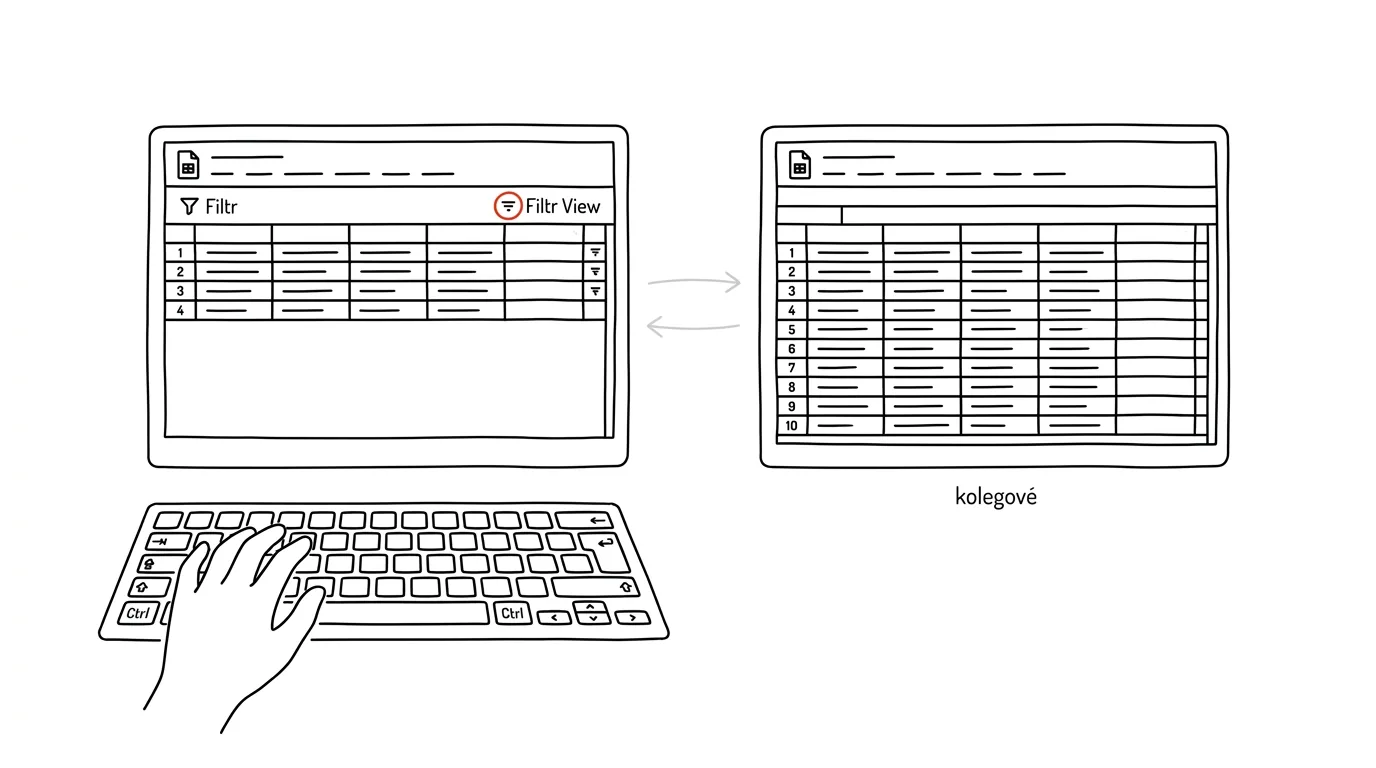
In a shared spreadsheet, a regular filter is sabotage — it filters the view for everyone looking at it, even if you only needed it for yourself for a moment. Google Sheets has the fix built in: a filter view that behaves exactly like a regular filter, but only you see it. The rest of the team keeps looking at the same unchanged data, no matter how you filter or sort.
A typical scenario
You have a shared spreadsheet with orders for the whole team, and you need to briefly show just the orders for your region to check them. You click the regular filter, set a condition — and at that moment, rows that colleagues who have the sheet open at the same time actually need disappear from their view too. Someone complains the “sheet is broken” before you figure out what happened and turn the filter back off. With a filter view, the sheet stays unchanged for colleagues the entire time — you filter and sort however you like, and nobody else even notices.
How to do it
- From the top menu, go to Data → Filter views → Create new filter view.
- The sheet's border turns dark — that's how Google Sheets signals you're now in a private filtering mode that only affects you.
- Set up your filters (by column, value, cell color, and so on) and sorting exactly as you would with a regular filter — the only difference is who sees the change.
- Colleagues who have the sheet open at the same moment see absolutely nothing change in their view — they see all the data exactly as it was before.
- Give the view a descriptive name, like “My regions” or “Q3 check” — next time you just pick it from the list of saved views instead of setting the filters up again from scratch.
- When you no longer need the filter view, close it with the X in the top right — the sheet returns to the normal shared view.
The best tools
- Filter views in Google Sheets — a free built-in feature that solves exactly this problem without installing anything.
- Conditional formatting combined with a filter view — highlights rows by condition, so you can spot what you're looking for at a glance even without filtering.
- Splitting into separate sheets — for a permanent, not temporary, split of data (say, one sheet per region), this is better suited than filtering on the fly.
What you get out of it
- Time: an estimated 10 minutes a week saved on the situations where someone accidentally filters a shared sheet and it has to get sorted out and fixed.
- Team peace of mind: colleagues can trust that data won't shift under them no matter what you're doing to the sheet.
- Faster repeat work: named saved views mean that next week you filter the same data with one click instead of setting it up from zero.
- Lower risk of error: no more “I accidentally wiped someone's view of the data,” because a filter view is strictly private.
Pro tip
You can save several filter views at once in a single sheet — each with its own settings and name. That's handy if you regularly check the same sheet from different angles (by region, by month, by order status) and don't want to rebuild the filters every time.
Want to go deeper? The handbook has a whole chapter on it — The app categories that matter.
Similar tips
Send and Archive: Two Actions, One Button
A hidden Gmail setting adds a second button to Reply that sends the email and tidies the conversation out of your inbox in one move. One click instead of two.
Schedule your email to send at the right time
An email written Saturday evening can go out Monday at 8 AM. Scheduled sending respects the recipient's time — and your reputation.
Snooze an email until you can actually do something about it
The Snooze feature hides an email from your inbox and brings it back at a time you choose. Your inbox stays clean and nothing gets lost.
Was this helpful?
Liked this tip?
I send one like it every week by email. Two minutes to read, hours saved.
The Top 30 tips e-book, free — it lands in your inbox right away.
Then 1 tip a week · no spam · unsubscribe in one click
Prefer a system to single tips? The free email course — seven days, seven emails, one skill a day.