Tips & tricks · Communication · Browser · ~10 min a day · 3 min read
Snooze an email until you can actually do something about it
Last reviewed:
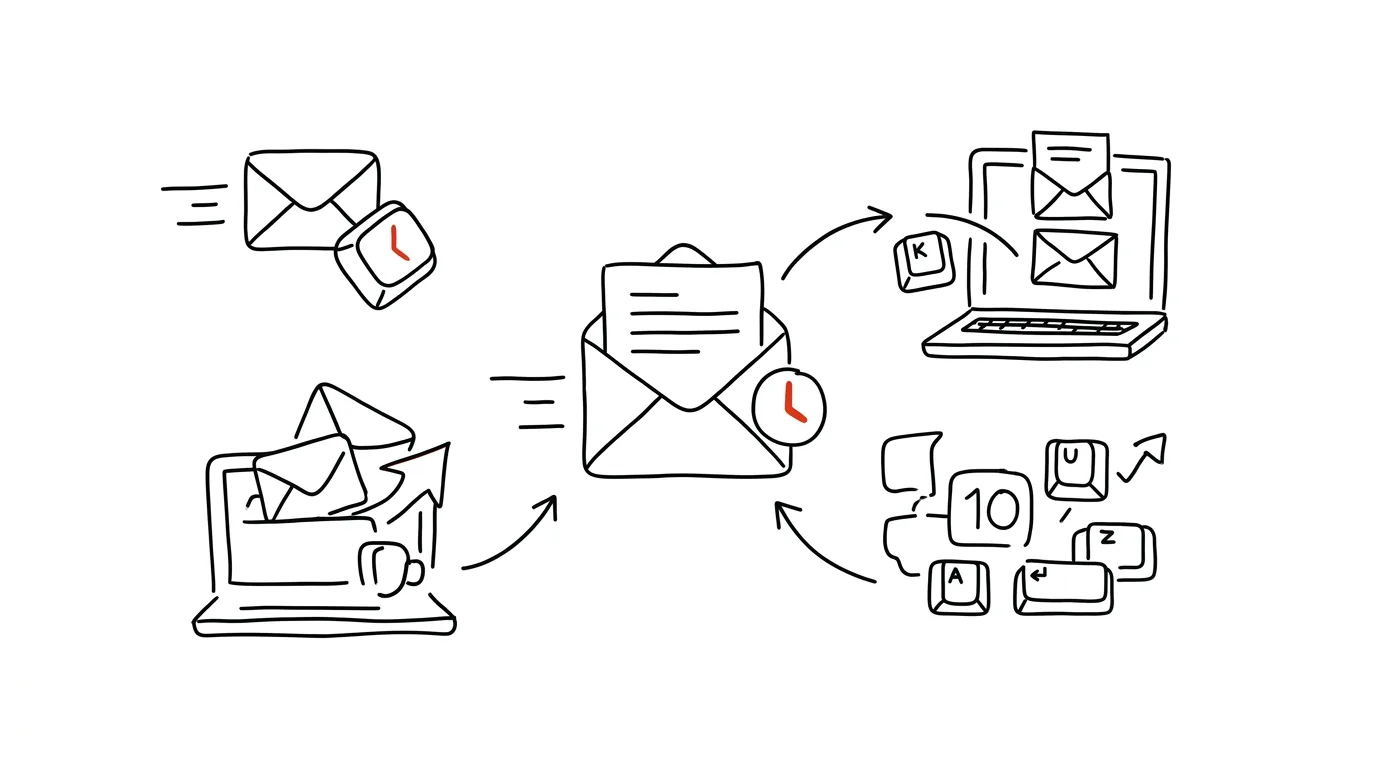
An email you can't do anything about right now just sits in your inbox in the way, eating up attention — you see it every time you open your inbox, but you can't reply to it yet because you're waiting on information, on a coworker, or simply on a better moment. The Snooze feature temporarily hides that email and brings it back exactly when you can actually do something about it, instead of your attention having to keep bumping into it over and over.
A typical scenario
Project manager Zuzana gets an email requesting budget approval that she can't respond to until she meets with finance on Tuesday. The email sits in her inbox all week, flashing in front of her every time she opens her mail and reminding her of something she can't resolve any sooner than Tuesday anyway.
With Snooze, the email disappears from her inbox entirely and comes back on its own Tuesday morning — exactly when it makes sense to deal with it. Until then, Zuzana has a clean inbox and no unnecessary reminder of an unsolvable task in her head.
How to do it
- Hover over a message in the list and click the clock icon (Snooze) that appears next to it, or — if you already have the email open — press B.
- Choose when the email should come back: the usual options are tomorrow morning, this weekend, next week, or set a custom date and time as needed.
- The email immediately moves from your inbox into a special Snoozed section, from which you can manually bring it back early anytime if the situation changes.
- At the chosen time, the email automatically returns to the top of your inbox, as if it had just arrived, with the same visibility as a new message.
- You can snooze multiple messages at once — select them with the checkboxes in the list and use the same clock icon above the list.
- If you notice you regularly need to snooze a particular email to the same time (say, Monday morning because of a meeting), consider pairing it with a scheduled calendar event, so you get a reminder outside Gmail too.
- Go through the entire Snoozed section every so often, not just react to individual emails as they come back — it's easy to accumulate more snoozed messages there than you'd expect.
The best tools
- Gmail's built-in Snooze feature — free, works directly in the interface, no extension needed.
- Scheduled tasks in Outlook — a similar principle for Microsoft 365 users.
- Todoist or a similar task manager with email integration — useful when you want to turn an email straight into a task with a deadline, not just hide it temporarily.
- Labels with a custom priority system — an alternative to snoozing for people who prefer having everything visible, just sorted by urgency instead of hidden from view.
What you get out of it
- Time: roughly 10 minutes a day that would otherwise go to repeatedly glancing at and re-reading emails you can't act on yet.
- A clean inbox that acts as a real to-do list: it holds only what needs attention right now, not things planned for later.
- Less mental load: your brain doesn't have to remember on its own that you need to reply to this tomorrow — a snoozed email comes back on its own, at the right time.
- Nothing gets lost: unlike archiving "for later, whenever I have time," a snoozed email has a fixed return date.
- A more realistic inbox: what you see when you open your mail matches what you can actually deal with right now, not everything that's ever arrived.
Pro tip
Combine Snooze with scheduled sending — snooze an email until you have time to reply, and schedule the reply to go out at the right hour, all without two separate features requiring two separate extra steps.
Want to go deeper? The handbook has a whole chapter on it — Professional email communication.
Similar tips
iPhone search: swipe down to find anything
Swiping down on the home screen opens search — apps, contacts, messages, and calculations. Faster than hunting for icons.
Tap the clock to jump a long page back to the top
On iPhone, just tap the status bar with the clock and any long list, webpage, or chat snaps back to the top. No scrolling required.
iPhone Shortcuts: your phone switches into work mode by itself
The Shortcuts app can do automations: arriving at the office turns on Do Not Disturb, opening Instagram starts a timer.
Was this helpful?
Liked this tip?
I send one like it every week by email. Two minutes to read, hours saved.
The Top 30 tips e-book, free — it lands in your inbox right away.
Then 1 tip a week · no spam · unsubscribe in one click
Prefer a system to single tips? The free email course — seven days, seven emails, one skill a day.