Tips & tricks · Shortcuts · Mobile · ~3 min a day · 2 min read
iPhone search: swipe down to find anything
Last reviewed:
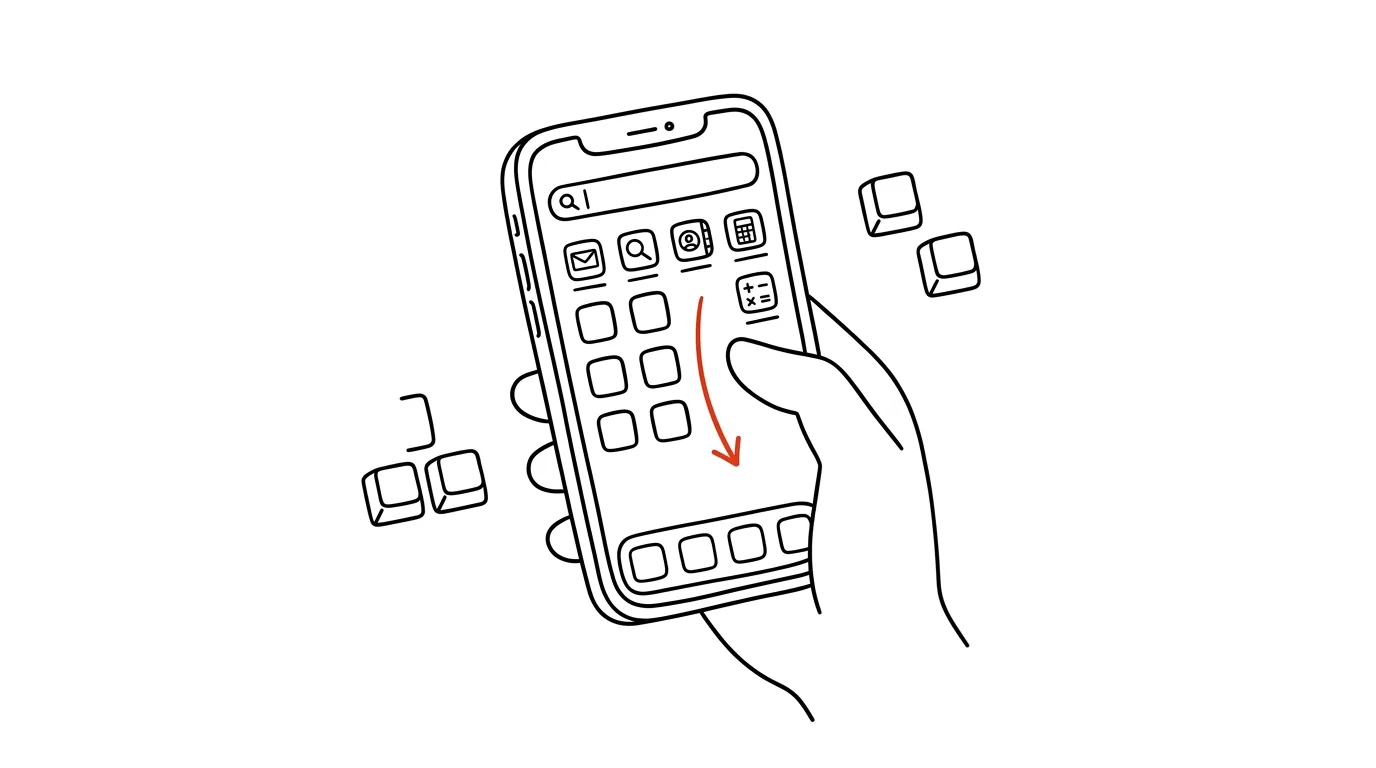
With 100+ apps on your phone, flipping through home screen pages is pointless. Spotlight — the search you open by swiping down with your finger — finds an app, contact, or calculation faster than you could ever spot it among rows of icons. A few letters is all it takes, and your phone surfaces exactly what you're looking for.
A typical scenario
You need to quickly work out 15 percent of a restaurant bill, or find a colleague's number saved under their last name. Scrolling through home screens means hunting for the calculator app among dozens of others, or opening Contacts and scrolling through the alphabet. Swipe down, type a few characters, and you have your answer instantly — whether it's a calculation, a contact, or the app you were after all along.
How to do it
- Swipe down with your finger anywhere on the home screen — it works even in the middle of the screen, you don't need to be on the first page.
- Start typing — Spotlight suggests results as you go, ranked by relevance and what you've searched for recently.
- Type an app's name and hit Enter — it opens directly, even if you have no idea which page it lives on.
- Type a contact's name and you'll immediately see options to call, message, or email them.
- Type a math expression, like "127*4" — Spotlight shows the result without opening the calculator.
- Spotlight also searches inside messages, emails, and notes, so it doubles as a quick search across your whole phone.
The best tools
- Spotlight (iOS) — built in, works instantly, nothing to configure.
- App drawer search (Android) — the same feature under a different name, available by swiping up on the home screen.
- Home screen search widget — for anyone who wants a search field permanently visible without the gesture.
What you get out of it
- Time: hunting for an icon by eye can take ten seconds; typing two letters and hitting Enter takes two — for anyone with a crowded home screen, that adds up to a few minutes a day.
- A less cluttered home screen: you don't need to sort apps into folders by category, just find them by name.
- Faster quick math: a calculator within reach without opening a separate app.
- One place for everything: apps, contacts, messages, and notes are all searched from the same field instead of five separate apps.
Pro tip
Spotlight remembers what you open most often, so after a few days of use, typing just the first letter is enough for the app you want to jump to the top suggestion. It pays to use Spotlight consistently instead of digging through home screens — the more you use it, the faster it learns you.
Want to go deeper? The handbook has a whole chapter on it — The app categories that matter.
Similar tips
In-depth guide · 20 min
Artifacts: mini-apps without coding
A guide with prompts: how a plain description becomes a working calculator, quiz, or prototype, refining and sharing it — and when you need a real app.
In-depth guide · 19 min
Claude, ChatGPT, or Gemini: A Fair Comparison Based on What You Actually Do With AI
Seven criteria, three tools, no marketing: language quality, documents, connectors, routines, and pricing. Plus a decision guide and a test of your pick.
In-depth guide · 29 min
Morning brief: what needs a decision today
A complete guide with 14 prompts: Claude Cowork checks Slack, mail, calendar, and dashboards, then hands you a ranked list of what's on you today.
Was this helpful?
Liked this tip?
I send one like it every week by email. Two minutes to read, hours saved.
The Top 30 tips e-book, free — it lands in your inbox right away.
Then 1 tip a week · no spam · unsubscribe in one click
Prefer a system to single tips? The free email course — seven days, seven emails, one skill a day.