Tips & tricks · Apps · Mobile · ~10 min a day · 2 min read
iPhone Shortcuts: your phone switches into work mode by itself
Last reviewed:
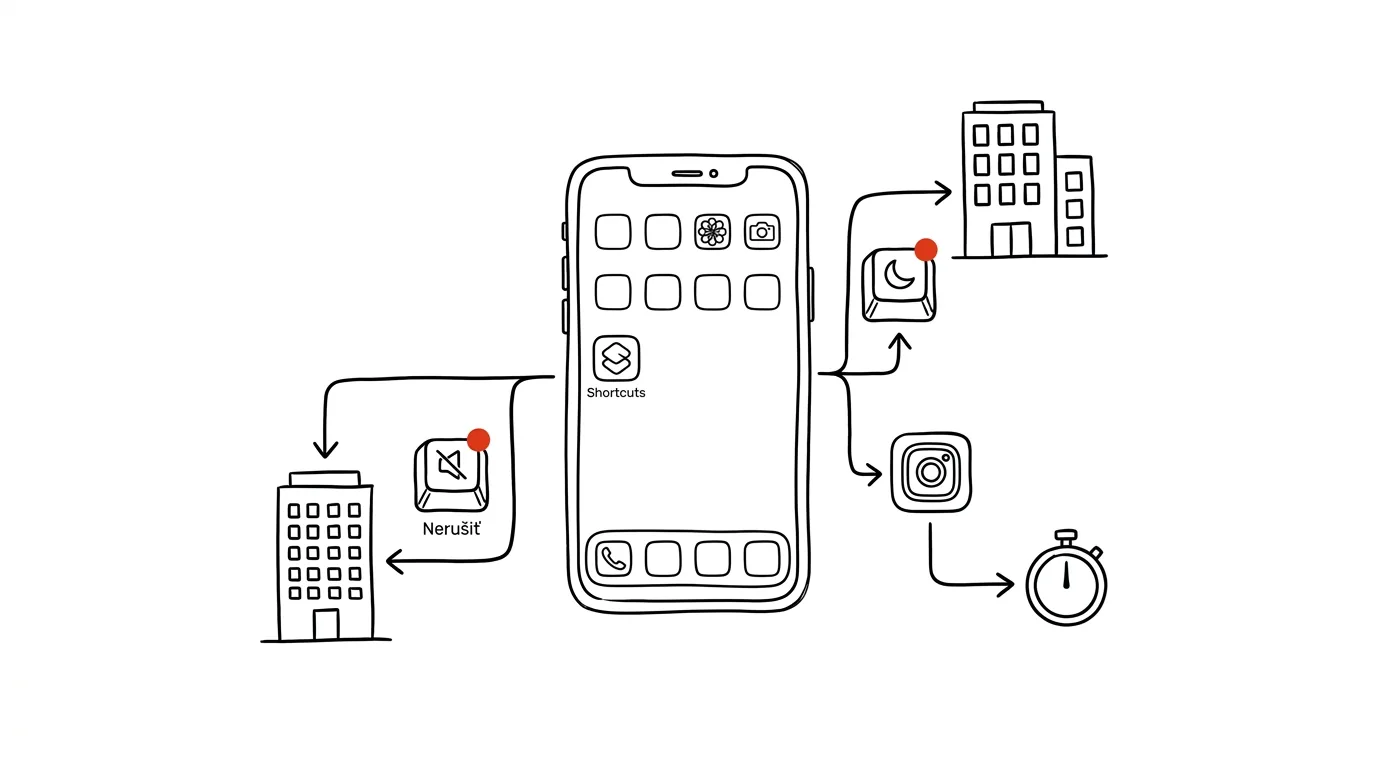
The best habits are the ones your phone handles for you. Beyond one-off sequences of steps, the Shortcuts app can also run automations — rules that trigger themselves based on time, location, or what you're currently doing on your phone, with zero taps from you.
A typical scenario
Every morning at the office you do the same thing: silence your phone, turn on a focus mode, and open your task list to see what's planned for the day. Doing it manually takes half a minute, but more importantly, it's easy to forget, especially when you're rushing or dealing with something else. With an automation tied to arriving at the office (or to a specific time), all three steps happen on their own while you're still taking off your jacket.
How to do it
- Open the Shortcuts app and switch to the Automation tab.
- Tap + and select Create Personal Automation.
- Choose a trigger: a specific time, arriving at or leaving a location, opening a particular app, connecting to a Wi-Fi network, and plenty more.
- Add one or more actions to run — turning on a focus mode, sending a message, starting music, opening an app.
- Turn off Ask Before Running if you want the automation to run completely without confirmation — otherwise it will ask you every time it fires.
- Save the automation; from then on it runs in the background by itself until you turn it off or edit it.
The best tools
- Shortcuts app (iOS) — built in, free, handles most everyday automations without writing a single line of code.
- Google Assistant Routines / Tasker (Android) — similar functionality for Android, with Tasker going even further for power users.
- IFTTT — for automations that reach beyond the phone, like connecting to smart home devices or web services.
What you get out of it
- Time: you're not doing a repeating sequence of steps by hand every day — for a three-step morning routine, that's only a few dozen seconds daily, but consistency is the bigger win.
- Reliability: the automation never forgets, whether you're in a rush or your head is full of other things.
- Less mental load: you don't have to think about the steps of the routine, your phone does them for you at the right moment.
- Flexibility: the same principle works for anything that repeats — leaving work, arriving home, opening a specific app.
Pro tip
A tried-and-tested automation: at 8:30 on weekdays, turn on a Work focus mode and open your task list right away. Start with one simple automation, confirm it works reliably, and only then add more — the more you set up at once, the harder it gets to figure out which one does what.
Want to go deeper? The handbook has a whole chapter on it — The app categories that matter.
Similar tips
Citations in a Minute: ZoteroBib and Google Scholar's Cite Button
You don't have to build a bibliography by hand, and you shouldn't leave it to AI either. ZoteroBib generates a citation from a URL, DOI, or ISBN, and Google Scholar offers one for every result.
In-depth guide · 19 min
Claude, ChatGPT, or Gemini: A Fair Comparison Based on What You Actually Do With AI
Seven criteria, three tools, no marketing: language quality, documents, connectors, routines, and pricing. Plus a decision guide and a test of your pick.
Dictate instead of typing: you talk 3x faster
Win+H
Win + H on Windows, or the microphone on your phone's keyboard. Dictate a first draft of an email in a third of the time.
Was this helpful?
Liked this tip?
I send one like it every week by email. Two minutes to read, hours saved.
The Top 30 tips e-book, free — it lands in your inbox right away.
Then 1 tip a week · no spam · unsubscribe in one click
Prefer a system to single tips? The free email course — seven days, seven emails, one skill a day.