Tips & tricks · Shortcuts · Everywhere · ~2 min a day · 3 min read
Alt+= : Auto-Sum Below a Column
Last reviewed:
Alt+=
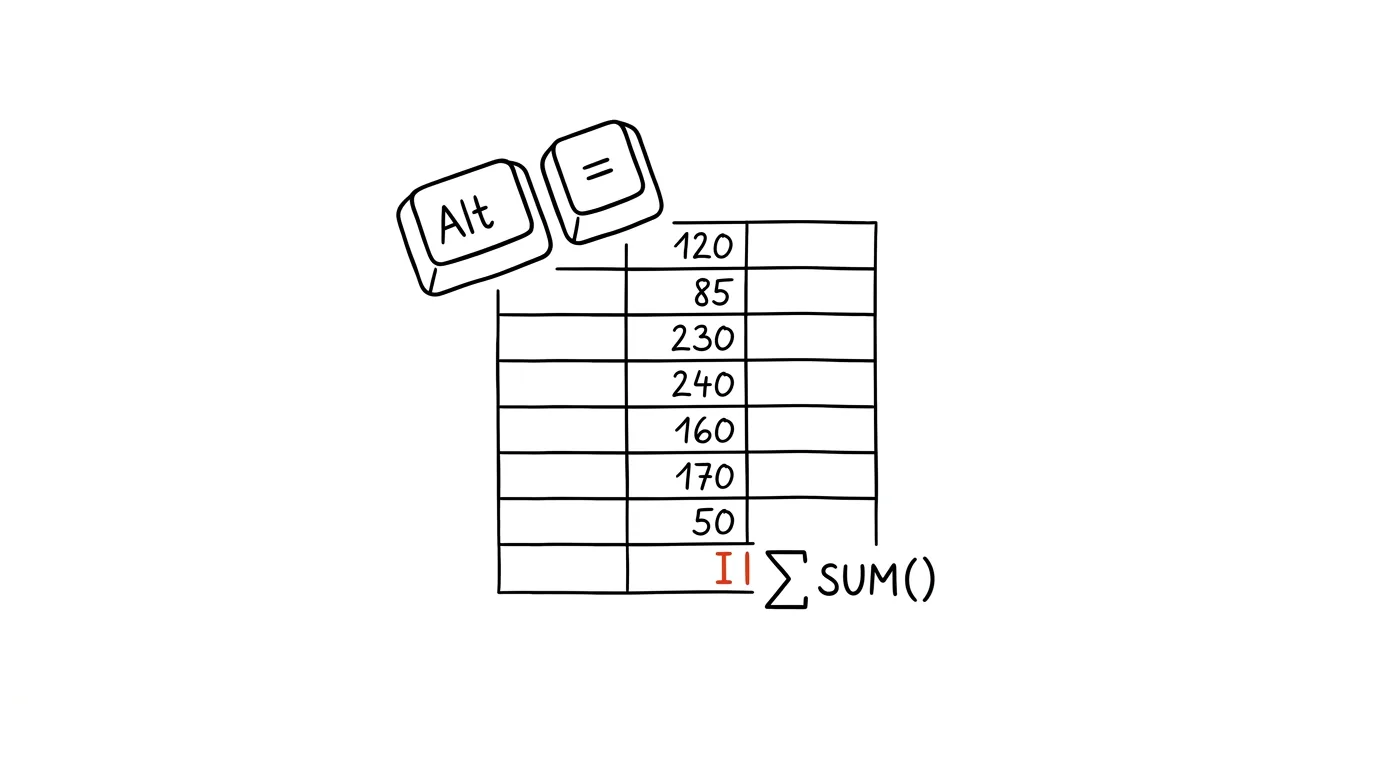
SUM is probably the most-used formula in Excel — you're adding up revenue, expenses, hours, unit counts. Instead of typing it out by hand and double-checking the cell range, Excel has a dedicated shortcut for auto-sum. Just put the cursor below a column of numbers, press Alt+equals, and Excel proposes the range and the SUM formula itself.
A typical scenario
Markéta is closing out the team's monthly expense summary — she needs a total below a column of thirty line items. Without the shortcut she'd have to type =SUM(, select the range manually with the mouse or type it out, close the parenthesis, and hope she didn't select one row too few or too many.
With Alt+= she just clicks the cell below the column, presses the shortcut, and Excel figures out on its own where the column of numbers starts and ends, proposing the range directly — Markéta just confirms with Enter. The formula is done in two seconds, and the risk of a badly selected range practically disappears.
How to do it
- Click an empty cell below a column of numbers (or to the right of a row of numbers) — wherever the total should go.
- Press Alt + = (on Mac, Cmd + Shift + T).
- Excel automatically detects the contiguous block of numbers above (or to the left of) the cell and proposes a matching range in a
SUMformula. - Check the proposed range in the cell — if it's right, confirm with Enter; if not, drag to adjust the range with the mouse and then confirm.
- You can use the same shortcut on multiple cells at once — select the empty cells at the end of each column or row (typically a whole row of totals below a table) and Alt+= fills in the sum for all of them at once.
The best tools
- The built-in Alt+= shortcut (Excel) — the fastest way to a total, works in every current version.
- The AutoSum button (Σ) on the Home tab — the same feature by mouse, for anyone who prefers clicking.
- Google Sheets — offers the same feature via Alt+Shift+=; same idea, just a different key combo.
- The status bar at the bottom (select cells with the mouse) — for a quick check of a total without writing a formula, handy when you don't need to save the result anywhere.
What you get out of it
- Time: a few seconds instead of typing a formula by hand and guessing at the range — in larger workbooks with dozens of totals, that adds up to real minutes.
- Accuracy: Excel looks at the cells that are actually filled in, so the risk of a total “cutting off” the last row is lower than typing the range by hand.
- Less to remember: you don't need to remember the exact syntax of the
SUMformula — Excel builds it correctly for you.
Pro tip
The shortcut works on several spots at once — select an entire column of numbers, including the empty cell below it, and press Alt+=; Excel fills in the total right at the end without you needing to click into the cell separately first.
Want to go deeper? The handbook has a whole chapter on it — The app categories that matter.
Similar tips
Text With Missing Accents? AI Restores Them
An email typed on the wrong keyboard layout or an export from an old system: paste the text into AI and get it back with the accents in the right place. It works in reverse too.
In-depth guide · 14 min
Excel and Sheets with AI: Formulas, Errors, Structure, and Macros
A complete guide with prompts: describe a formula in plain words and get a working fix, debug errors, design a table that holds, and when to use a macro.
In-depth guide · 18 min
The follow-up watchdog: AI remembers who never replied
A complete guide with prompts: a routine finds unanswered threads, tracks deadlines, and drafts polite reminders. AI writes the draft — you always send.
Was this helpful?
Liked this tip?
I send one like it every week by email. Two minutes to read, hours saved.
The Top 30 tips e-book, free — it lands in your inbox right away.
Then 1 tip a week · no spam · unsubscribe in one click
Prefer a system to single tips? The free email course — seven days, seven emails, one skill a day.