Tips & tricks · Apps · Everywhere · ~10 min a day · 2 min read
New Window in Excel: Two Sheets of the Same Workbook, Side by Side
Last reviewed:
In this article
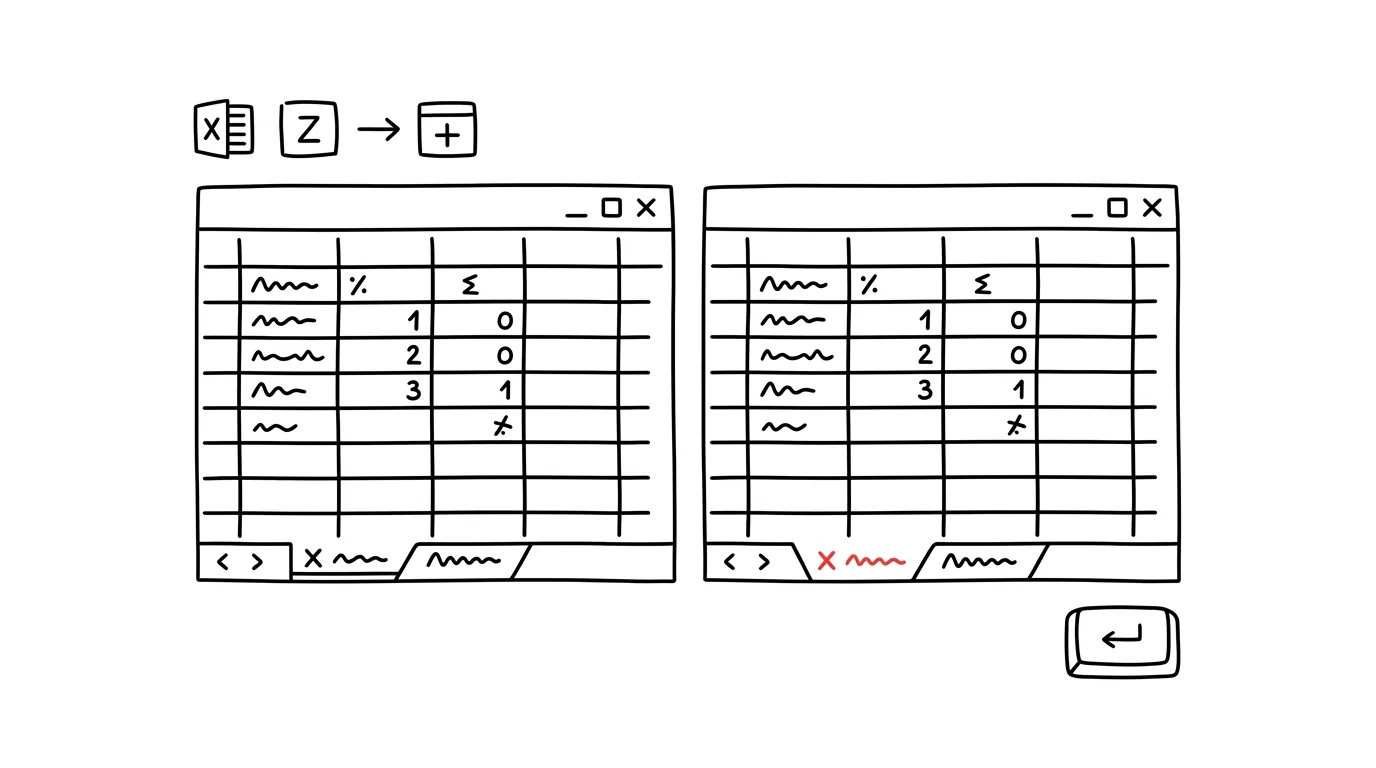
You're writing a formula on the Summary sheet, but the numbers it refers to are on the Data sheet — so you switch back and forth: there, look, back, type, again, because you didn't memorize the number. Excel can actually open the same workbook in a second window: source data in one, results in the other, both side by side, and every change propagates to both instantly — it's still just one file.
How to do it
- On the View tab, click New Window. A second window of the same workbook opens — the title bar shows the filename with "– 1" and "– 2" appended.
- In the same place, click Arrange All and choose Vertical — the windows line up side by side. You can just as easily place them with Win + arrow keys.
- In each window, open a different sheet, or a different spot on the same sheet. You can edit in both; it's one file, so nothing forks, and you save as usual.
- When you're done, just close the second window with the X — the file stays open in the first one. Saving anywhere saves the whole workbook.
In Google Sheets it's even simpler: open the same spreadsheet in two browser tabs and switch each to a different sheet.
The same View tab also helps when comparing two different workbooks: View Side by Side lines them up on screen, and with Synchronous Scrolling turned on, both workbooks scroll together — row 57 on the left is always next to row 57 on the right. Invaluable for comparing two versions of an export.
A typical scenario
You're checking the annual budget: one sheet has monthly data, another has a summary by department. The summary is off by a few thousand and you need to find where. Without a second window, that's dozens of tab switches and a scrap of paper with notes. With two windows side by side, you go row by row: source on the left, summary on the right, your eyes just jump across — and you find the discrepancy in a few minutes.
What you get out of it
The single most common micro-movement of working with multi-sheet workbooks disappears — the endless tab-switching at the bottom. Checks, matching, and writing cross-sheet formulas get faster and produce fewer mistakes, because you see both sides at once instead of carrying numbers around in your head. On a big monitor or two screens, it becomes the natural way to work in a workbook all the time — one window for data, the other for output.
Pro tip
If instead of two sheets you need to see two distant spots on one sheet, use View → Split — it cuts the window into independently scrollable halves. And headers that need to stay visible while scrolling are handled by freezing panes.
Want to go deeper? The handbook has a whole chapter on it — The app categories that matter.
Similar tips
Google Docs offline: keep working without a connection
One checkbox in Drive settings and your documents open even on the train. Changes sync once you're back online.
Group Work Without Overwriting Each Other: Suggesting Mode in Docs
When everyone in a shared document just rewrites directly, changes get lost and nobody knows who deleted what. Suggesting mode turns edits into proposals to approve.
Edge Will Read an Article — or a PDF — Out Loud: Ctrl+Shift+U
Ctrl+Shift+U
Built-in read-aloud with surprisingly natural voices. Listen to an article while cooking or on the way home from work.
Was this helpful?
Liked this tip?
I send one like it every week by email. Two minutes to read, hours saved.
The Top 30 tips e-book, free — it lands in your inbox right away.
Then 1 tip a week · no spam · unsubscribe in one click
Prefer a system to single tips? The free email course — seven days, seven emails, one skill a day.