Tips & tricks · Communication · Browser · ~15 min a day · 3 min read
Filters: keep newsletters out of your inbox for good
Last reviewed:
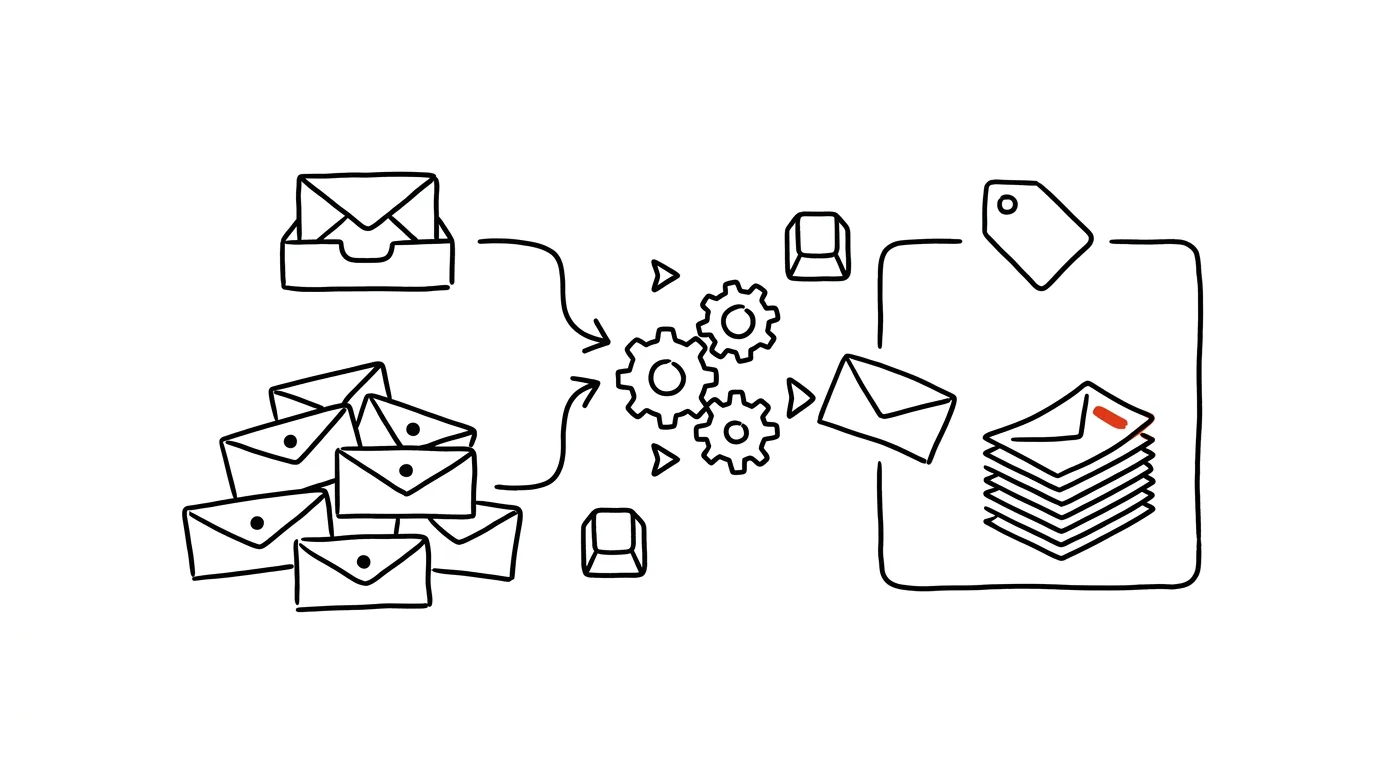
Your inbox is meant for things that need action — reply, decide, take care of something. A newsletter doesn't need action, yet it still mixes in with regular mail and breaks your focus just like an urgent message from a client would. An automatic filter solves this chaos once and for all.
A typical scenario
Markéta counts over thirty unread messages in her inbox every morning. Fifteen of them are newsletters — from online stores, blogs she subscribed to for one article, and professional digests she wants to skim eventually, just not right now. She has to go through them one by one, decide whether to open or delete each one, and only then get to the messages that actually need a reply.
With a filter on newsletters, they now arrive straight into a separate label, out of the main inbox and already marked as read. Her morning inbox contains only messages that genuinely need her attention — and she reads the newsletters whenever she feels like it, over coffee or in the evening.
How to do it
- Open any newsletter, click the three dots in the message's top bar, and select Filter messages like these.
- Gmail automatically pre-fills the condition based on the sender — usually the email address or domain the newsletter comes from. Just click Create filter.
- In the next step, check the options you want to apply: Skip the Inbox, so the message doesn't show up in your main inbox, Apply the label (choose an existing one or create a new one, like "Read later"), and optionally Mark as read, if you don't want to be bothered even by the unread count.
- Save the filter — from then on, Gmail automatically sorts every future message from the same sender the same way, with no further action needed.
- Check the newsletter label once a day, ideally at a time you set aside for it, like with your morning coffee. The goal is to read them in a batch, not in drips between other work.
- You can edit or delete filters anytime under Settings → Filters and Blocked Addresses, where you'll find an overview of all your active rules.
- Repeat the same process for other regular senders — automated reports, alerts from various systems, marketing emails — until your main inbox contains nothing but genuine correspondence.
The best tools
- Gmail's built-in filters — free, no installation, handle most common newsletters in a few clicks.
- The "Unsubscribe" link in an email's footer — for newsletters you never read anyway, unsubscribing outright is faster than filtering them forever.
- Bulk unsubscribe tools (like Clean Email or similar services) — handy when you've accumulated years of subscriptions in your inbox and want to clean them out all at once.
- A secondary email address for sign-ups — a long-term solution: newsletters and website registrations go straight to a different address, keeping your main inbox clean from the start.
What you get out of it
- Time: roughly 15 minutes a day that would otherwise go to scrolling through and deleting newsletters mixed in with important messages.
- Clarity: your inbox contains only messages that need a response from you — nothing just waiting to be read "someday."
- Peace of mind: your unread count stops being a misleading indicator of how much work is actually waiting for you.
- Control over reading: you read newsletters when you want to, not whenever they happen to land in your inbox.
- Lower risk of missing something important: the fewer irrelevant messages mixed in with the genuinely urgent ones, the smaller the chance you overlook one.
Pro tip
You can also set up a filter by keywords in the subject line, not just by sender — handy for companies that send newsletters from different addresses but with predictable subject text, like "Newsletter" or "Weekly digest."
Want to go deeper? The handbook has a whole chapter on it — Professional email communication.
Similar tips
Schedule your email to send at the right time
An email written Saturday evening can go out Monday at 8 AM. Scheduled sending respects the recipient's time — and your reputation.
Snooze an email until you can actually do something about it
The Snooze feature hides an email from your inbox and brings it back at a time you choose. Your inbox stays clean and nothing gets lost.
Forward as an Attachment: A Whole Thread in One Email
Gmail can forward an email as an .eml attachment — even ten messages at once. The recipient gets the originals, headers and all, not a mangled copy.
Was this helpful?
Liked this tip?
I send one like it every week by email. Two minutes to read, hours saved.
The Top 30 tips e-book, free — it lands in your inbox right away.
Then 1 tip a week · no spam · unsubscribe in one click
Prefer a system to single tips? The free email course — seven days, seven emails, one skill a day.