Tips & tricks · Communication · Browser · ~10 min a day · 3 min read
Inbox sections: to-do, awaiting reply, to read
Last reviewed:
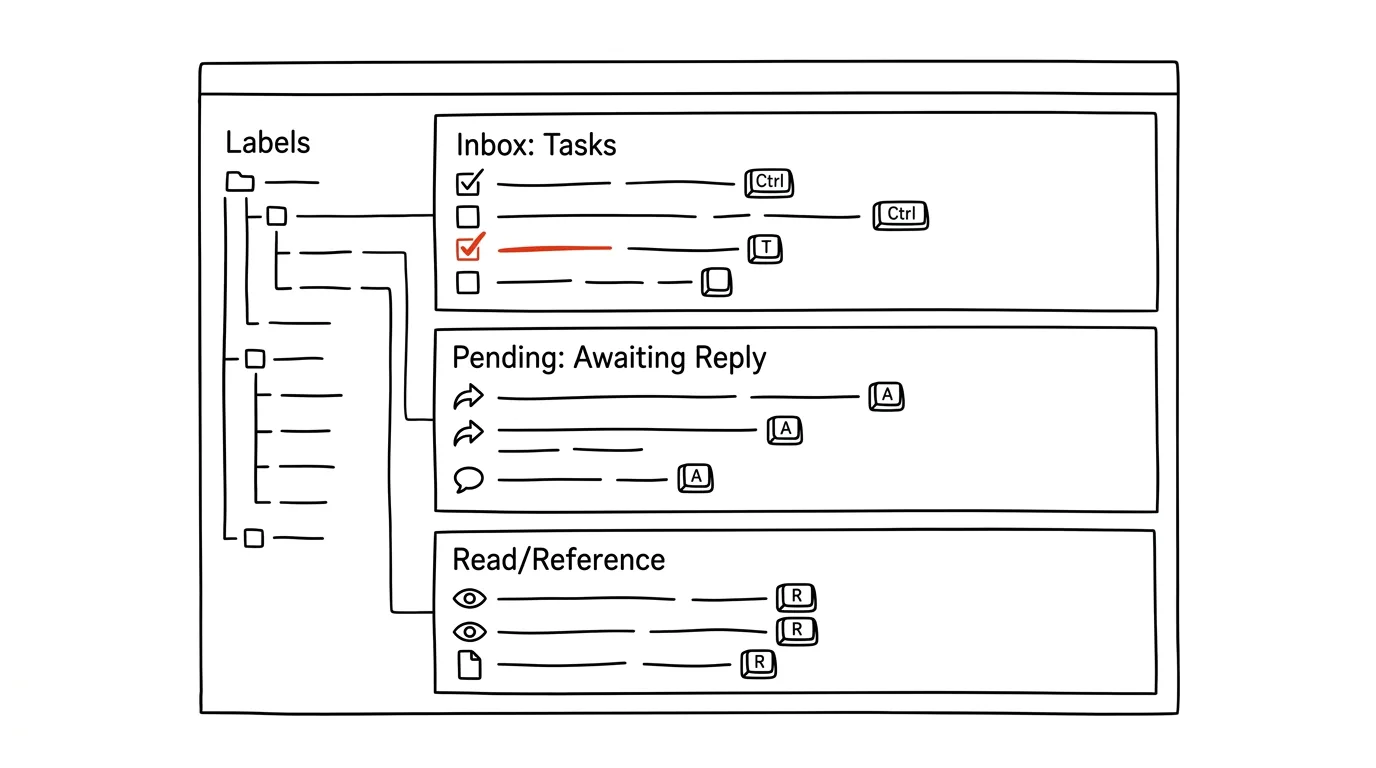
A single stream of email doesn't distinguish "must handle today" from "read someday, whenever I have time" — both land on the same pile, and it's up to you to keep reshuffling priorities in your head. The Multiple Inboxes feature splits that single stream into clear sections based on what you actually need to do with each email, turning your inbox into a real working desk instead of just a chronological list.
A typical scenario
Department head Radek has an inbox full of mixed messages: tasks needing immediate attention, messages he's waiting on a reply to from a coworker, and reading material that isn't urgent. Everything sits in one list sorted by arrival time, so an important task from the director can easily sit below ten unimportant messages just because they arrived earlier.
With Multiple Inboxes, his inbox splits into three clearly separated sections — and Radek can see at a glance what he's actually working on, what he's waiting for, and what can wait. He decides faster, because priority is visible from the screen layout itself, not from when a message arrived.
How to do it
- Open Settings → See all settings → Inbox tab → Inbox type: Multiple Inboxes.
- In the section settings for individual panes, enter the search queries that determine how messages get sorted into sections — for example
is:starredfor messages you're currently working on,label:waitingfor messages where you're waiting on a reply from someone else, andlabel:toreadfor material to read later. - Before the queries will work, you need the matching labels to exist — create them in Gmail's sidebar using the Create new label button.
- Sort messages into sections using the star (key S) and labels (key L opens the label menu) — both can be done straight from the keyboard, no mouse needed.
- You can adjust the number and order of sections, as well as how many messages show in each, anytime in the same settings, based on what actually works for you.
- Sections can also be placed side by side instead of stacked, which is handy on wider monitors — choose the layout you prefer in settings.
- The system works best with clear rules — before you start, decide which three or four categories you actually need, and don't add sections just because it's technically possible.
The best tools
- Gmail's built-in Multiple Inboxes — free, the whole setup takes a few minutes, no extension needed.
- Priority Inbox in Gmail — a built-in alternative where Gmail itself estimates what's important, instead of manually configured sections.
- Focused Inbox in Outlook — a similar splitting principle for Microsoft 365 users, though with different sorting logic.
- Todoist or a similar task manager linked to email — for people who find Gmail's sections alone not enough and want to turn emails directly into tasks with deadlines.
- Filters combined with labels — the foundation Multiple Inboxes builds on; even without it, you can have at least color-coded categories of messages in a single list.
What you get out of it
- Time: roughly 10 minutes a day, since you don't have to scroll through your whole inbox to find what's important among what isn't.
- Clearer priorities: you see at a glance what's waiting for your action, what's just in line for a reply from someone else, and what can wait.
- Fewer overlooked tasks: an important message doesn't get buried under dozens of less urgent ones just because it arrived earlier.
- A calmer relationship with your inbox: deciding what to handle now is largely taken over by the screen layout itself, rather than your own judgment on every single message.
- A better overview for the whole team: if you work with delegated email or a shared inbox, the sections show at a glance what's still waiting to be handled and what's already done.
Pro tip
Go through the "awaiting reply" section on its own once a week — it's the best place to catch things you've forgotten about because you're waiting on someone else and it slipped your mind in the meantime.
Want to go deeper? The handbook has a whole chapter on it — Professional email communication.
Similar tips
In-depth guide · 17 min
Strategy and OKRs with AI as your sparring partner
A complete guide with prompts: a fuzzy vision into an Objective with direction, Key Results that measure change, goal premortems, and a blame-free review.
A height-adjustable desk: alternate, don't just stand
The trick isn't standing all day — it's alternating positions, plus a bit of movement that fits into your work without interrupting it.
In-depth guide · 56 min
A wedding as a system: one source of truth for guests, the website, place cards, and the seating chart
A complete guide with 24 prompts: the guest list, schedule, vendors, and budget as structured data that invitations, the wedding website, place cards, menus, and signage all get generated from. Changing the ceremony time becomes one fix, not five — and RSVP lives in a database instead of three Messenger threads.
Was this helpful?
Liked this tip?
I send one like it every week by email. Two minutes to read, hours saved.
The Top 30 tips e-book, free — it lands in your inbox right away.
Then 1 tip a week · no spam · unsubscribe in one click
Prefer a system to single tips? The free email course — seven days, seven emails, one skill a day.