Tips & tricks · Communication · Everywhere · ~10 min a week · 2 min read
A second time zone in your calendar: no more counting hours
Last reviewed:
In this article
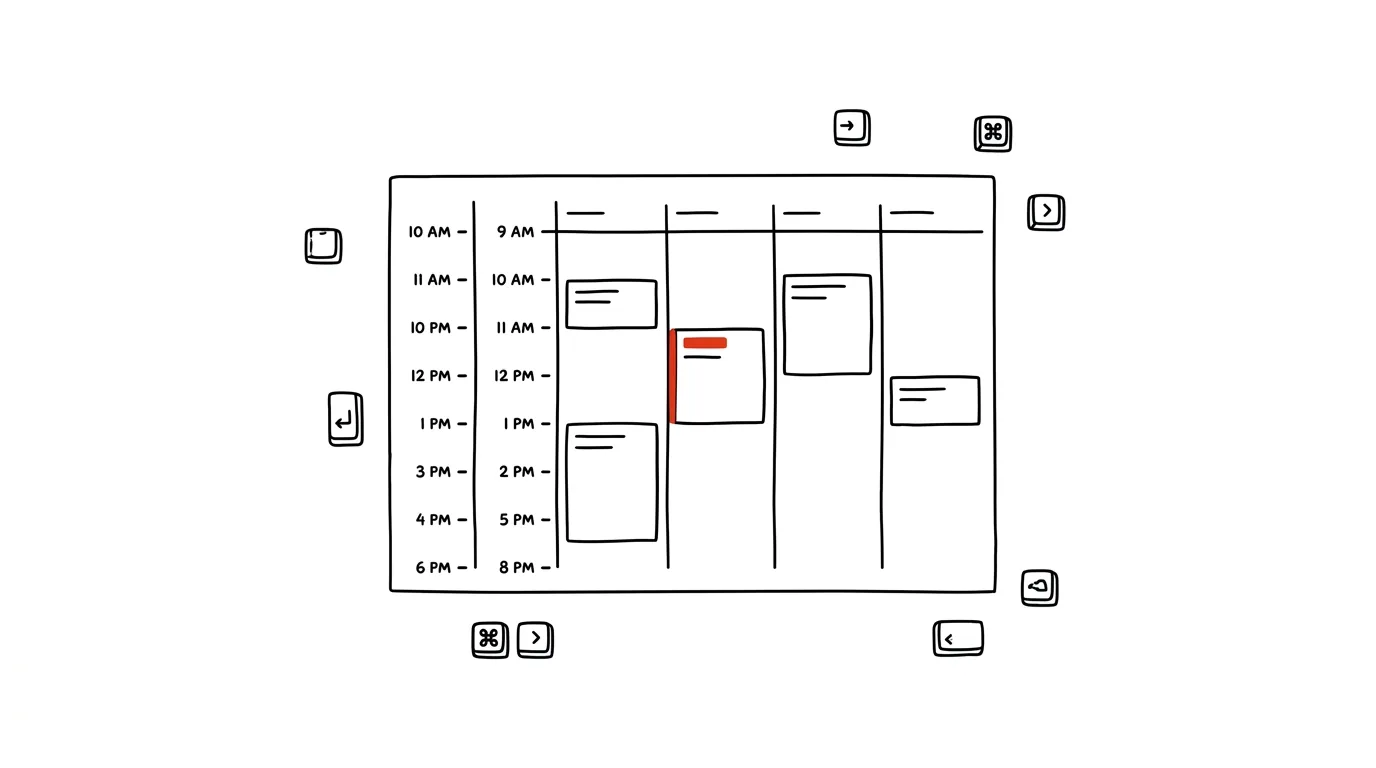
"Let's meet at 9am Pacific" — and you start doing math in your head: that's plus nine, so… 6pm? And does that still hold now that the US has shifted its daylight saving time differently? Anyone working with people abroad solves this puzzle several times a week and occasionally gets it wrong — a meeting off by an hour is a classic every spring and fall, because Europe and the US don't switch to daylight saving in the same week. Yet your calendar can permanently display a second time axis right next to your own: in week view you then see both zones side by side and can spot a workable time at a glance.
How to do it
Google Calendar:
- Open Settings → Time zone and check Display secondary time zone.
- Pick a zone (e.g., America/Los_Angeles) and label both axes, say "Prague" and "San Francisco."
- Day and week view now show two columns of times side by side along the left edge.
Outlook:
- On Windows: File → Options → Calendar → Time zones; on the web and in new Outlook: Settings → Calendar → View.
- Check the box to display an additional time zone and name it — Outlook can show up to two extra zones next to your own.
Bonus for one-off events: on a Google Calendar event, click Time zone next to the time — enter a flight or webinar in the organizer's local time and the calendar converts it to yours automatically. For flights you can even set a different zone for departure than for arrival, so both times match the local airport clocks.
A typical scenario
A developer collaborates with a team in Boston. When proposing a time for code review, he doesn't type into chat "4pm our time, so I think 10am yours?" — he looks at week view, where he has "Brno" and "Boston" axes side by side, and sees right away that 4pm his time lands at 10am for Boston. No math, no daylight-saving mistakes.
What you get out of it
Scheduling across time zones stops being arithmetic with a risk of an embarrassing mistake and becomes reading off one screen. You'll appreciate it most in the weeks around the time change, when the offset between continents shifts for a few days and almost nobody gets it right from memory. And because you see both axes all the time, you'll develop a feel for when the other side has morning and when they have evening — so you'll stop absentmindedly proposing times that force the other party to wake up at six.
Pro tip
Google Calendar can also turn on world clock in settings: the side panel then shows the current time in your chosen cities, complete with a day/night icon. For the quick question "can I call him right now?" it beats any math — one glance and you know it's midnight in Singapore.
Want to go deeper? The handbook has a whole chapter on it — Professional email communication.
Similar tips
Grouping Sheets: Edit a Dozen Excel Sheets at Once
Ctrl+click on sheet tabs groups them — and whatever you type into one gets written into all of them. Fix twelve monthly sheets in one move.
Sum and Average Without a Formula: Just Select
Select the cells and look down at the status bar — the sum, average, and count are always right there.
Text to Columns: Split a CSV Export Apart
Data separated by commas or semicolons crammed into one column? The Text to Columns wizard splits it correctly.
Was this helpful?
Liked this tip?
I send one like it every week by email. Two minutes to read, hours saved.
The Top 30 tips e-book, free — it lands in your inbox right away.
Then 1 tip a week · no spam · unsubscribe in one click
Prefer a system to single tips? The free email course — seven days, seven emails, one skill a day.