Tips & tricks · Apps · Everywhere · ~15 min a week · 3 min read
Text to Columns: Split a CSV Export Apart
Last reviewed:
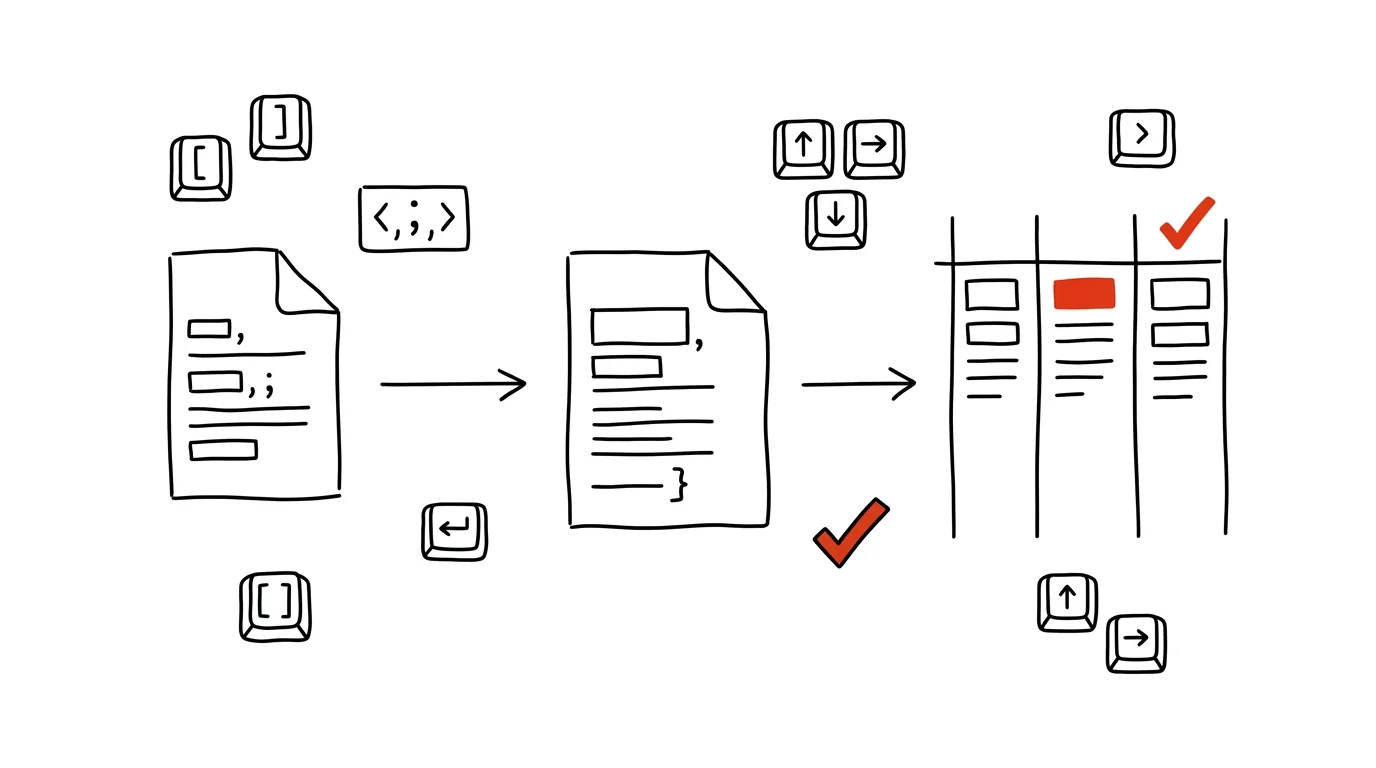
An export from some system where the data is separated by commas or semicolons and crammed into a single column isn't the end of the world — it's just a matter of running one wizard. Text to Columns splits such a column by a chosen delimiter into separate columns in a few clicks, with no manual copying or formula writing.
A typical scenario
Vojtěch gets an order export from another system where each row has, in a single column, “12345;Novák;Prague;2400” — order number, name, city, and amount separated by semicolons. Manually, he'd have to break the data into four columns row by row — with hundreds of rows, practically impossible to do without a mistake.
With the Text to Columns wizard, he selects the column, picks semicolon as the delimiter, and in two clicks has the data split into four separate, correctly aligned columns — order number, name, city, amount, each where it belongs.
How to do it
- Select the data column you want to split, make sure there are empty columns to its right (the data will spread into them), and go to Data → Text to Columns.
- In the wizard's first step, choose Delimited if the data is separated by a character like a comma or semicolon — the other option, Fixed width, is only for data aligned to exact character positions.
- In the next step, pick the specific delimiter (comma, semicolon, tab, or a custom character) — the preview at the bottom of the window shows right away how the data will spread into columns after splitting.
- In the last step, you can set a format for each new column (text, date, general) — important especially for columns where Excel might guess the data type wrong, say a long number that shouldn't be treated as a number.
- Click Finish — the data splits exactly into the columns to the right of the original, which keeps only the first part.
The best tools
- Excel's built-in Text to Columns wizard — the fastest one-off solution, three steps and the data is split.
- Power Query — if you do the same kind of import and split regularly, say a new export from the same system every week, Power Query remembers the steps and repeats them automatically on the next import.
- Google Sheets — a similar tool is found under Data → Split text to columns, with a similar choice of delimiter.
What you get out of it
- Time: roughly 15 minutes a week on regular data imports that would otherwise require manual splitting or building formulas to break up text.
- Accuracy: no manual retyping, so no typos when moving data into the right columns.
- Data you can use right away: a split export can be filtered, sorted, and calculated on by column, which isn't possible with everything glued into one cell.
Pro tip
With CSV exports from Czech systems, watch out for encoding and decimal commas used instead of periods — if diacritics get mangled after import or numbers show up as text, open the file via Data → From Text/CSV instead of just opening it directly; that dialog lets you set the encoding and the decimal separator by hand.
Want to go deeper? The handbook has a whole chapter on it — The app categories that matter.
Similar tips
Comparing two versions of a document: see the changes in color
Word and Google Docs can both compare two versions of a file and highlight every difference. No more reading contracts line by line.
Which tab is that playing from? Find it and mute it
The tab that's making sound gives itself away with a little speaker icon — and in Edge and Firefox, one click on it mutes it.
Anki: learn in half the time with spaced repetition
Flashcards with an algorithm that quizzes you right when you're about to forget. For languages, exams, and professional knowledge alike.
Was this helpful?
Liked this tip?
I send one like it every week by email. Two minutes to read, hours saved.
The Top 30 tips e-book, free — it lands in your inbox right away.
Then 1 tip a week · no spam · unsubscribe in one click
Prefer a system to single tips? The free email course — seven days, seven emails, one skill a day.