Tips & tricks · Apps · Browser · ~2 min a day · 3 min read
Which tab is that playing from? Find it and mute it
Last reviewed:
In this article
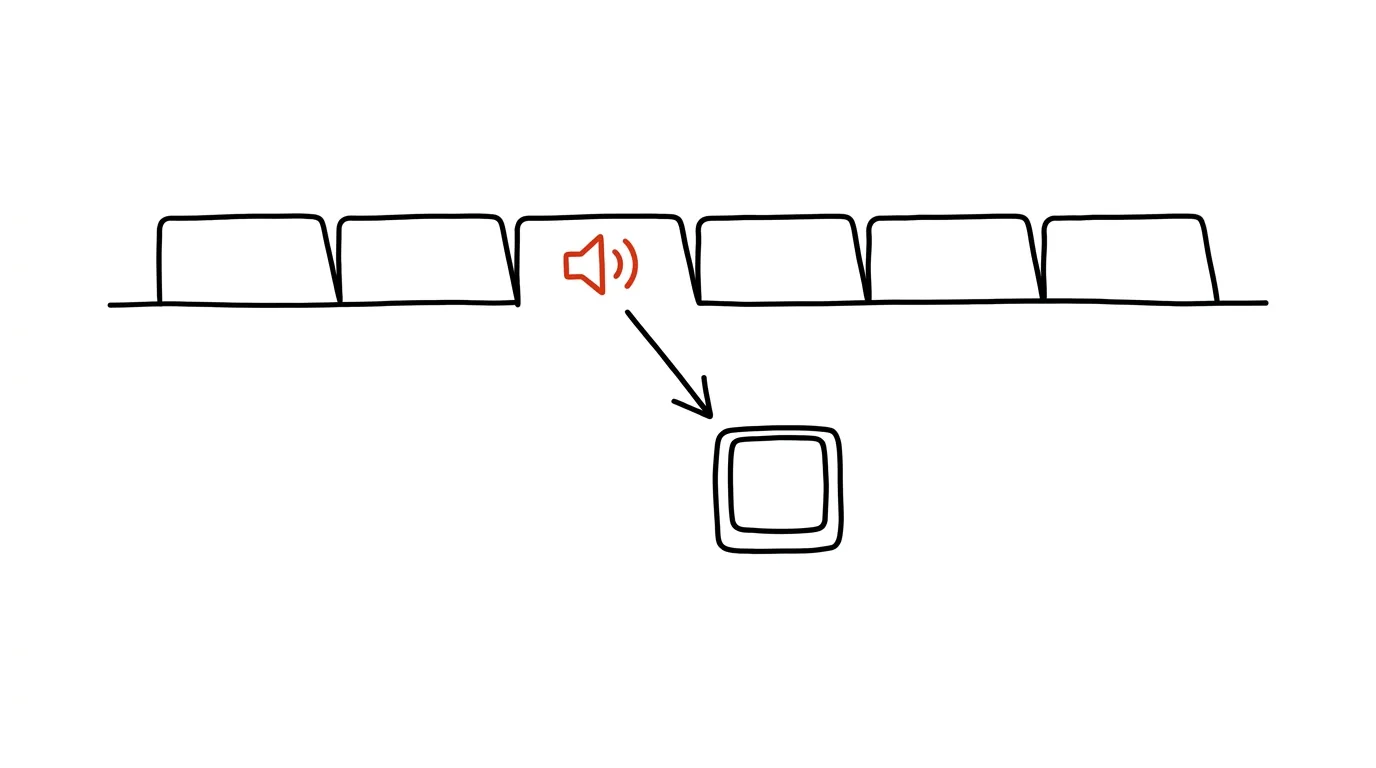
Music suddenly starts playing, or a video starts talking, from your computer — and you've got twenty-five tabs open with no idea which one it is. What follows is panicked clicking around while the ad happily blares into the open-plan office. Yet the browser has been marking the culprit the whole time: the tab that's playing sound has a small speaker icon in its title. And what's more — you can mute the sound directly on the tab, without even opening the page.
How to do it
- Scan the tab bar: the one playing sound has a speaker icon next to its title.
- In Firefox and Edge, just click the speaker icon — the tab mutes (click again to unmute it). You don't need to open the page or hunt for a pause button on it.
- In Chrome, right-click the tab and choose Mute site. Chrome then silences not just this tab but every other tab from the same site too — and remembers the setting until you allow the site again the same way.
- Muting only affects sound: the video keeps playing, the page works normally. It's handy the other way too — leave background music playing and mute everything else.
- You can tell a muted tab by its crossed-out speaker icon. So if a video you actually want to hear seems to have “no sound,” check the tab's title first — it's often just a long-forgotten mute.
A typical scenario
You're at an online meeting, sharing your screen. Some tab in the background finishes loading and starts playing an ad with sound — right over your presentation. Instead of desperately clicking around, you spot the speaker icon at a glance, one click, silence. The meeting continues without losing its thread.
Second classic case: news sites and online stores that autoplay video on their own. Mute a site like that once in Chrome via right-click, and you're free of its noise for good — you keep reading articles, but nothing shouts at you anymore. The same trick is handy for a parked tab with radio or a media player: it plays in the background, and when you need quiet, you switch it off from the tab bar without hunting for a pause button somewhere on the page.
What you get out of it
You find the source of unexpected sound with a glance instead of a minute of clicking around — which matters most exactly when something embarrassing plays into a meeting or an open office. And sites that don't deserve the habit of playing sound get silenced once and for all.
Pro tip
Finding a noisy tab is even faster with searching tabs via @tabs — but the speaker icon is quicker still: you don't need to recall the page's name, just scan the bar with your eyes. If you have more tabs across multiple windows, check the other windows too — the icon lights up separately in each one.
Want to go deeper? The handbook has a whole chapter on it — The app categories that matter.
Similar tips
Quick Steps in Outlook: three actions in one click
A Quick Step can move a message, mark it read, and forward it all at once. Turn a repeated sequence into a single button.
Essential Outlook shortcuts: reply, send, switch modules
Ctrl+R
Ctrl+R replies, Ctrl+Enter sends, Ctrl+1/2/3 switches between mail, calendar, and people.
The @ in Outlook: an @mention adds the recipient and flags the task
Type @name in the body of an email — Outlook adds the person to the recipients automatically and highlights that something's expected of them. No more overlooked tasks buried in the CC line.
Was this helpful?
Liked this tip?
I send one like it every week by email. Two minutes to read, hours saved.
The Top 30 tips e-book, free — it lands in your inbox right away.
Then 1 tip a week · no spam · unsubscribe in one click
Prefer a system to single tips? The free email course — seven days, seven emails, one skill a day.