Tips & tricks · Communication · Everywhere · ~10 min a day · 3 min read
Quick Steps in Outlook: three actions in one click
Last reviewed:
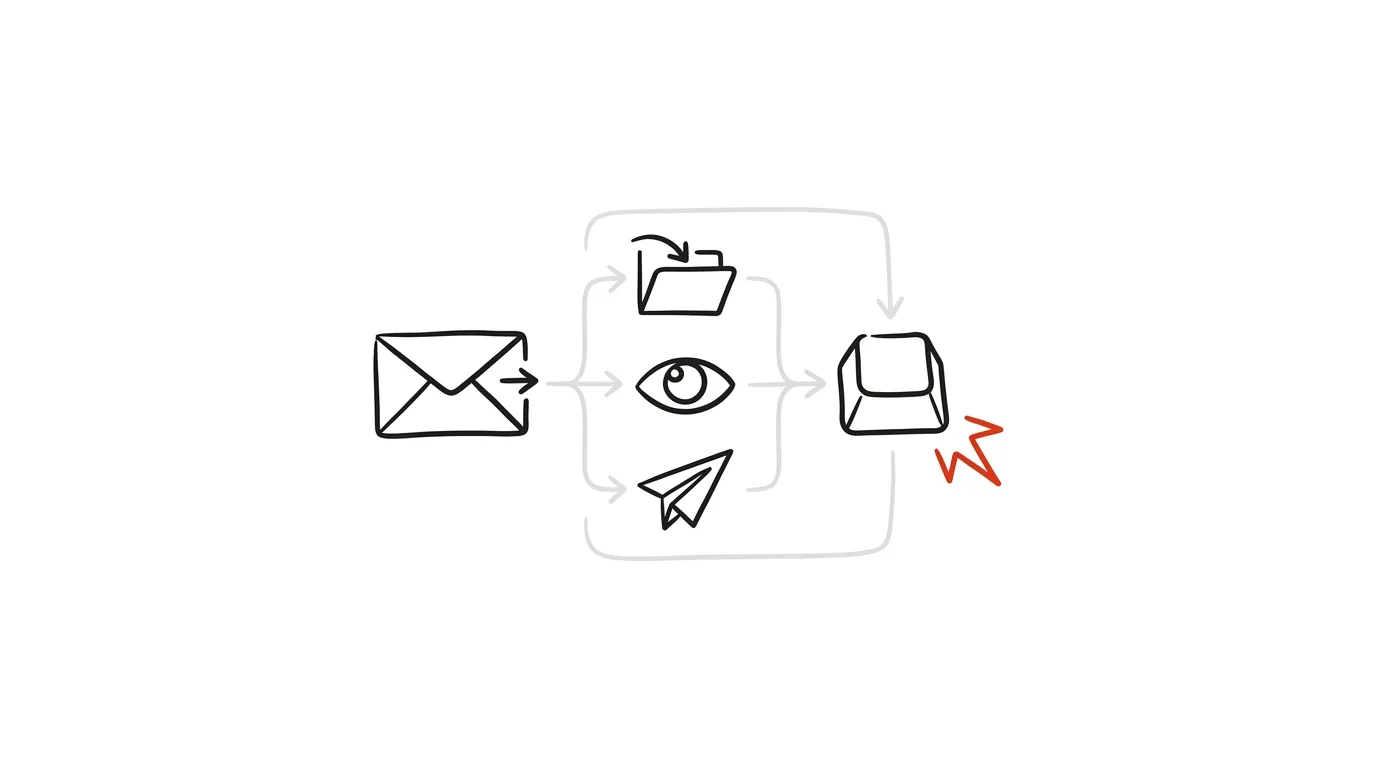
If you're doing the same sequence of clicks five times a day, it deserves to be one button. Quick Steps in Outlook can bundle several actions at once — moving to a folder, marking as read, forwarding, categorizing — into a single click or keyboard shortcut, instead of you carrying them out one by one every time.
A typical scenario
Simona, a department lead, regularly hands off a certain type of email to her assistant to handle — she forwards it, adds a note, moves the original to a "Delegated" folder, and marks it as read. Without Quick Steps, that's four or five separate clicks per message, and with dozens of emails a week it adds up to hours of pointless manual work. With a Quick Step set up, she just clicks the "Delegate" button once and all four actions happen together — the message is forwarded, noted, moved, and marked done.
How to do it
- On the Home tab of the ribbon, find the Quick Steps gallery and click Create New.
- Build the sequence of actions that should run together — typically moving to a specific folder, marking as read, assigning a category, or forwarding to a specific address.
- Name the Quick Step after its purpose, not the actions inside it — "Delegate" or "Handled" sticks in memory better than a technical description of the individual steps.
- Assign the Quick Step a keyboard shortcut, such as Ctrl + Shift + 1, and use it without touching the mouse, straight from the keyboard on a selected message.
- Build out more Quick Steps over time based on whatever action sequences you find yourself repeating most in your mail — you don't need to invent them all upfront, just add a new one whenever you notice yourself doing the same thing over and over.
- You can edit an existing Quick Step at any time — add or remove an action — without deleting it and building it from scratch, which comes in handy as your workflows gradually change.
The best tools
- Quick Steps in Outlook — built in, free, available right on the Home tab without needing any other tool.
- Outlook Rules — for fully automatic sorting without clicking anything manually, a good pairing with Quick Steps for things you still want to control by hand.
- Quick Parts — for quickly inserting repeated text into emails, a complement to Quick Steps for sending.
- Sharing Quick Steps across a team — if your whole team handles a similar type of mail the same way, it's worth setting up the same Quick Steps for everyone so mail gets handled consistently.
What you get out of it
- Time: roughly ten minutes a day from collapsing repeated click sequences into a single button or shortcut.
- Consistency: the same type of email gets handled the same way every time, with no risk of forgetting a step.
- Less mental load: you don't need to remember the whole sequence of steps, just the name of the Quick Step or its shortcut.
- Faster mail handling under pressure: on high-volume mail days, the difference between one click and five clicks across dozens of messages is noticeable.
Pro tip
The classic move: a "Delegate" Quick Step that pairs forwarding to your assistant with moving the message to a Delegated folder — one click instead of six. It's just as worthwhile to build a "Handled" Quick Step for emails you just need to archive and mark done.
Want to go deeper? The handbook has a whole chapter on it — Professional email communication.
Similar tips
Send and Archive: Two Actions, One Button
A hidden Gmail setting adds a second button to Reply that sends the email and tidies the conversation out of your inbox in one move. One click instead of two.
Schedule your email to send at the right time
An email written Saturday evening can go out Monday at 8 AM. Scheduled sending respects the recipient's time — and your reputation.
Snooze an email until you can actually do something about it
The Snooze feature hides an email from your inbox and brings it back at a time you choose. Your inbox stays clean and nothing gets lost.
Was this helpful?
Liked this tip?
I send one like it every week by email. Two minutes to read, hours saved.
The Top 30 tips e-book, free — it lands in your inbox right away.
Then 1 tip a week · no spam · unsubscribe in one click
Prefer a system to single tips? The free email course — seven days, seven emails, one skill a day.