Tips & tricks · Communication · Everywhere · ~10 min a week · 3 min read
The @ in Outlook: an @mention adds the recipient and flags the task
Last reviewed:
In this article
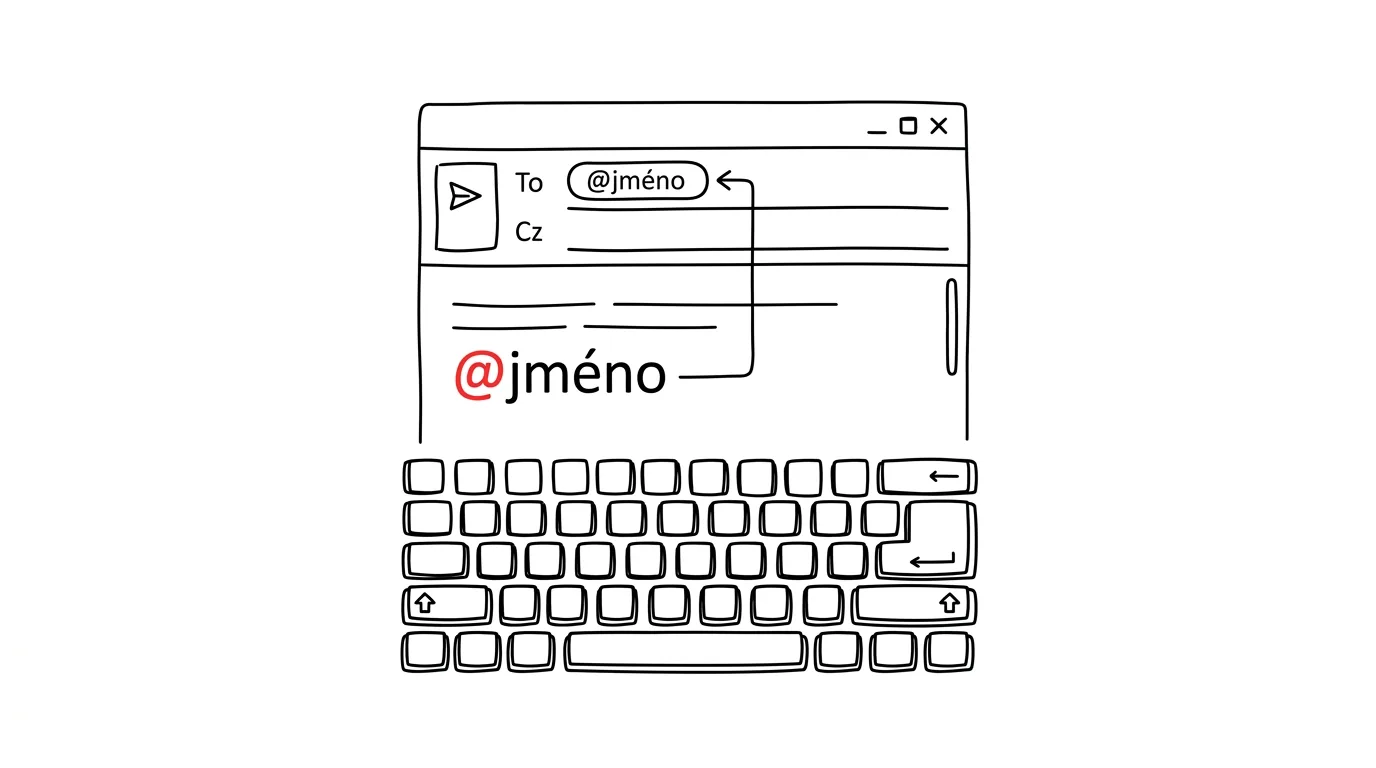
An email to five people, and buried in the third paragraph: “and Peter, please send the materials by Friday.” Peter's on the CC line, skims the email, misses the task — and by Friday everyone's looking for who dropped the ball. Outlook has a precise weapon for this: @mentions. Type an @ and a name anywhere in the message body, and Outlook automatically adds that person to the recipients, highlights their name in the text, and shows an @ symbol right in their inbox list — at a glance they know this email isn't just FYI, something's actually being asked of them.
How to do it
- While writing a message, type @ anywhere in the text and start typing a name — Outlook suggests contacts; confirm your pick.
- The name gets highlighted in the text and the person is automatically added to the To field, if they weren't there already.
- The recipient sees an @ symbol next to the message in their inbox. Mentions work in new and classic Outlook, on the web and on mobile.
- Want to see everything you've been mentioned in? In your inbox, switch the filter to @ Mentions (in new Outlook and on the web, it's a dropdown filter above the message list).
- Don't want the full formal “First Last” in the text? After inserting the mention, just delete the last name from the highlighted text — it still works.
A typical scenario
A project lead sends a meeting recap to eight people. In the old days, tasks would get buried in paragraphs, hoping everyone would spot theirs. Now they write: “@Jane will draft the contract by Wednesday, @Tom will confirm capacity with the vendor.” Jane and Tom see the @ right in their inbox, everyone else knows nothing's expected of them — and nobody has to reread the whole email twice just to check if it applies to them.
What you get out of it
Tasks in group emails stop falling through the cracks: whoever's mentioned knows it at a glance, and you know for certain you didn't forget to add them as a recipient — Outlook did that for you. The @ Mentions filter also works as a quick “what's expected of me, and where” list you can scan in a minute — handy after coming back from vacation, when you need to fish the things that actually need you out of an overflowing inbox.
One warning: a mention only works as long as it's rare. Start @-tagging every name in every email, and recipients go blind to the symbol — you're back to square one. Mention people only when you need something specific from them.
Pro tip
Mentions also work in meeting invites and in comments in Word or Excel — @name there sends the person a notification linking straight to that spot in the document. It's one habit that pays off across the whole Microsoft 365 suite. The same principle applies to chat too: for taming mentions on the other end, see the tip on filtering activity in Teams.
Want to go deeper? The handbook has a whole chapter on it — Professional email communication.
Similar tips
Turn on captions during a meeting — they work in Czech too
Teams, Zoom, and Meet can all show live speech captions, and Czech is among the supported languages. A lifesaver in noise, with bad audio, or a quiet speaker.
Bold, italics, and lists: WhatsApp can format text
Asterisks around a word make it bold, underscores make it italic, a dash makes a bullet. A longer work message suddenly looks like a document.
Voice messages at double speed — and a check before you send
Tapping 1× switches a voice message to 1.5× and 2× — a three-minute monologue takes half the time. And you can listen to your own recording before it sends.
Was this helpful?
Liked this tip?
I send one like it every week by email. Two minutes to read, hours saved.
The Top 30 tips e-book, free — it lands in your inbox right away.
Then 1 tip a week · no spam · unsubscribe in one click
Prefer a system to single tips? The free email course — seven days, seven emails, one skill a day.