Tips & tricks · Communication · Everywhere · clearer messages · 2 min read
Bold, italics, and lists: WhatsApp can format text
Last reviewed:
In this article
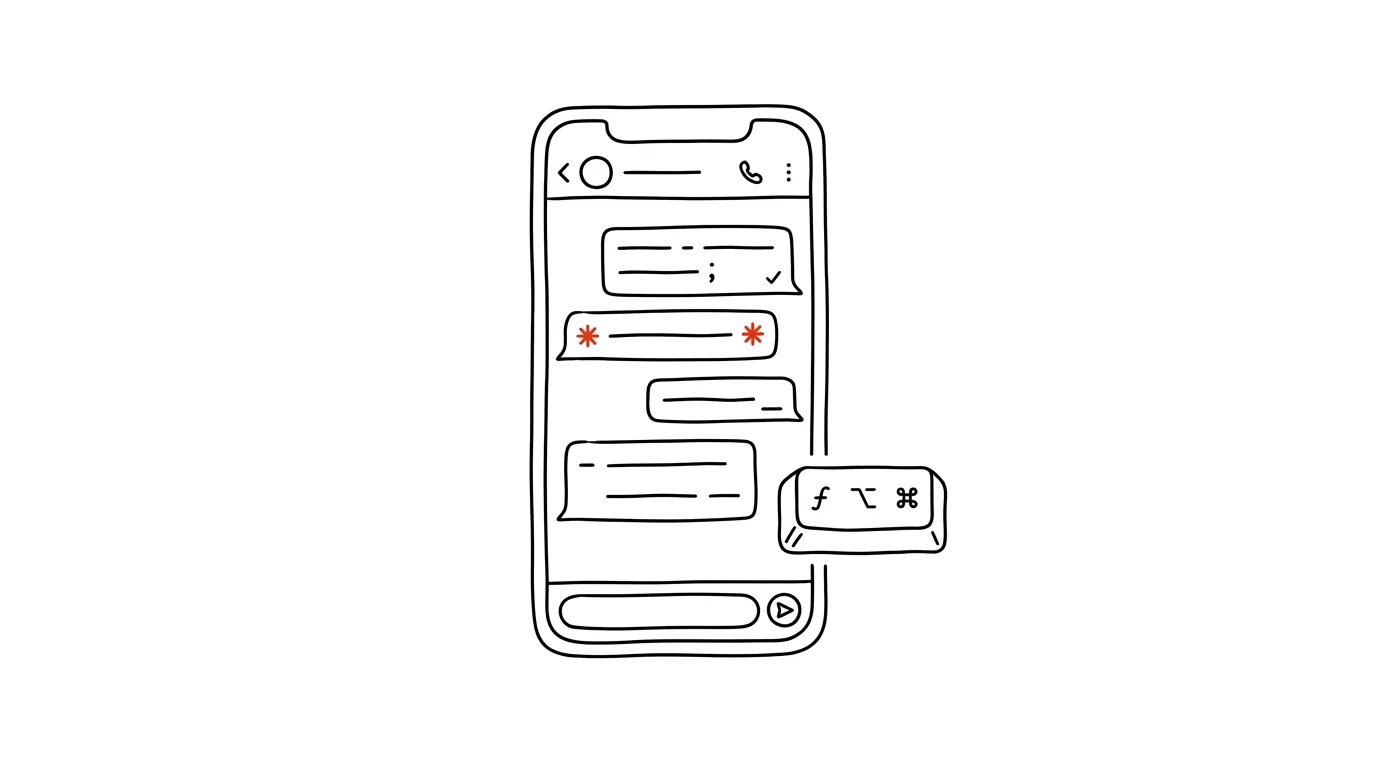
A longer WhatsApp message — instructions for a client, a summary of an agreement, a list of items — usually ends up as one solid block of text, where the important part gets lost. Yet WhatsApp has supported formatting for a long time: bold, italics, strikethrough, and in newer versions even bullet points, numbered lists, and quotes. Just wrap the text in the right characters — no menu-hunting required. Anyone who knows this sends messages that look like a structured document — and the recipient spots what matters at a glance.
How to do it
Type the characters tight against the text, with no space between the character and the word:
*bold*— asterisks: highlight a key piece of information (a deadline, an amount)._italic_— underscores: extras and notes.~strikethrough~— tildes: what's no longer valid (“meetat 9:00at 10:00”).`monospace`— backticks: codes, passwords, exact filenames where every character matters.- Lists: start a line with a dash and a space (
-) for a bullet, or1.for a numbered list — further items number themselves. Start a quote with>, and wrap a longer code block in three backticks. - Don't want to memorize the characters? Select the text you've written and choose bold, italic, and more from the menu that appears above it (on a computer) or after a long press (on a phone). The characters are faster, though — you type them right inline, no stopping.
A typical scenario
A photographer sends a client a recap: “Wedding 9/12 — meet at 8:30 by the ceremony hall. Bring: - the deposit confirmed by email - the list of family photos - the coordinator's contact. The gallery will be ready within thirty fourteen days.” The client sees the structure instantly: the deadline in bold, tasks as bullets, the outdated figure visibly struck through with the correction. The same message without formatting would be an eight-line wall of text, and at least one detail would get lost.
What you get out of it
Work communication on WhatsApp stops looking like text messages and starts behaving like a document: what matters is highlighted, steps are numbered, what's no longer valid is visibly crossed out. There's less of the “I missed that” kind of misunderstanding — and you come across as more professional even in a channel that started out for vacation photos. Formatting pays off most in messages the recipient comes back to: instructions, recaps, lists. That's where the investment of three asterisks pays for itself every time someone reopens the message.
Pro tip
Nearly identical markers work elsewhere too: Slack knows *bold* and _italic_ the same way, and most chat apps understand related characters. Try the characters before hunting for buttons — they're usually faster. In Slack, code and quote formatting is also worth knowing.
Want to go deeper? The handbook has a whole chapter on it — Professional email communication.
Similar tips
A second time zone in your calendar: no more counting hours
Google Calendar and Outlook can both show a second time axis next to your own. Plan a meeting across time zones by looking, not by doing math in your head.
Find a time: let the calendar show when everyone's free
Don't arrange a meeting time over email. Google Calendar and Outlook lay attendees' calendars side by side, and you spot the open slot at a glance.
A free booking page: Google Calendar can do what Calendly does
Send a link, the other person picks an open slot themselves, and the meeting lands on both calendars. A built-in Google Calendar feature almost nobody knows about.
Was this helpful?
Liked this tip?
I send one like it every week by email. Two minutes to read, hours saved.
The Top 30 tips e-book, free — it lands in your inbox right away.
Then 1 tip a week · no spam · unsubscribe in one click
Prefer a system to single tips? The free email course — seven days, seven emails, one skill a day.