Tips & tricks · Communication · Everywhere · ~15 min a week · 2 min read
Find a time: let the calendar show when everyone's free
Last reviewed:
In this article
Scheduling a meeting for five people can turn into a two-day job — "Tuesday works for me," "I can only do mornings," "I'm traveling then." Yet if you're at a company or school with shared calendars (Google Workspace or Microsoft 365), that whole email survey is unnecessary: your calendar can lay every invitee's schedule side by side and you simply see the open slot. Most people never open this feature because it's tucked away inside an in-progress event.
How to do it
Google Calendar:
- Create an event and add guests.
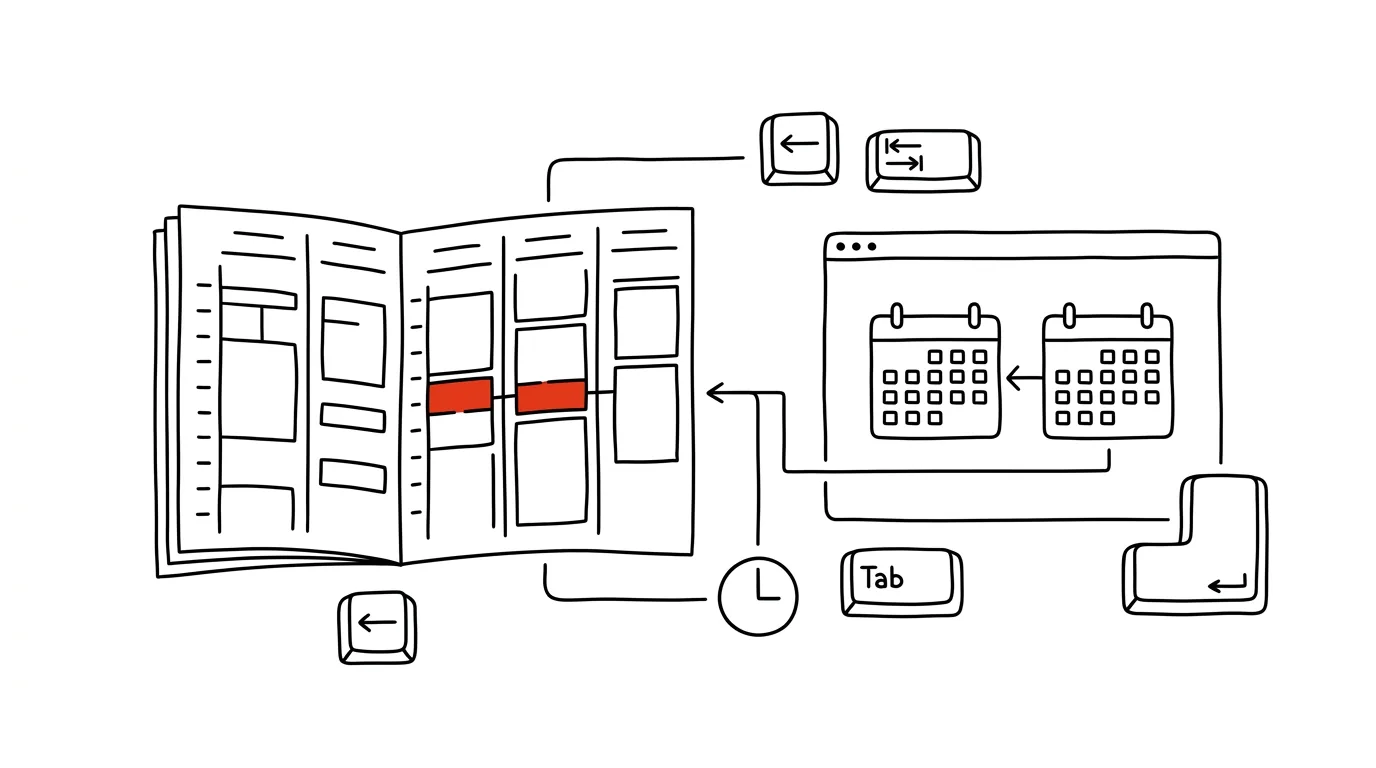
- Switch to the Find a time tab — a day view appears with every attendee's calendar in columns side by side. A blank stretch across all the columns = a time when everyone's free; click it and the event moves there.
- Even faster is the Suggested times link below the guest list: Google lists the nearest conflict-free slots for you automatically.
Outlook:
- In the meeting window, open the Scheduling Assistant.
- You'll see a timeline showing every invitee's availability; drag the vertical bar to pick a window where nobody has anything booked. The assistant even distinguishes "tentative" from "out of office," so you can tell a hard conflict from a meeting the person could probably skip. You can add a conference room too — it has its own calendar just like a person.
The condition in both cases: attendees are in the same organization, or at least share free/busy information with you. Outside your company, the feature sees nothing — that's where a booking page comes in.
A typical scenario
A deputy principal is scheduling a subject-committee meeting: six teachers, each with a different schedule. It used to mean a shared spreadsheet of who's free when, filled in over a week. Now she creates the event, adds her colleagues, opens Find a Time — and within a minute sees that the only slot everyone shares is Thursday at 7am. The invite goes out immediately, with zero back-and-forth emails.
What you get out of it
Finding a time turns into a thirty-second task instead of an email round trip. And because you're picking from times when everyone is genuinely free, there's less last-minute rescheduling caused by a conflict nobody flagged. For recurring meetings with a larger group, it's the difference between "schedule a meeting" being a five-minute task and a week-long project.
Pro tip
The feature is only as good as the calendars it reads. So it's worth agreeing on a team rule: if it's not on the calendar, it doesn't exist — including blocks for focused work. Anyone who doesn't block their deep-work time will happily have it filled by the scheduling assistant, because it looks free.
Want to go deeper? The handbook has a whole chapter on it — Professional email communication.
Similar tips
Speed up Windows startup: turn off apps that launch themselves
Your computer takes minutes to boot because a dozen apps you don't need wake up with it. Turning them off in Settings takes five minutes — and it's permanent.
Phone Link: photos and texts from your phone, right on your computer
Get a phone photo into a presentation without a cable, no emailing yourself: the Phone Link app shows photos, messages, and notifications right inside Windows.
Clipboard sync across computers
Win+V
Clipboard history (Win+V) can sync through your Microsoft account — copy something on your work PC, paste it on your laptop.
Was this helpful?
Liked this tip?
I send one like it every week by email. Two minutes to read, hours saved.
The Top 30 tips e-book, free — it lands in your inbox right away.
Then 1 tip a week · no spam · unsubscribe in one click
Prefer a system to single tips? The free email course — seven days, seven emails, one skill a day.