Tips & tricks · Apps · Windows · ~5 min a week · 3 min read
Clipboard sync across computers
Last reviewed:
Win+V
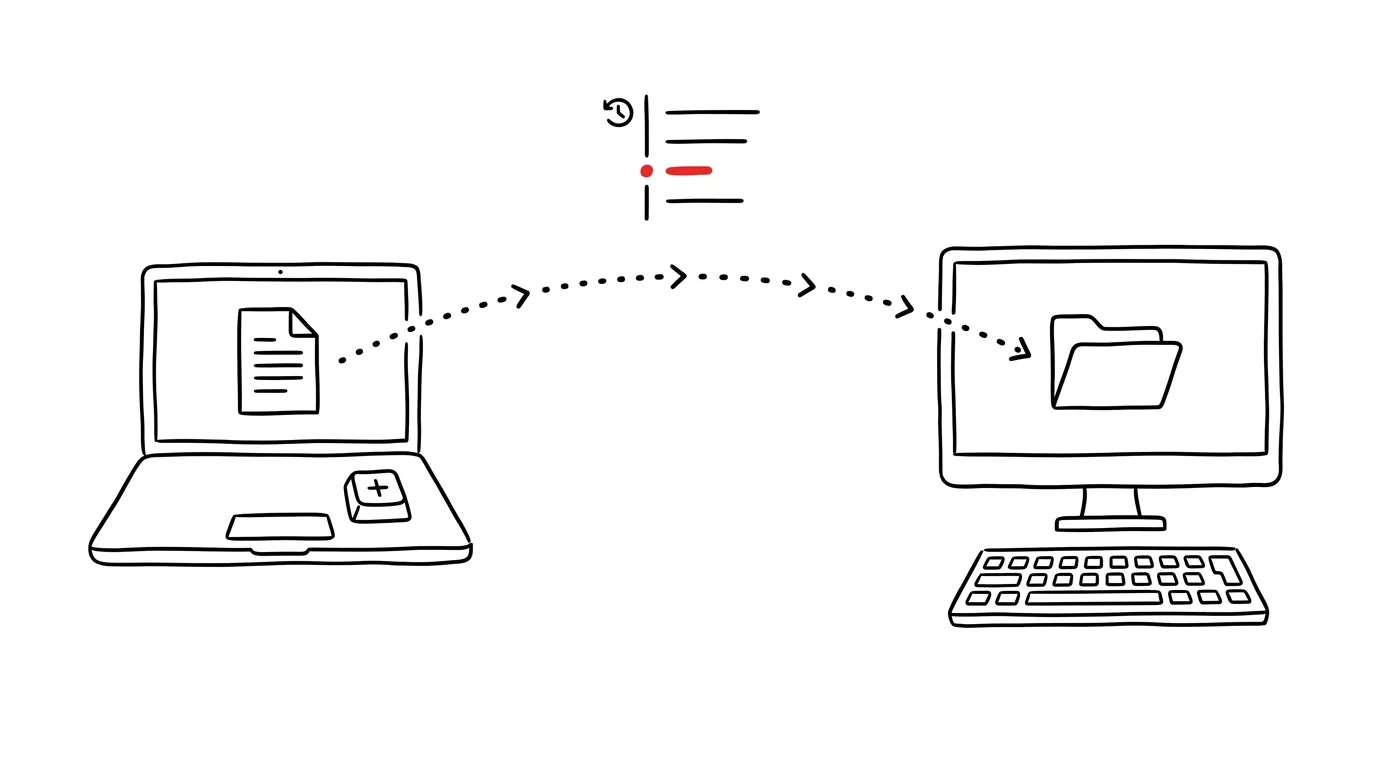
Two computers, one clipboard. Anyone who works on a desktop at the office and also on a laptop at home or on the road knows the feeling — the exact thing you copied on one machine, you'd like to paste on the other, but the clipboard is always local. Windows can fix this with sync through your Microsoft account.
A typical scenario
At work you copy a long link to a shared document or an order number you'll need at home tonight. Without sync, you have two options: email it to yourself, or message it to yourself in chat — both an unnecessary detour for something that should be trivial.
With clipboard sync turned on, you just copy the text on your work computer with a regular Ctrl + C, and at home on your laptop, signed in with the same Microsoft account, you'll find it in the clipboard history panel, ready to paste. No email detours, no retyping from memory.
How to do it
- Open Settings → System → Clipboard on both computers you want to link.
- Turn on the Clipboard history toggle — without it, Windows doesn't save a history of copied items at all, let alone sync them.
- A bit further down, turn on Sync across devices and choose whether content should transfer automatically or only manually after your confirmation. For everyday use, automatic mode is more convenient.
- Make sure you're signed in with the same Microsoft account on both computers — sync only works between devices with matching accounts.
- The copied text then appears on the other computer in the Win + V panel, just as if it had been copied there locally.
The best tools
- Windows' built-in clipboard sync — free, runs in the background, just turn it on once on both devices.
- OneDrive — if you're copying whole files rather than short bits of text, a shared OneDrive folder is more reliable than the clipboard.
- Ditto — a free, open-source clipboard manager with its own network sync, good for power users or company environments without a Microsoft account.
- KDE Connect / Your Phone — for sharing the clipboard between a computer and a phone, which Windows' built-in PC-to-PC sync doesn't cover.
What you get out of it
- Time: no more detour through email or a self-chat whenever you need to move a short piece of text between computers — easily a few minutes a week that would otherwise dissolve into small annoying steps.
- Continuity: the transition between office and home is seamless — an unfinished thought or link is waiting exactly where you left it.
- Fewer mistakes: no manual retyping of links or numbers from memory, so no typos.
- Simplicity: you set it up once, and it then runs quietly in the background with no further maintenance.
Pro tip
Only text syncs, not images — if you also need to move copied images or files between devices, use OneDrive or a shared folder for that; the Windows clipboard isn't built for it.
Want to go deeper? The handbook has a whole chapter on it — The app categories that matter.
Similar tips
Finder tags: one file in multiple “folders” at once
Does an invoice belong in the project folder and in accounting? Tags solve the age-old dilemma of where to save a file — it can show up in more than one place at once.
Focus modes: every activity gets its own rules
Set up a Work mode that lets through only colleagues and family — synced to your iPhone and Apple Watch too.
Frozen app? Force quit without restarting
Cmd+Option+Esc
Cmd+Option+Esc is macOS's version of Ctrl+Alt+Delete. Quit a frozen app in three seconds.
Was this helpful?
Liked this tip?
I send one like it every week by email. Two minutes to read, hours saved.
The Top 30 tips e-book, free — it lands in your inbox right away.
Then 1 tip a week · no spam · unsubscribe in one click
Prefer a system to single tips? The free email course — seven days, seven emails, one skill a day.