Tips & tricks · Shortcuts · Mac · ~15 min a month · 3 min read
Frozen app? Force quit without restarting
Last reviewed:
Cmd+Option+Esc
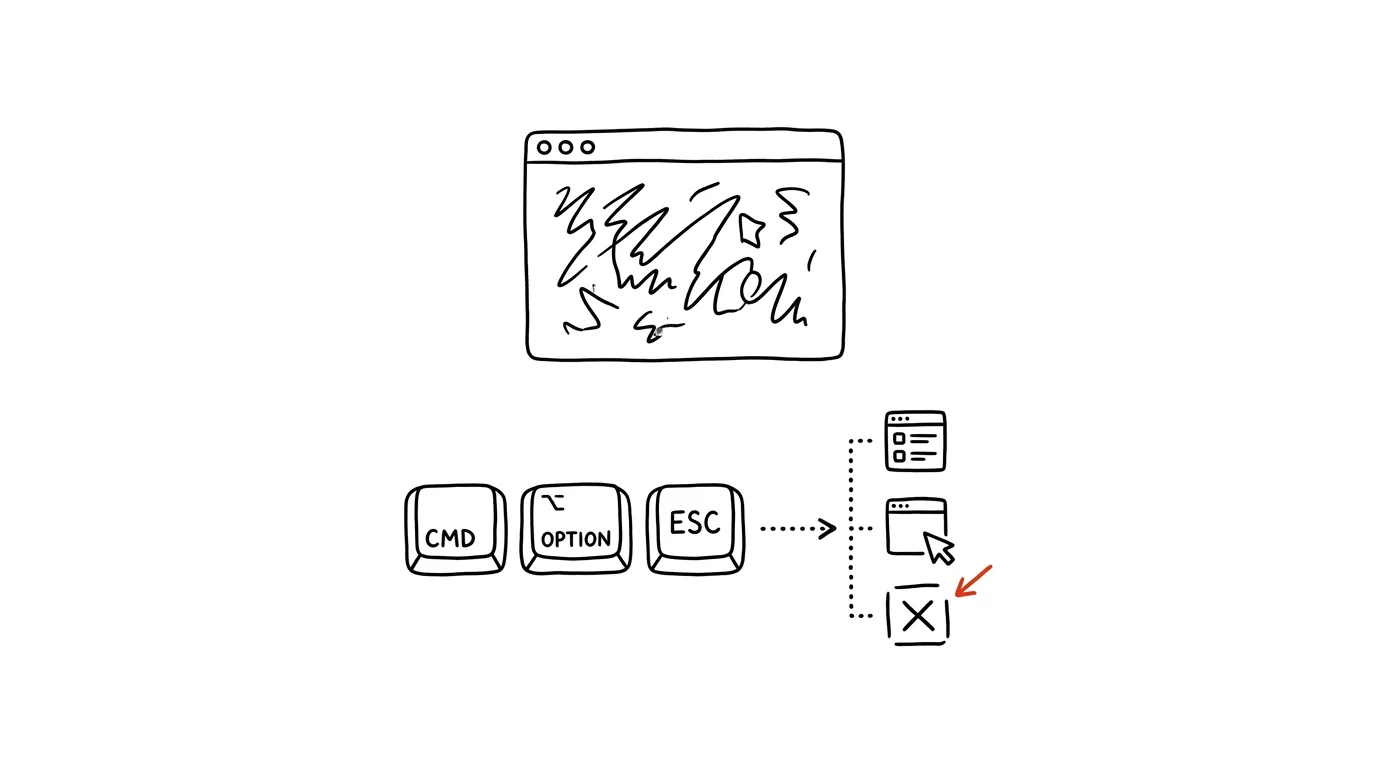
A spinning beachball over an app's icon looks alarming, but it doesn't mean you have to restart the whole computer. It's usually just a signal that one specific app has stopped talking to the system for a moment, while everything else keeps running normally. macOS has its own version of Ctrl+Alt+Delete that quits a frozen app in a few seconds, letting you get straight back to work on everything else.
A typical scenario
You've got a browser open with a bunch of tabs, a text editor with an unfinished document, and a spreadsheet mid-calculation. The browser suddenly stops responding — the beachball spins, clicks go nowhere. Instinct says to hold the power button and restart the whole computer, but that would also wipe out unsaved changes in your editor and spreadsheet.
Force quit kills only that one stuck app. The rest of the system keeps running without interruption, and your work in progress elsewhere stays untouched. By the time a full restart with all its startup checks would have finished, you've already resolved the frozen app and are back to work.
How to do it
- Press Cmd + Option + Esc — a window opens with a list of running apps.
- The frozen app is usually marked "(Not Responding)" in the list.
- Select it and click Force Quit.
- The app closes immediately; any unsaved work in it is lost, but every other open app keeps running unaffected.
- Relaunch the app after a moment — most programs will offer to restore your windows from the previous session on the next launch.
- You can open the same window via the Apple menu (the logo in the top-left corner) → Force Quit…, if you don't remember the shortcut.
- If the whole system is unresponsive, not just one app, try holding the shortcut a couple of seconds longer before restarting — sometimes it helps simply because it frees up the processor from whatever process was hogging it.
The best tools
- Built-in Force Quit (Cmd+Option+Esc) — the fastest route, baked into the system.
- Activity Monitor (find it via Spotlight) — shows background processes and their CPU load too, useful when you're not sure exactly what froze.
- Force quitting from the Dock — hold Option and right-click an app's icon in the Dock for the same option.
- Restart only as a last resort — if force quit doesn't work even on a second try, only then restart the whole computer.
- Watching memory usage in Activity Monitor — regularly checking which apps consume the most memory helps prevent freezes, not just fix them after the fact.
What you get out of it
- Time: resolving a frozen app takes a few seconds instead of several minutes for a full restart and reopening everything.
- Preserved work: an unfinished document in a different app doesn't close and you don't lose what you were doing in it.
- Peace of mind: you know "not responding" doesn't mean disaster, just a common situation with a clear fix.
- Less wear on your system: frequent hard restarts of the whole computer aren't great for your disk and system — force quitting a single app is a gentler intervention.
Pro tip
Unsaved work in other apps stays untouched, because you're only quitting the one that's stuck — that's a fundamental difference from restarting the whole system, which wipes out work in progress everywhere. If the same app keeps freezing repeatedly, check Activity Monitor to see how much memory it's using — that's often a sign it needs an update.
Want to go deeper? The handbook has a whole chapter on it — The app categories that matter.
Similar tips
Text from paper straight into a field: Live Text and Google Lens
Stop retyping details off paper. iPhone can scan text with the camera directly into a text field; Android does the same through Google Lens.
Widgets: information without opening apps
Calendar, tasks, and weather on your home screen mean you open your phone, glance, and close it — instead of a tour through your apps.
Silence an annoying notification right from the shade
No need to dig through settings: swiping on a notification on iPhone offers an hour of silence; holding one on Android turns off just the annoying category.
Was this helpful?
Liked this tip?
I send one like it every week by email. Two minutes to read, hours saved.
The Top 30 tips e-book, free — it lands in your inbox right away.
Then 1 tip a week · no spam · unsubscribe in one click
Prefer a system to single tips? The free email course — seven days, seven emails, one skill a day.