Tips & tricks · Workflow · Windows · ~3 min a day · 2 min read
Speed up Windows startup: turn off apps that launch themselves
Last reviewed:
In this article
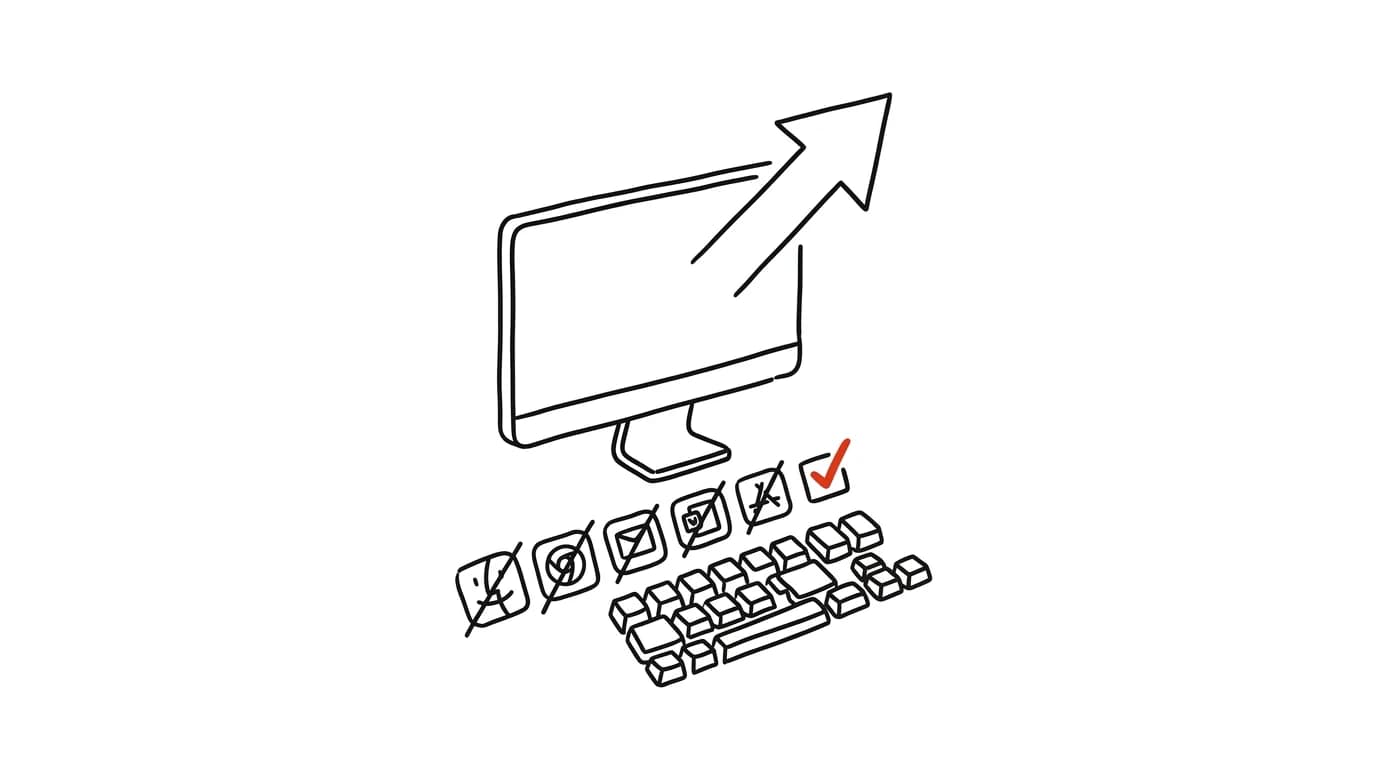
You turn on the computer, and an eternity passes before you can actually work with it: a printer updater launches, a media player you never got rid of, three “little helpers” from the manufacturer, and apps you installed once for a single purpose. Each one chips away at performance on startup — and together they turn the first minutes of your day into waiting. Yet this list of self-launchers is fully within your control, and cleaning it up is a five-minute job.
How to do it
- Open Settings → Apps → Startup. You'll see a list of apps that launch with the system, each with its own toggle.
- Turn off anything you don't need running from minute one. A safe rule of thumb: turning it off doesn't uninstall anything — the app simply launches only when you open it yourself.
- Task Manager (Ctrl + Shift + Esc) offers a more detailed view on its startup apps tab: the startup-impact column shows which culprits slow the boot down the most — start with the high-impact items.
- Leave running anything that genuinely needs to run all the time: file sync (OneDrive, Google Drive), backup tools, your password manager, antivirus.
- It works the other way too — add what you do want at startup: press Win + R, type
shell:startup, and drop shortcuts to apps or files you use every day into the folder that opens. Windows will launch them for you.
A typical scenario
A common morning ritual in many offices: turn on the computer, go make coffee, because “it's still booting up.” After five minutes spent cleaning up the startup app list, the same computer wakes up in a fraction of the time — and coffee goes back to being a treat instead of a forced pause.
And the flip side of the trick: if you open the same three things every morning — mail, calendar, and a weekly spreadsheet — drop their shortcuts into the shell:startup folder. The computer then boots straight into your working setup instead of an empty desktop.
What you get out of it
- A faster start: fewer apps at startup means a usable computer tens of seconds to minutes sooner — every single day.
- A snappier system afterward too: what doesn't launch doesn't run in the background eating memory or battery.
- Mornings without clicking: with your own items in the Startup folder, your work environment is waiting for you, ready to go.
Pro tip
The built-in automatic app restore handles a similar “everything back in its place” effect after a restart — combining both means the computer starts fast and lands straight in your unfinished work. It's worth revisiting the startup list every few months: newly installed programs love to add themselves without asking.
Want to go deeper? The handbook has a whole chapter on it — Core systems: inbox, priorities, reviews.
Similar tips
In-depth guide · 15 min
AI writes the first draft, you write the final one
A guide with prompts: the brief method for a one-minute draft, ready asks for the hardest email types, teaching AI your voice, and a pre-send check.
In-depth guide · 16 min
Role, context, task, format: anatomy of a prompt that gets work done
A complete guide with prompts and a fill-in template: the same request in three versions from bad to best, picking a role, and how much context is enough.
In-depth guide · 19 min
A long document? Let AI make an excerpt with page numbers
A complete guide with prompts: four summary types by purpose, extracting risks from contracts, comparing two versions, and checking nothing vital got lost.
Was this helpful?
Liked this tip?
I send one like it every week by email. Two minutes to read, hours saved.
The Top 30 tips e-book, free — it lands in your inbox right away.
Then 1 tip a week · no spam · unsubscribe in one click
Prefer a system to single tips? The free email course — seven days, seven emails, one skill a day.