Tips & tricks · Apps · Browser · ~5 min a day · 3 min read
Tasks right inside Google Calendar
Last reviewed:
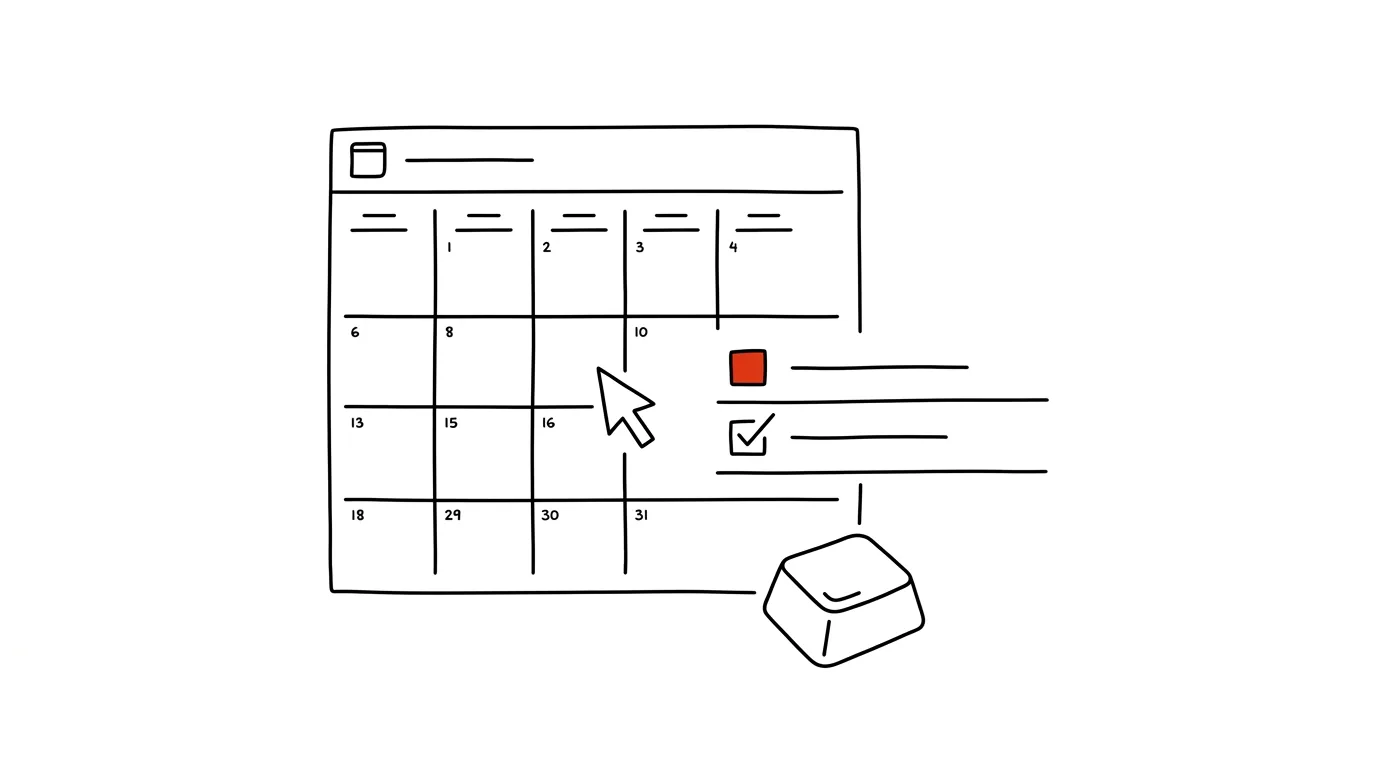
A task with no time attached tends to stop existing — you jot it in a notes app and never get to it, because it never competes for space with anything else on your day. In Google Calendar, tasks automatically get a time slot, because you see tasks and meetings side by side on the same timeline.
A typical scenario
You've got ten small tasks in your head (or in a notes app) — call a vendor, send an invoice, order supplies. In a plain to-do list, these stay disconnected from your actual day and are easy to forget, because your calendar only shows meetings. Create the same tasks directly in your calendar, and you see right away when you actually have time for them next to your meetings — and unfinished ones roll over to the next day automatically, so nothing falls through the cracks.
How to do it
- Click on a specific day and time in Google Calendar when you want to get the task done.
- In the menu that opens, switch from the Event tab to the Task tab.
- Type the task name, optionally add a description or due date, and save.
- The task appears in the calendar as a block similar to an event; check it off to mark it done.
- An unfinished task automatically rolls over to the next day, so nothing gets lost in the past.
- You'll find the full list of all tasks — done and not done — in the side panel in both Calendar and Gmail, so you can see them outside the view of a specific day too.
The best tools
- Tasks in Google Calendar — built in, free, ideal for simple systems that don't need projects or labels.
- Todoist — for more advanced task management with priorities, labels, and natural-language due dates.
- Microsoft To Do — a similar integration for Outlook and Microsoft Calendar users.
- TickTick — combines a task list and a calendar in one app with solid sync across devices.
What you get out of it
- Time: no switching between a separate task app and your calendar — everything is in one place.
- Realistic planning: you see right away that you don't actually have time for ten tasks today, because they sit next to your meetings instead of being disconnected from them.
- Fewer forgotten tasks: unfinished ones roll forward on their own instead of getting buried in a list you never look at again.
- Simplicity: for anyone who finds a separate task app like one more thing to manage, this is just what you already have open all day.
Pro tip
Don't just give tasks a "today" due date with no specific time — giving them a real time slot in the calendar makes you far more likely to actually do them, because they compete for the same space as your meetings instead of just extra attention in a separate list.
Want to go deeper? The handbook has a whole chapter on it — The app categories that matter.
Similar tips
In-depth guide · 20 min
A prompt library: don't rewrite what already works
A complete guide with prompts: where to keep a library, how to version and improve prompts, how to share them in a team — and ten every library needs.
In-depth guide · 17 min
Let AI find the holes in your proposal
A complete guide with prompts for hard critique: untraining AI from agreeing with you, decision premortems, red-teaming a proposal — and when to ignore it.
Mail Merge in Czech: Let AI Get the Vocative Case Right
In Czech, “Dear Mr. Novák” is wrong — it has to be “Dear Mr. Nováku,” the vocative case. AI adds a properly-declined salutation column to your contact table, for hundreds of names at once.
Was this helpful?
Liked this tip?
I send one like it every week by email. Two minutes to read, hours saved.
The Top 30 tips e-book, free — it lands in your inbox right away.
Then 1 tip a week · no spam · unsubscribe in one click
Prefer a system to single tips? The free email course — seven days, seven emails, one skill a day.