Tips & tricks · Gear · Everywhere · longer battery life · 3 min read
Cap charging at 80%: your battery lasts years longer
Last reviewed:
In this article
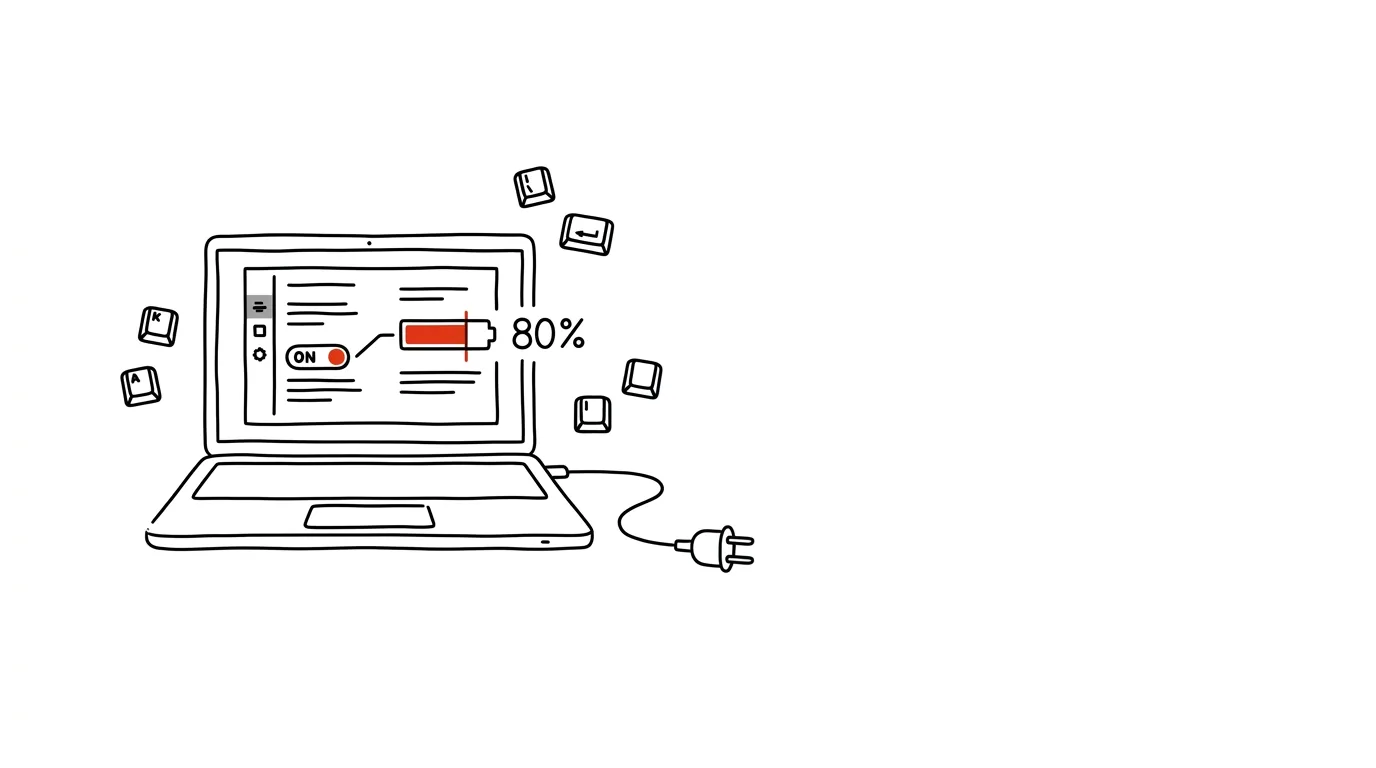
Two things damage a lithium battery the most: heat, and sitting at 100% charge for long stretches. A laptop that spends the workweek plugged into a dock or charger has both — and after two or three years it holds half its original capacity, even though you "barely ran it on battery." Manufacturers know this, which is why most laptops and phones have an option that stops charging somewhere between 60 and 85 percent. It's just hidden, and off by default. Turn it on and the battery ages much more slowly — while you save the full 100% for the days you actually need it.
How to do it
- Find the option for your laptop — it's usually in the manufacturer's app and named differently every time: Lenovo's Vantage app has Conservation Mode or adjustable charge thresholds, ASUS's MyASUS has Battery Health Charging, Dell's Power Manager has charge management, Surface has Smart charging. If you're not sure, search the manufacturer's app for "battery" or "charging."
- Set the limit around 80% (some manufacturers use a fixed value). The laptop charges up to the limit and holds there.
- On a Mac, leave Optimized Battery Charging turned on (System Settings → Battery) — the system learns your routine and keeps the battery at 80% on its own until you actually need a full charge.
- Phones work the same way: newer iPhones have a settable limit right in Settings → Battery → Charging, and Samsung has battery protection in battery care. A phone that charges overnight is exactly the case where a limit pays off.
- Before a trip or a day full of meetings, turn the limit off temporarily and charge to full — that's exactly what the switch is there for.
A typical scenario
Graphic designer Tom works from home, and his laptop has sat permanently docked for two years. A battery that used to last eight hours suddenly barely makes it through two — precisely because it spent two years charged to 100% and warm. His colleague with the same model turned on the charge limit in her first week; two years later her battery still holds close to new, and she just charges to full the night before a business trip.
What you get out of it
On today's thin laptops and phones, the battery is essentially unrepairable without a service visit — a charge limit is the simplest way to delay an expensive replacement, and the day your device can't make it through a morning unplugged. It costs you nothing: you won't notice the difference at your desk, and you can turn on full capacity any time you're planning to need it.
Pro tip
You can check your battery's current health: on a Mac, System Settings → Battery shows battery condition; on iPhone, capacity as a percentage sits in Settings → Battery. On Windows, generate a detailed report with powercfg /batteryreport from the command line — it produces an HTML file with capacity history, where the aging shows up in black and white.
Want to go deeper? The handbook has a whole chapter on it — The complete guide to an effective home office.
Similar tips
Regex Without the Learning Curve: AI Writes It, Explains It, Tests It
Describe in plain words what you want to match, and AI returns a regular expression with a part-by-part explanation and test cases. For Sheets, editors, and bulk edits.
In-depth guide · 19 min
A long document? Let AI make an excerpt with page numbers
A complete guide with prompts: four summary types by purpose, extracting risks from contracts, comparing two versions, and checking nothing vital got lost.
Added to a 30-Email Thread? AI Tells You What's Expected of You
A forwarded conversation, “see below,” and thirty emails of history. Drop the thread into AI and ask: who's claiming what, where's the agreement, and what are you supposed to do.
Was this helpful?
Liked this tip?
I send one like it every week by email. Two minutes to read, hours saved.
The Top 30 tips e-book, free — it lands in your inbox right away.
Then 1 tip a week · no spam · unsubscribe in one click
Prefer a system to single tips? The free email course — seven days, seven emails, one skill a day.