Tips & tricks · Shortcuts · Mac · ~3 min a day · 3 min read
Switch keyboard languages instantly without touching the mouse
Last reviewed:
Ctrl+Space
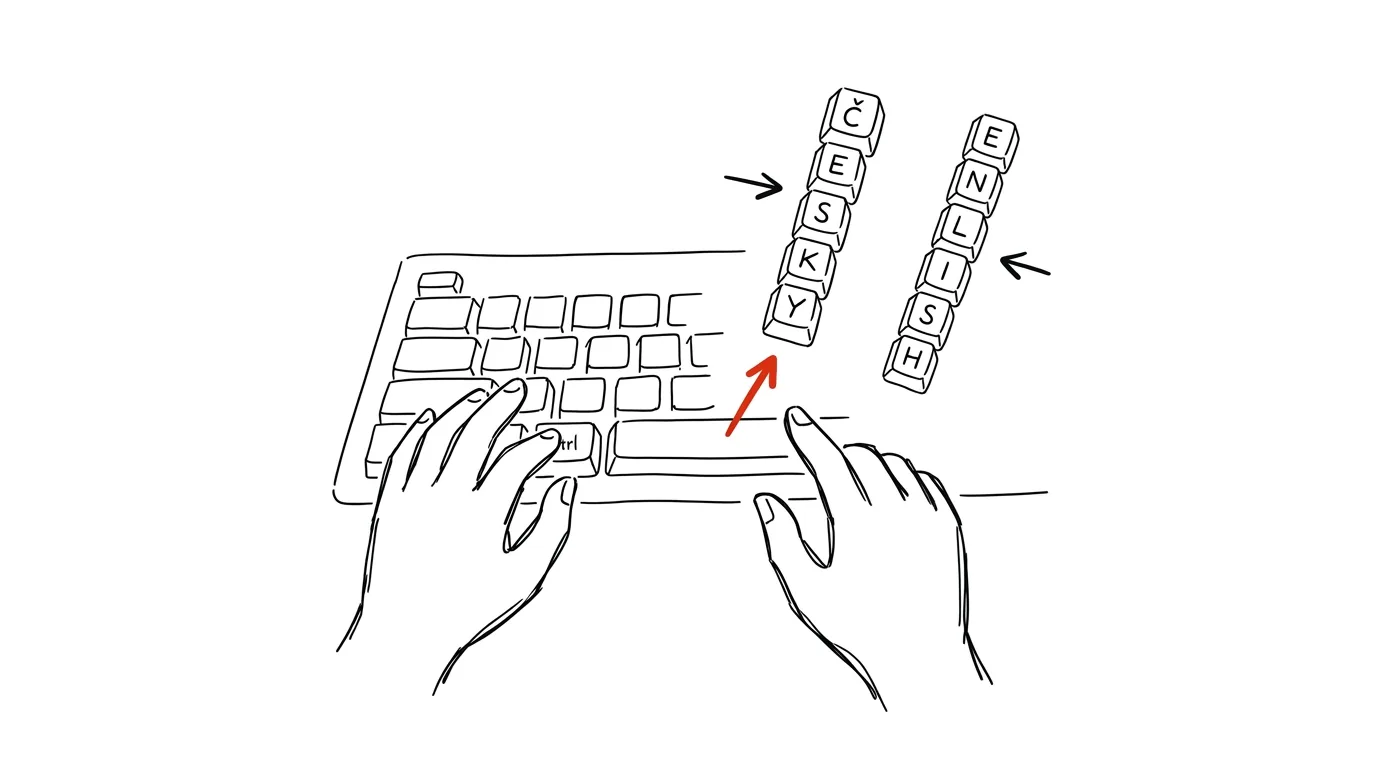
Clicking the flag icon in the menu bar is slow — you have to move the mouse up, open the dropdown, and pick a language, all just to type a single sentence in another language in the middle of your text. A keyboard shortcut does the same thing with a single keystroke, without ever taking your hands off the keyboard.
A typical scenario
You're writing code with English comments and variable names, but need to drop in a note in another language with special characters, or the other way around — you're writing in your native language and want to insert an English term in the middle. Switching with the mouse to the flag in the menu bar pulls you out of writing every time — move, click, select, move your hand back to the keyboard. With a keyboard shortcut, your hands stay on the keyboard the whole time and switching takes a fraction of a second.
How to do it
- Check the current shortcut setting in System Settings → Keyboard → Keyboard Shortcuts → Input Sources.
- Confirm that Select the previous input source is checked, and note which shortcut is assigned to it (the default is Ctrl + Space).
- Press Ctrl + Space to switch between your current and most recently used input source (typically between two keyboard layouts).
- Hold the shortcut instead of tapping it briefly, and a floating list of all your configured keyboard layouts appears, which you can pick from with the arrow keys.
- If you have more than two input sources set up, add another shortcut in the same settings panel for Select the next input source in the list, so you can cycle through them one by one.
- If the shortcut conflicts with another app (common with developer tools that use Ctrl + Space for autocomplete), remap it in the same panel to a different combination.
The best tools
- macOS Input Sources (built in) — free, works system-wide across every app.
- Karabiner-Elements — advanced key remapping for anyone who needs finer control over the shortcut or has conflicts with other programs to resolve.
- Windows — Alt + Shift — the equivalent default shortcut for switching keyboard languages on Windows, if you work across both systems.
What you get out of it
- Time: for anyone who switches languages often (developers writing comments in two languages, students combining sources), that's dozens of switches a day — mouse clicks become keystrokes that take a fraction of a second.
- Smoother writing: your hands never leave the keyboard, so your train of thought doesn't get interrupted while writing text or code.
- Fewer mistakes: special characters typed in the wrong keyboard layout mean retyping — with the shortcut, you switch before you even make the mistake.
Pro tip
If you regularly alternate between more than two keyboard layouts (say, three different languages), set up a shortcut for cycling through the whole list alongside "switch to previous" — it saves you from situations where you need to jump straight to the third layout instead of clicking through the one in between.
Want to go deeper? The handbook has a whole chapter on it — The app categories that matter.
Similar tips
In-depth guide · 18 min
Flashcards and Review: Anki + AI at Full Power
A complete guide with prompts: why spaced repetition works, how to turn your notes into flashcards you can actually learn from, and Anki import via CSV.
Anki: learn in half the time with spaced repetition
Flashcards with an algorithm that quizzes you right when you're about to forget. For languages, exams, and professional knowledge alike.
In-depth guide · 29 min
A Bachelor's Thesis with AI: The Complete Honest Workflow from Assignment to Defense
A guide with 30+ prompts: from research question through lit review and data analysis to a mock examiner. The thinking stays yours — AI does the mechanics.
Was this helpful?
Liked this tip?
I send one like it every week by email. Two minutes to read, hours saved.
The Top 30 tips e-book, free — it lands in your inbox right away.
Then 1 tip a week · no spam · unsubscribe in one click
Prefer a system to single tips? The free email course — seven days, seven emails, one skill a day.