Tips & tricks · Shortcuts · Mac · ~5 min a day · 2 min read
Cmd+Shift+/ finds any menu command — and shows you where it lives
Last reviewed:
Cmd+Shift+/
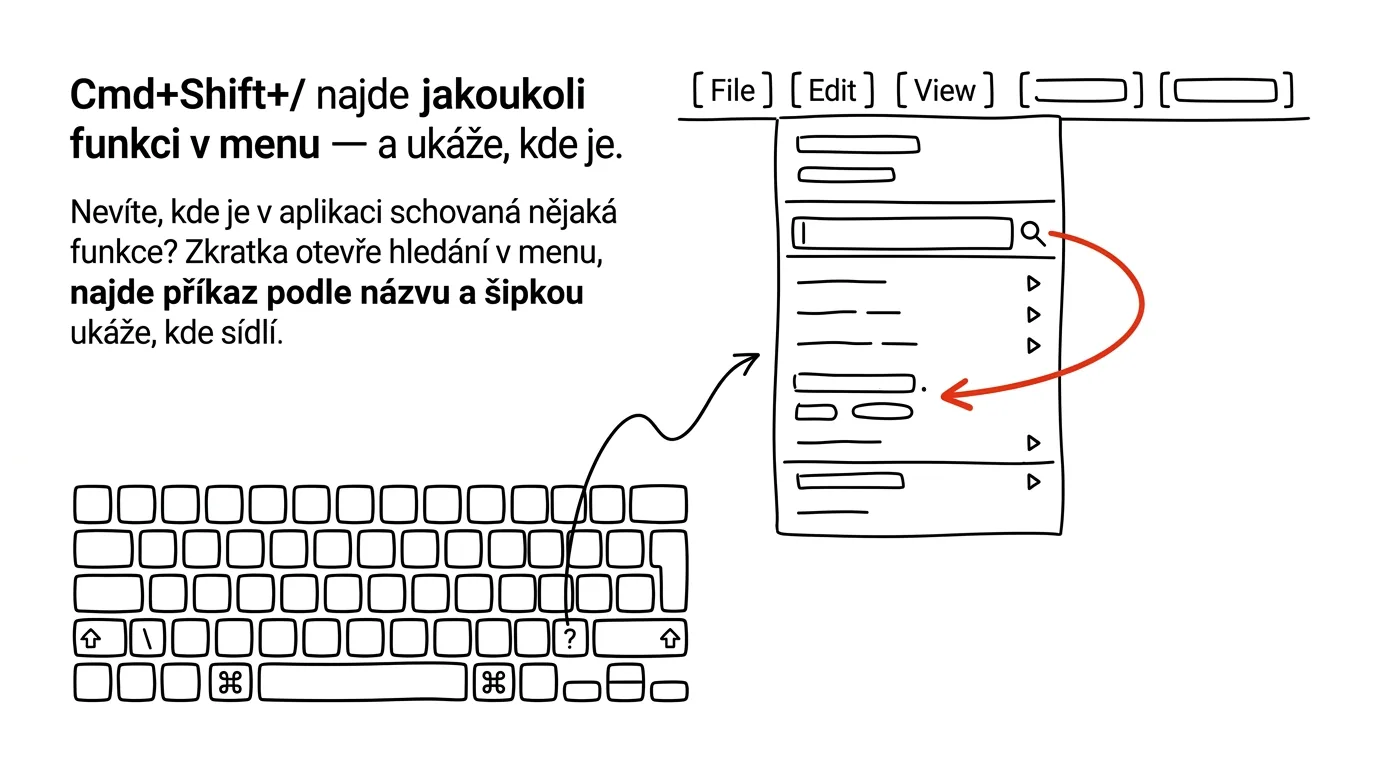
"I know this app can do it, but where on earth is it?" Every substantial Mac app has dozens of items tucked into five or six dropdown menus — and hunting for a specific feature by clicking around is a gamble. macOS has built-in menu search: the shortcut Cmd+Shift+/ opens the Help menu with the cursor already in the search field, and as you type, the system suggests every matching menu item. The best part: hover over a result and the app itself expands the relevant menu and points a big blue arrow at exactly where the item lives. One shortcut replaces having to memorize the menu layout of every app you use.
How to do it
- In any app, press Cmd + Shift + / (that is, Cmd and question mark) — the Help menu opens with an active search field.
- Start typing the feature's name, or just whatever you remember of it — "spacing," "export," "merge."
- Matching commands appear under Menu Items. Move between them with the arrow keys — the highlighted item's containing menu expands, with a floating arrow pointing at it. This incidentally teaches you where to find it manually next time.
- Press Enter to run the item directly — so it doubles as a substitute shortcut for commands that don't have one.
- The search reaches into submenus at any depth, so it finds commands buried three levels deep that you'd never stumble onto by clicking.
- If the shortcut doesn't work in some app, you can always open the Help menu with the mouse — the search field sits right at the top. And you can remap the shortcut itself in System Settings → Keyboard → Keyboard Shortcuts → App Shortcuts, where it's listed as "Show Help menu."
A typical scenario
A manager knows Numbers can freeze the header row, but has no idea where. Instead of clicking through every menu, he presses Cmd+Shift+/, types "header," and within a second sees the exact item along with an arrow pointing at which menu hides it. He uses the same trick in every new app he's learning — menu search is his universal map: he doesn't need to know the menu layout, just a guess at what the feature is called, even part of a word. And in apps he uses daily, he fires off infrequent commands directly with Enter instead of memorizing twenty shortcuts.
What you get out of it
No more helpless clicking through menus in apps you don't know by heart — you find a feature by name in a few seconds, and the system teaches you where it lives along the way. It's one shortcut that replaces knowing the full menu structure of every app on your Mac.
Want to go deeper? The handbook has a whole chapter on it — The app categories that matter.
Similar tips
The up arrow fixes your last message
↑
Typo in a message you just sent? Press the up arrow and you're editing right away — no hunting through menus.
Reply in threads, not in the channel
A threaded reply keeps a discussion together and doesn't flood the channel. A team that threads has half the noise.
Message yourself in Slack: a notepad that's always open
Slack has a conversation with just you — a private space for notes, links, and half-written messages, synced between your computer and phone.
Was this helpful?
Liked this tip?
I send one like it every week by email. Two minutes to read, hours saved.
The Top 30 tips e-book, free — it lands in your inbox right away.
Then 1 tip a week · no spam · unsubscribe in one click
Prefer a system to single tips? The free email course — seven days, seven emails, one skill a day.