Tips & tricks · Shortcuts · Mac · ~2 min a day · 3 min read
Control dialogs from the keyboard: Enter, Esc, and Space
Last reviewed:
Esc
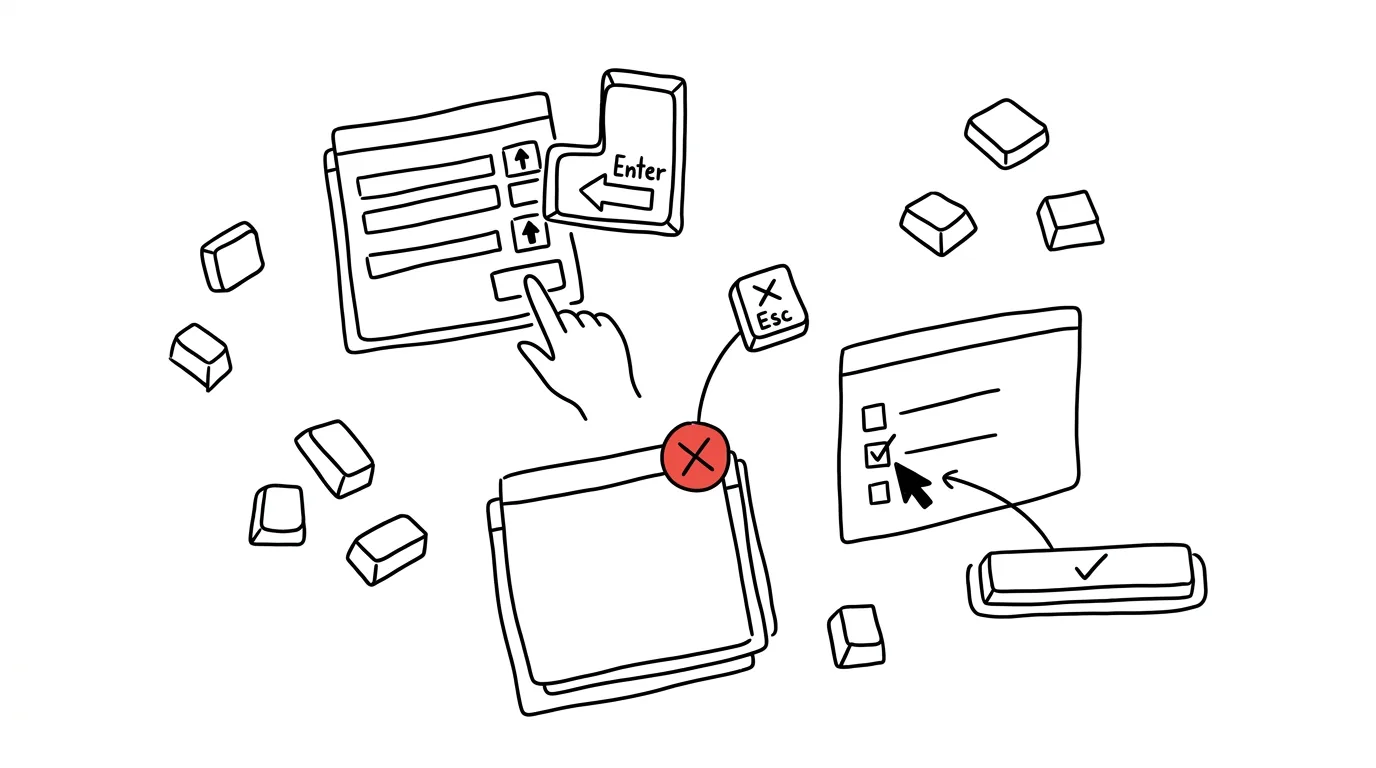
Every dialog that pops up on a Mac — a delete confirmation, a save prompt, a warning before overwriting a file — can be handled from the keyboard faster than with the mouse. Reaching for the mouse for a single click and then coming back to the keyboard is a small, needless waste of a few seconds while you're typing, and those seconds add up over a day. All it takes is knowing four universal keys that work the same way across almost every app, and your hands never have to leave the keyboard during normal work.
A typical scenario
You're writing and periodically saving a document in progress. Every time, a confirmation dialog appears — and if you reach for the mouse to click the Save button, you lose your typing rhythm and your hands make an unnecessary trip back and forth between the keyboard and the trackpad.
With keyboard control, you dismiss the dialog with Enter without taking your hands off the keyboard — your typing continues smoothly. The same principle applies to less pleasant dialogs too, like a warning before deleting a file — Esc clears it just as fast as if it had never appeared at all.
How to do it
- Enter confirms the default, highlighted button — usually the one that's tinted and matches the most likely choice (Save, OK, Continue).
- Esc corresponds to the Cancel button — it closes the dialog without performing the action.
- Tab moves between the individual elements of a dialog (buttons, fields, checkboxes), and Space activates whichever element currently has focus.
- The arrow keys move the selection within lists inside a dialog, for example when choosing a file to open.
- In a save dialog, the shortcut Cmd + Shift + G also works, bringing up a field where you can type an exact path instead of clicking through folders.
- Watch out for dialogs where the default button is destructive (like Delete) — in that case it's usually highlighted differently, or not at all, so that Enter doesn't catch you off guard.
- In a dialog with multiple fields (like renaming a file), Tab switches between the individual fields, and Shift + Tab moves back a field.
The best tools
- Built-in keyboard dialog control — works in every native macOS app without exception.
- Shortcuts, for automating recurring confirmations — if you keep running into the same dialog over and over, you can often bypass it by automating the whole action.
- Voice Control — for users who want to control the entire system, dialogs included, with voice instead of the keyboard.
- Accessibility settings → Keyboard → Full Keyboard Access — extends Tab navigation to elements that don't support it by default.
- The trackpad as a backup, not a replacement — for moments when your hand is already on the mouse anyway.
What you get out of it
- Time: the few seconds saved on each dialog add up to whole minutes over a normal day, where dialogs pop up dozens of times.
- Flow: your hands stay on the keyboard, so you don't lose your typing tempo or your focus.
- Less wrist strain: fewer trips between keyboard and mouse means less repetitive motion over the course of a day.
- Faster decisions: when you control a dialog from the keyboard, you naturally take that extra second or two to actually read what it's asking, instead of clicking anywhere on autopilot.
Pro tip
Learn to recognize which button in a dialog is highlighted as the default — it's always the one Enter would click. For important, irreversible actions (delete, overwrite), take that extra half-second to read the dialog text before hitting Enter out of habit. This habit pays off especially with bulk operations, where one careless press of Enter can delete or overwrite several files at once.
Want to go deeper? The handbook has a whole chapter on it — The app categories that matter.
Similar tips
Noise suppression: the mower outside your window stays yours alone
Zoom and Teams can filter out barking, keyboard clatter, and next-door drilling. Just switch noise suppression to high in your audio settings.
Turn on captions during a meeting — they work in Czech too
Teams, Zoom, and Meet can all show live speech captions, and Czech is among the supported languages. A lifesaver in noise, with bad audio, or a quiet speaker.
In-depth guide · 17 min
From a box of business cards to a CRM table in one evening
A guide with 13 prompts: Claude Cowork pulls contacts and notes from scanned cards, prepares a CSV for your CRM, and drafts follow-ups. A human sends them.
Was this helpful?
Liked this tip?
I send one like it every week by email. Two minutes to read, hours saved.
The Top 30 tips e-book, free — it lands in your inbox right away.
Then 1 tip a week · no spam · unsubscribe in one click
Prefer a system to single tips? The free email course — seven days, seven emails, one skill a day.