Tips & tricks · Shortcuts · Mac · ~3 min a day · 3 min read
Paste text without the formatting
Last reviewed:
Cmd+Option+Shift+V
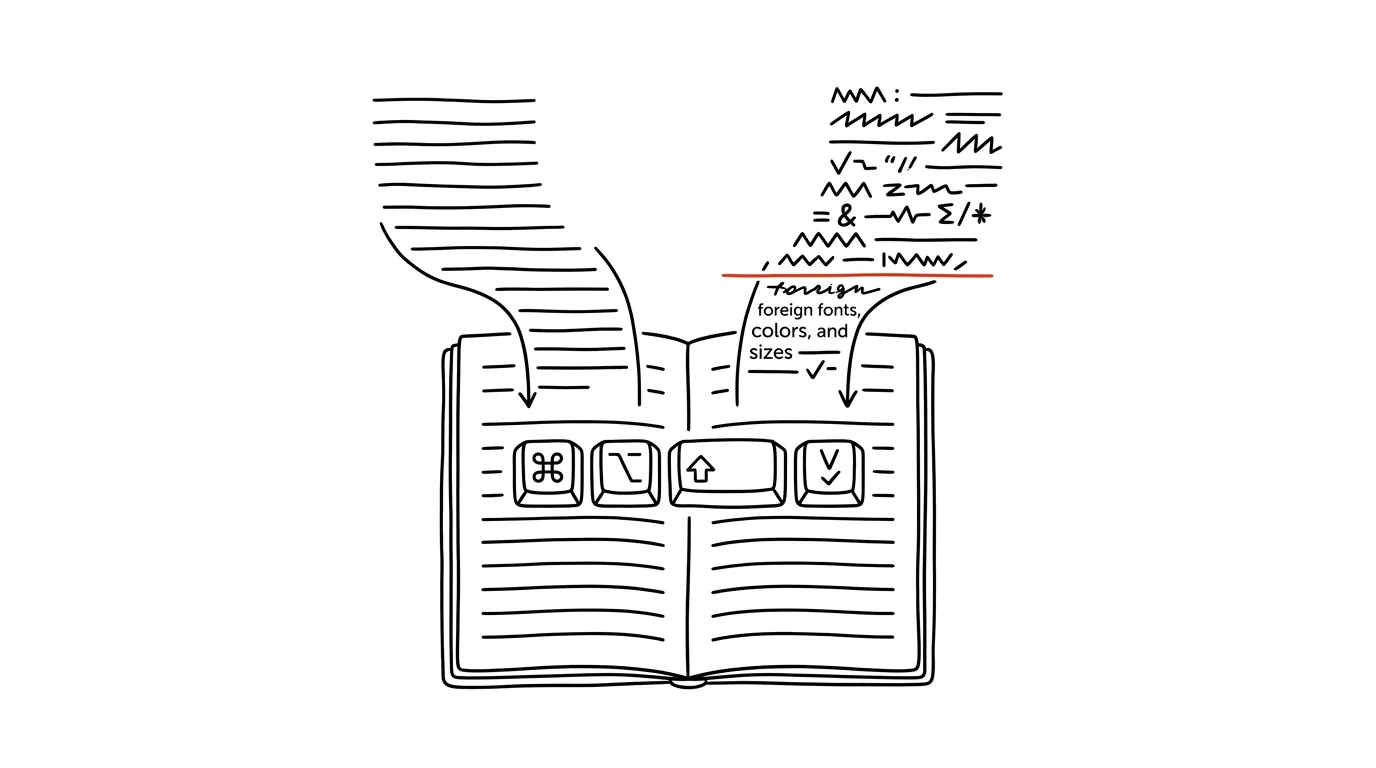
Pasted text often drags along the formatting from wherever you copied it — a different font, a different size, a link color, bold text. It even happens when copying between two of your own documents, if they use different templates or styles. The result in your document ends up looking like a patchwork of different pages. macOS has a built-in solution that strips the formatting on paste and makes the text adopt the look of the surrounding text.
A typical scenario
You're writing an internal report and need to paste a paragraph from a web article as a quote. A regular paste brings along a blue underlined link, a different font, and unexpectedly large text — the document suddenly looks inconsistent, and you have to fix the formatting by hand, paragraph by paragraph.
With paste without formatting, the text blends into the rest of the document immediately — same font, same size, no extra fixes. It works just as well when pasting text from a PDF or from an email with its own styling, where you'd normally carry over formatting that has no place in your document at all.
How to do it
- Copy the text as usual, with Cmd + C.
- Instead of the regular Cmd + V, use Cmd + Option + Shift + V ("Paste and Match Style").
- The text pastes in and immediately takes on the formatting of the document you're pasting into — font, size, and color.
- It works in most macOS text apps (Pages, Mail, Notes, text fields in most other programs), though the exact name of the command in the Edit menu may vary.
- If you don't remember the shortcut, you'll find the same option under Edit → Paste and Match Style in the menu bar of the active app.
- The difference from a regular paste is purely in the formatting — the text itself, links, and numbers stay the same, only their appearance changes.
The best tools
- The built-in Cmd+Option+Shift+V shortcut — works in most native and web-based text editors on the Mac.
- Paste as plain text in browsers and web apps — handy when typing into web forms.
- PowerToys Advanced Paste on Windows, or Ditto — a similar feature for users who switch between platforms and want the same habit everywhere.
- TextEdit in plain-text mode — when you need guaranteed clean text with no formatting whatsoever, opening TextEdit and pasting there is a reliable fallback.
- Terminal as a middle step — pasting text into the command line and copying it back out is a last resort, but a reliable way to strip formatting completely.
What you get out of it
- Time: no manual formatting cleanup paragraph by paragraph after pasting.
- A consistent document look: the whole text looks like it was written in one place, even if it came from five different sources.
- Less risk of error: hidden formatting markup from the source text never makes it into the document.
- A more professional impression: a document that doesn't look like a collage of different sources makes a better impression on colleagues and clients who read it.
Pro tip
If you use this key combination often, consider making it your default habit instead of a plain Cmd+V when copying from the web — it saves you repeated formatting cleanup, and your documents will look unified from the start. Some people get in the habit of using Cmd+Option+Shift+V pretty much always, except in situations where they actually want to keep the formatting, like copying between two paragraphs in the same document.
Want to go deeper? The handbook has a whole chapter on it — The app categories that matter.
Similar tips
In-depth guide · 18 min
AI in the Classroom: Teaching Students Who Have ChatGPT in Their Pocket
A complete guide with prompts: assignments AI can't do for a student, simple class rules, defending your own text instead of a witch hunt, and AI in class.
In-depth guide · 17 min
Custom instructions: set up AI once, it applies forever
A complete guide to standing instructions: what belongs in them, how they differ from a Project, testing them — and ready sets for common professions.
In-depth guide · 21 min
AI search engines with citations: research with verifiable sources
A complete guide with prompts: when to use AI search instead of Google, how to ask so the answer rests on sources — and where the tool reliably fails.
Was this helpful?
Liked this tip?
I send one like it every week by email. Two minutes to read, hours saved.
The Top 30 tips e-book, free — it lands in your inbox right away.
Then 1 tip a week · no spam · unsubscribe in one click
Prefer a system to single tips? The free email course — seven days, seven emails, one skill a day.