Tips & tricks · Shortcuts · Mac · ~3 min a week · 3 min read
Hold a key and pick a character: accented letters without hunting for them
Last reviewed:
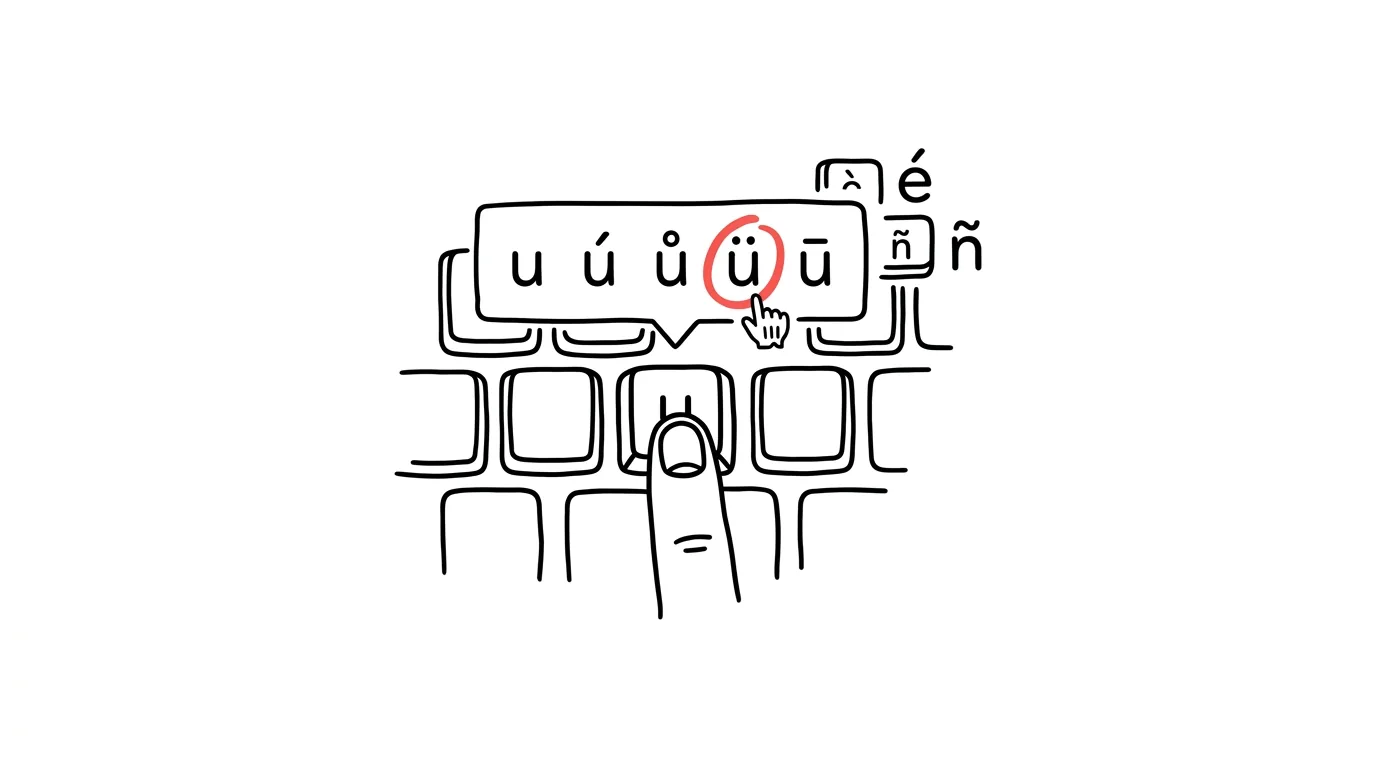
You're writing to a colleague named Müller, quoting a French source, or emailing someone in Spain — and suddenly you need ü, an é with a different accent, or ñ. A US keyboard doesn't have them, and most people either copy them from a website or just type the name without the accent, which comes off as careless. The Mac has an elegant solution: hold down the key for the base letter, and a menu of all its accented variants pops up above the cursor. It's the same principle you already know from the iPhone's keyboard.
How to do it
- In any text field, hold down the key for the letter whose variant you need — say u.
- After a moment, a small menu appears: û ü ù ú ū. Each variant has a number below it.
- Pick a character by pressing the matching number, clicking with the mouse, or using the arrow keys and Enter.
- This works for every letter that has variants: e offers é è ê ë, n offers ñ, a offers à â å and more. If a letter has no variants, no menu appears and the key just repeats normally.
- It works system-wide — in Mail, your browser, Word, and chat apps — and the same goes for capitals: hold Shift and the letter key.
- If the menu doesn't show up and the key just repeats, someone (typically a developer tool, or a previous owner of the machine) has flipped key behavior to favor repeating — in that case, there's another route: you'll find the character in the character viewer, organized alphabetically along with other accented letters.
- It's the exact same mechanism you know from the iPhone — holding a letter on the software keyboard — so you're not really learning anything new, just carrying the same motion over to a physical keyboard.
A typical scenario
An assistant is preparing conference invitations for guests from Germany and France. The names are full of ü, ö, é, and è characters — she used to copy each name from the original email, and when she didn't have the original, she'd go hunting for the characters on the web. Now she types them directly: hold u, tap 2, keep going. Names come out right on the first try, which guests appreciate more than you'd expect — everyone notices when their own name is misspelled. The same trick serves her for citations in research writeups too — she transcribes French and German source titles accurately, accents and all, which every proofreader appreciates — and nobody trips over a misspelled source during a presentation.
What you get out of it
You type foreign names and words correctly and fluently, without breaking your flow to copy them from another source. It's a small trick, but it comes up surprisingly often — colleagues' last names, city names, citations. And if you need symbols that aren't a letter variant (arrows, math symbols), those are covered by the emoji and special-characters panel.
Want to go deeper? The handbook has a whole chapter on it — The app categories that matter.
Similar tips
A written status instead of a status meeting
Three questions in a form on Friday: what went well, what's in progress, what's stuck. Suddenly the 45-minute status meeting is unnecessary.
Delegate the outcome, not the process
A good assignment has four parts: what needs to exist, why, by when, and how you'll know it's done. Leave the process to the person doing it.
1:1s with a standing document
A shared document both sides keep adding to between meetings. The meeting has structure, and the history is easy to find.
Was this helpful?
Liked this tip?
I send one like it every week by email. Two minutes to read, hours saved.
The Top 30 tips e-book, free — it lands in your inbox right away.
Then 1 tip a week · no spam · unsubscribe in one click
Prefer a system to single tips? The free email course — seven days, seven emails, one skill a day.