Tips & tricks · Shortcuts · Mac · ~10 min a week · 3 min read
Screen recording without installing anything
Last reviewed:
Cmd+Shift+5
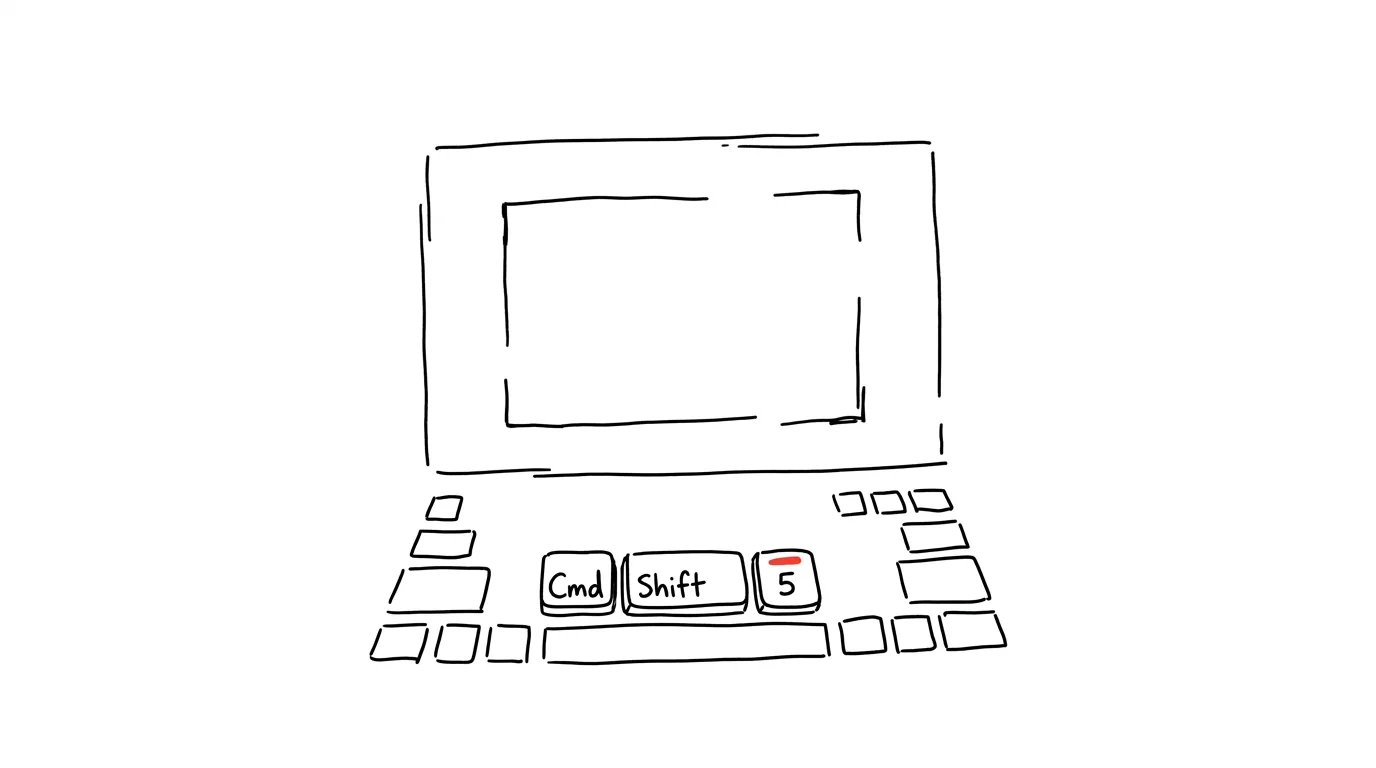
When you want to show a coworker how to do something, a video says more than five paragraphs of text. Describing in words where to click and in what order is slow, and readers often get it wrong anyway. macOS actually has screen recording built right in — you don't need to install any extra app just for a short tutorial.
A typical scenario
A colleague from accounting asks, for the third time this month, how to export a report in the internal system. Writing it out as text means fifteen minutes of typing, and it still usually ends with "I don't see that button anywhere." Calling and sharing your screen means having to line up both of your calendars.
Instead, it takes two minutes: start recording, click through the steps while narrating out loud, and send a link to the video. Your colleague watches it whenever it suits her, and the follow-up questions mostly disappear — she can see exactly where you're clicking.
How to do it
- Press Cmd + Shift + 5 — a control panel appears at the bottom of the screen.
- Choose what you want to capture: a still image of the whole screen, a still image of a selection, or video — of the whole screen or just a selected area.
- In the Options menu, set where the file should be saved (Desktop, Documents, Clipboard), whether to record audio from the microphone, and a countdown before starting (no delay, 5 or 10 seconds) — useful when you still need to switch to the window you want to record.
- Click Record (for an area selection, drag first to mark its boundaries) to start recording.
- Stop recording anytime by clicking the stop icon in the menu bar at the top of the screen (it looks like a square in a circle).
- The video saves to the chosen location as a .mov file and opens in a preview, from which you can trim or rename it right away.
- The same panel can be brought up again and again — it remembers the last settings used (recording type, microphone, location), so your second and later recordings go even faster.
The best tools
- Built-in screen recording (Cmd + Shift + 5) — free, works with no installation, plenty for quick tutorials.
- QuickTime Player → New Screen Recording — the same feature available from the app's menu too, handy if you forget the shortcut.
- Loom — a popular tool for sharing short videos with an automatic link, also handles a webcam in the corner of the recording and quick comments under the video.
- CleanShot X — a paid tool for those who record often and want automatic blurring of sensitive information or a longer recording history on top.
What you get out of it
- Time: one short video often replaces several rounds of explaining over email or chat — easily tens of minutes a week for recurring questions.
- Fewer misunderstandings: your coworker sees exactly the screen and the sequence of steps you see, with no room for guessing.
- Reusability: once you've recorded a walkthrough, you can send it to anyone else who asks the same thing, instead of explaining it fresh every time.
- A lighter calendar: no more scheduling a shared call with screen sharing just for a short explanation that an asynchronous video handles just as well.
Pro tip
Before recording, check in System Settings → Control Center that the screen-recording icon is added to the menu bar — then you can start recording even without the keyboard shortcut, which comes in handy on someone else's computer or when you can't remember the shortcut.
Want to go deeper? The handbook has a whole chapter on it — The app categories that matter.
Similar tips
Text from paper straight into a field: Live Text and Google Lens
Stop retyping details off paper. iPhone can scan text with the camera directly into a text field; Android does the same through Google Lens.
Lending your phone? Lock it into one app
Guided Access on iPhone and app pinning on Android keep a phone stuck in a single app — a kid watching a cartoon, a colleague viewing a photo, nothing more.
Silence an annoying notification right from the shade
No need to dig through settings: swiping on a notification on iPhone offers an hour of silence; holding one on Android turns off just the annoying category.
Was this helpful?
Liked this tip?
I send one like it every week by email. Two minutes to read, hours saved.
The Top 30 tips e-book, free — it lands in your inbox right away.
Then 1 tip a week · no spam · unsubscribe in one click
Prefer a system to single tips? The free email course — seven days, seven emails, one skill a day.