Tips & tricks · Shortcuts · Mac · ~5 min a day · 3 min read
Split View: two apps side by side, full screen
Last reviewed:
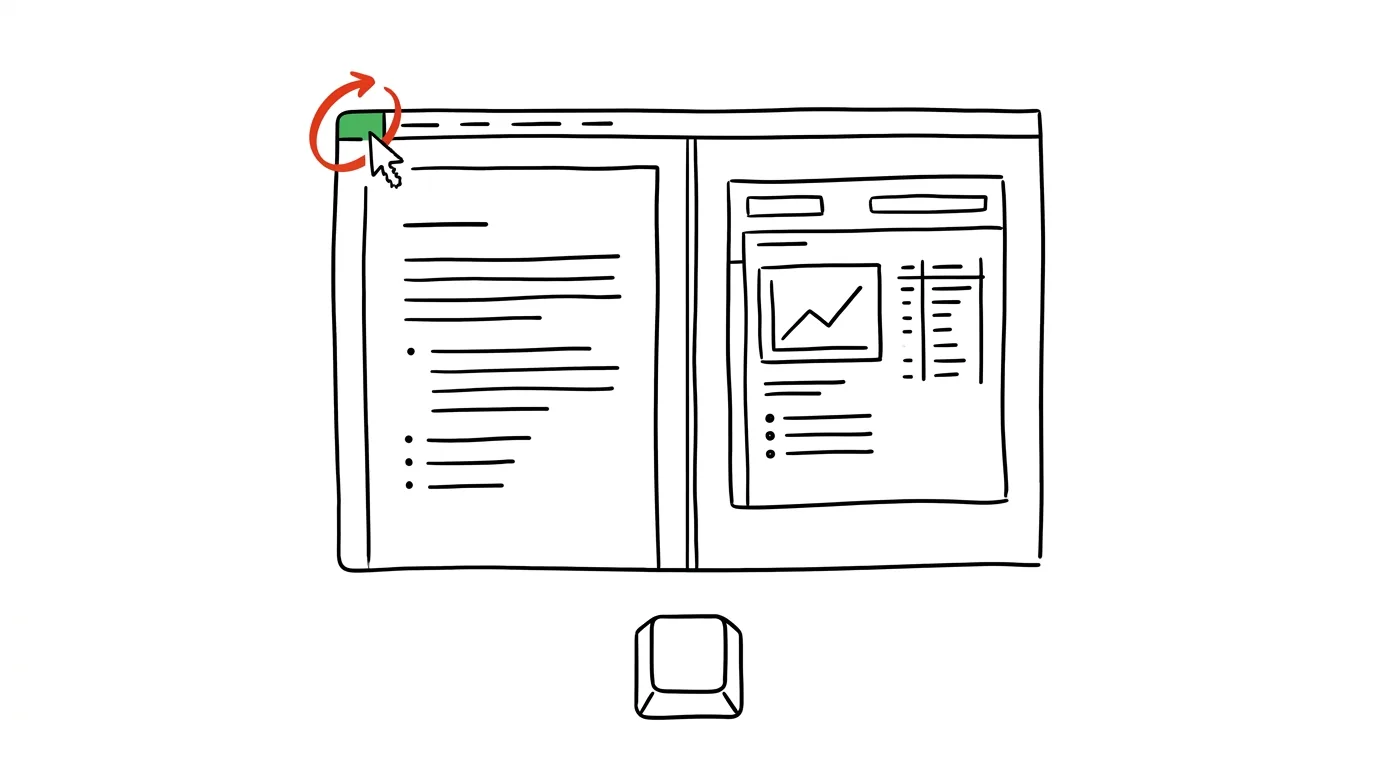
Jumping between two windows while transcribing data is a focus killer. Switch windows, find where you left off, type a bit, switch back — each loop costs a few seconds, but they add up to dozens over a day. Split View solves this by keeping both windows visible at once, filling the whole screen.
A typical scenario
An assistant is transcribing numbers from an email order into a spreadsheet. Without Split View, that means: switch to Mail, memorize the line, switch to the spreadsheet, type it in, switch back, check the next line — dozens of switches for a longer order, and with each one, the risk of mistyping a number or transcribing the wrong line grows.
With Split View, both windows sit side by side the whole time. Mail on the left, the spreadsheet on the right — her eyes just move from one side to the other with no extra clicking, and crucially, without losing her place.
How to do it
- Hover over the green button in the top-left corner of the window you want to use and hold it down (no click, just hold).
- From the menu, choose Tile Window to Left of Screen or Tile Window to Right of Screen — the window moves to that half of the screen.
- The rest of the screen shows thumbnails of your other open windows and apps — click the one you want on the other half.
- Both apps now run side by side, filling the full height of the screen, with no overlap and no need to switch between them.
- Drag the divider between the windows with the mouse to change the ratio — say, two-thirds for the spreadsheet and a third for Mail.
- Exit Split View with Esc (while hovering over the green button), or simply drag one of the windows away from its half.
- If you have more apps open, you can swap out the second window even after Split View is active — just click its half and pick a different app from the thumbnail menu.
The best tools
- Built-in Split View — free, works with every app with no setup, just the green window button.
- Rectangle (a free, open-source tool) — adds keyboard shortcuts for arranging windows, handy when you want to control Split View without the mouse.
- Magnet (a paid App Store app) — a similar feature with a visual layout preview and support for three or more windows at once.
- Stage Manager (a built-in macOS feature) — an alternative for when you want to work with more than two windows and switch between groups of them.
What you get out of it
- Time: less window switching means faster work on anything that requires comparing two sources — transcribing data, proofreading against a reference, following a chat while writing a document.
- Fewer mistakes: with both windows visible at once, it's easier to check that a transcribed number or piece of text actually matches the source.
- Calm: your eyes stay on one screen, with no hunting for "where did that window go" among your other open apps.
- Better use of a large screen: on a widescreen monitor, a single app filling the whole width often leaves a lot of it needlessly empty — Split View splits that space meaningfully between the two things you're actually working on.
Pro tip
Split View remembers a pair of windows as its own desktop (Space) — if you switch away and come back with a three-finger swipe or Control plus an arrow key, both windows will be waiting for you in exactly the layout you left them in.
Want to go deeper? The handbook has a whole chapter on it — The app categories that matter.
Similar tips
Regex Without the Learning Curve: AI Writes It, Explains It, Tests It
Describe in plain words what you want to match, and AI returns a regular expression with a part-by-part explanation and test cases. For Sheets, editors, and bulk edits.
In-depth guide · 19 min
A long document? Let AI make an excerpt with page numbers
A complete guide with prompts: four summary types by purpose, extracting risks from contracts, comparing two versions, and checking nothing vital got lost.
Added to a 30-Email Thread? AI Tells You What's Expected of You
A forwarded conversation, “see below,” and thirty emails of history. Drop the thread into AI and ask: who's claiming what, where's the agreement, and what are you supposed to do.
Was this helpful?
Liked this tip?
I send one like it every week by email. Two minutes to read, hours saved.
The Top 30 tips e-book, free — it lands in your inbox right away.
Then 1 tip a week · no spam · unsubscribe in one click
Prefer a system to single tips? The free email course — seven days, seven emails, one skill a day.