Tips & tricks · Communication · Mobile · ~10 min a day · 3 min read
Set up swipe gestures in mail: archive with one flick
Last reviewed:
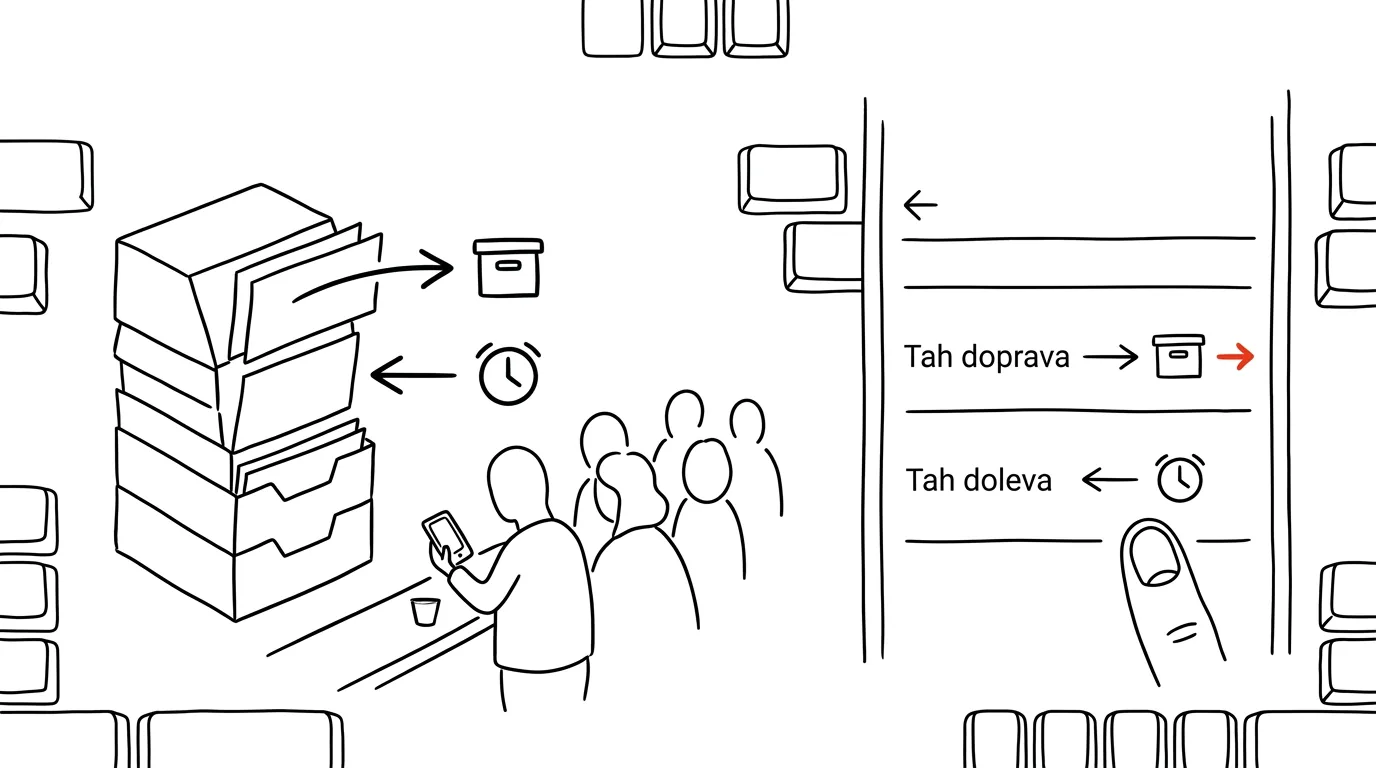
A phone is great for reading mail — as long as handling a message takes one second. The problem starts when every email requires opening the detail view, finding the archive or delete button, going back to the list, and repeating it all over again. Swipe gestures cut that process down to a single flick — and suddenly it's realistic to clear your whole inbox while waiting in line for coffee.
A typical scenario
Lucie checked her mail on her phone several times a day, but saved the actual handling of emails for her computer — dragging individual messages around on mobile felt slow and awkward. The result was that emails piled up all day, and a packed inbox waited for her every evening, which she then had to work through all at once.
After setting up swipe gestures — swipe right to archive, swipe left to snooze — the pace at which she handles mail changed. She reads a message, decides where it belongs with one flick of a finger, and moves on. Her inbox now stays empty practically all day, because deciding on each message takes a second, not a trip through a menu. The evening “big mail cleanup” that used to eat up dozens of minutes is barely needed anymore — mail gets handled continuously as it arrives.
How to do it
- Gmail (mobile): Settings → select your account → General settings → Swipe actions. Set what a right swipe does and what a left swipe does.
- Recommended setup: right = Archive (the message disappears from the inbox but remains searchable), left = Snooze (the message returns to your inbox at a time you choose, say tomorrow morning or next Monday).
- Outlook (mobile) has a similar swipe gesture option in the app settings, with the same logic — one gesture for quick cleanup, another for snoozing.
- Set yourself a simple rule of thumb: every message you open, decide right away — archive, snooze, or star as important. Don't leave anything “for later” just sitting undecided in your inbox.
- If you get a lot of emails you never really need to act on (newsletters, notifications), consider automatic labeling or a filter for them so they never have to go through manual archiving at all.
- Snoozed messages come back exactly at the time you choose — set it to match a moment when you'll actually have room to deal with them, not just “sometime later.”
- You can customize the gestures to fit how you work — some people prefer a different pair of actions, like star and delete instead of archive and snooze. What matters is having both gestures firmly tied to a specific action, not rethinking it every time.
The best tools
- Gmail — free built-in swipe gestures, the most widely used option, works the same on Android and iOS.
- Outlook mobile — similar gestures, the natural choice at companies using Microsoft 365.
- Spark Mail — an email app focused on fast mail processing with fully customizable gestures and smart sorting into categories.
- Superhuman — an advanced tool for people with very high mail volume, combining gestures with keyboard shortcuts and AI sorting (works primarily on desktop, with a mobile version available as a companion).
What you get out of it
- Time: an estimated 10 minutes a day saved compared to opening individual messages and hunting for buttons in menus.
- An empty inbox: fast decision-making on every message prevents hundreds of unread or undecided emails from piling up.
- Less mental clutter: handled mail means a shorter mental list of “I still need to reply to that.”
- A portable habit: once you get used to deciding on every email immediately, it works just as well on a computer as it does on a phone.
Want to go deeper? The handbook has a whole chapter on it — Professional email communication.
Similar tips
Mouse sensitivity: across two monitors with one flick of the wrist
Default pointer and scroll-wheel speed is tuned for monitors from a decade ago. Two sliders save hundreds of arm movements a day.
In-depth guide · 62 min
AI automation: the complete guide
Automation in plain language: triggers, actions, runs; Zapier vs. Make vs. n8n vs. Power Automate; ten scenarios with prompts, and when not to automate.
In-depth guide · 19 min
Hiring with AI: from job description to structured interview
A guide with prompts: a job description from your team's reality, an ad people answer, a structured interview, and a decent rejection. A human decides.
Was this helpful?
Liked this tip?
I send one like it every week by email. Two minutes to read, hours saved.
The Top 30 tips e-book, free — it lands in your inbox right away.
Then 1 tip a week · no spam · unsubscribe in one click
Prefer a system to single tips? The free email course — seven days, seven emails, one skill a day.