Tips & tricks · Apps · Browser · ~3 min a day · 3 min read
A link that jumps straight to one sentence on the page
Last reviewed:
In this article
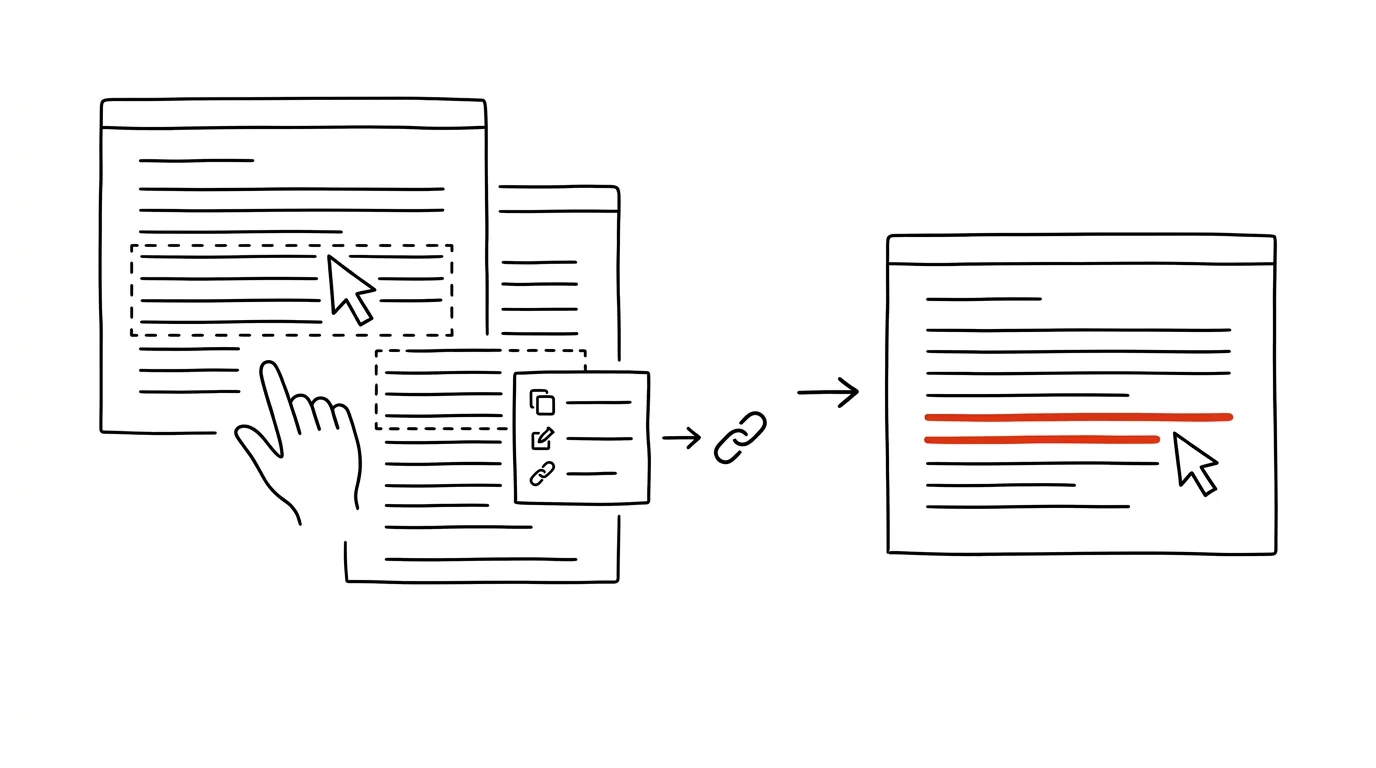
You send a colleague a link to a long article with the note "it's somewhere in the second half." He opens the page, scrolls around for a bit, doesn't find it, and asks again. Yet Chrome and Edge can create a link that points not just to a page, but to a specific sentence on it — and highlights it in yellow for the recipient automatically. The feature is called "Copy link to highlight," and it's tucked inside a plain right-click.
How to do it
- On a webpage, select the sentence or passage you want to reference with your mouse.
- Right-click the selection and choose Copy link to highlight. It works in Chrome and Edge; the newest versions of Firefox are adding it too, and in the meantime the free Copy Link to Highlight extension covers it there.
- The link is on your clipboard — paste it into an email, chat, or notes with a regular Ctrl+V. You can spot it by the
#:~:text=fragment at the end of the address. - Whoever opens the link in a modern browser lands directly on the selected passage and sees it highlighted in yellow. In an older browser, it just opens the regular page from the top — nothing's lost, they just have to find the spot themselves.
- If the option is missing from the menu, that particular page is blocking link creation — this happens occasionally, on sites with custom text-selection behavior.
A typical scenario
A manager is preparing materials for a decision and needs the team to read two paragraphs from a supplier's twenty-page terms of service. She used to write "see section 7, third paragraph" and half the team would end up reading the wrong thing. Now she selects exactly those two paragraphs, copies the link to the highlight, and pastes it into her message. Everyone who clicks sees exactly what they're supposed to — highlighted, no hunting required.
It works the same way for writing a paper: instead of bookmarking an entire source, a student saves links pointing directly to the cited sentences. When they return to the paper a month later, they don't have to re-locate what they actually cited from each source.
What you get out of it
The whole "I'll send the link — they can't find it — I explain where it is" loop disappears. Sharing an exact spot is just as fast as sharing the whole page, and the recipient saves minutes of scrolling. And your own notes and source round-ups start pointing to sentences instead of just articles.
Pro tip
The trick is useful for yourself too: drop a highlight link into your to-do app or calendar next to the task it relates to. When you get to the task, you won't have to reconstruct what you meant by that source — the page opens right at the spot you saved it for. Combined with find-on-page via Ctrl+F, you've got both directions covered: Ctrl+F for yourself, a highlight link for everyone else.
Want to go deeper? The handbook has a whole chapter on it — The app categories that matter.
Similar tips
Ctrl+D in PowerPoint: a duplicate that remembers the spacing
Ctrl+D
Duplicate an object, move it into place — and the next Ctrl+D copies with the same offset built in. A row of evenly spaced elements in seconds.
The B key while presenting: black out the screen, get attention
B
Pressing B during a slideshow blacks out the screen — the audience turns to you. W does the same with white.
Copying formatting: Ctrl+Shift+C and V
Ctrl+Shift+C
The format painter has a keyboard version — copy the look of one element and stamp it onto the next.
Was this helpful?
Liked this tip?
I send one like it every week by email. Two minutes to read, hours saved.
The Top 30 tips e-book, free — it lands in your inbox right away.
Then 1 tip a week · no spam · unsubscribe in one click
Prefer a system to single tips? The free email course — seven days, seven emails, one skill a day.