Tips & tricks · Shortcuts · Browser · ~3 min a day · 3 min read
The middle mouse button: opens and closes tabs too
Last reviewed:
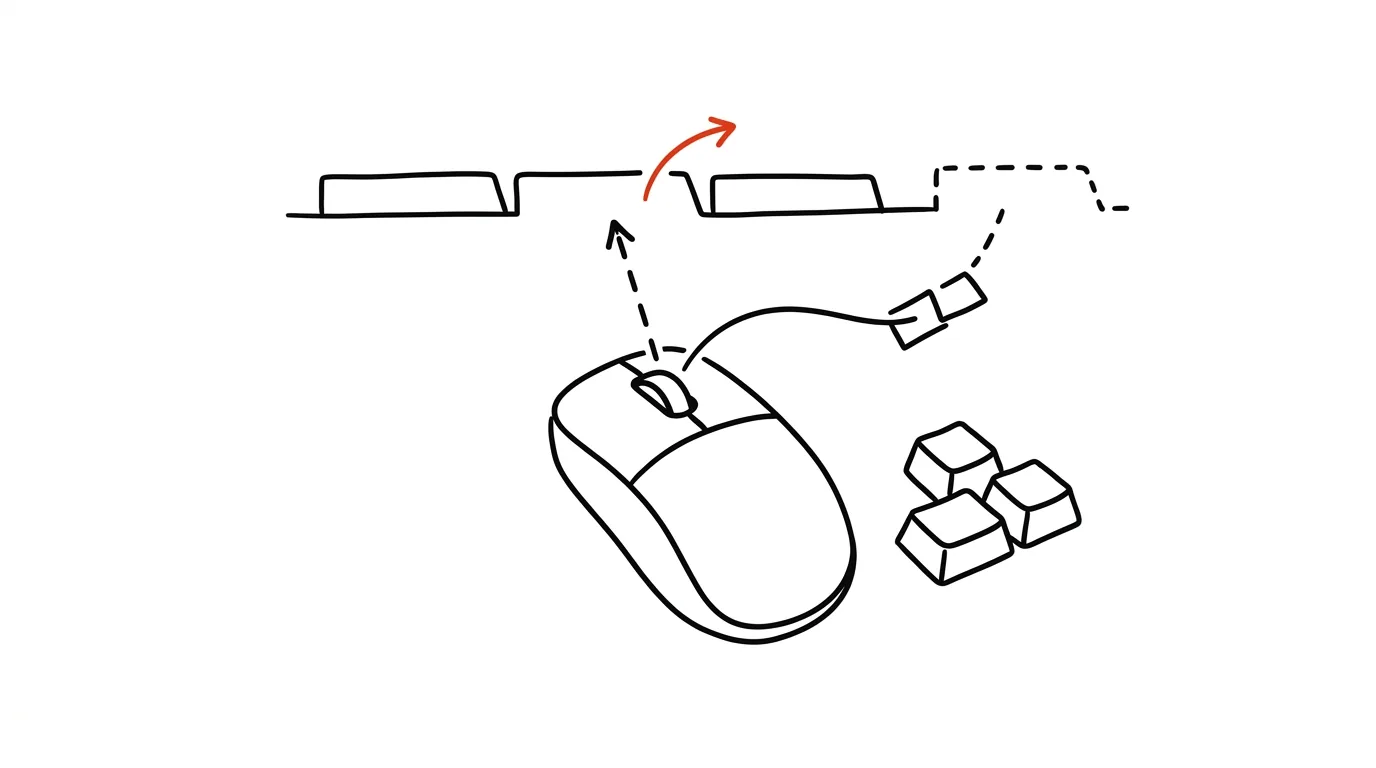
The mouse wheel isn't just for scrolling — it's also a third button, and in a browser it does real wonders. Just press it (not scroll it) on a link or a tab, and you'll save yourself a bunch of small clicks that add up to a surprising amount of time over a day.
A typical scenario
You're browsing search results and want to open five links that look relevant, to read through them one after another. Without the wheel, you click the first link, read it, click back, hunt for where you left off, click the second link — and so on, easily losing track of which links you've already opened. With a middle-click on each link, they all open in new background tabs while you stay on the results page, calmly picking the next one — then you just work through the tabs one by one.
How to do it
- Click the mouse wheel directly on a link — it opens in a new background tab while you stay on the current page and can keep picking more links. The tabs pile up next to each other, ready to read.
- Click the mouse wheel on a tab in the top bar — the tab closes instantly, no matter where your cursor sits on it, so you don't have to aim precisely for the tiny X.
- Combining both works great when going through a lot of links: middle-click open everything that interests you first, then read through them one by one, middle-click closing as you go.
- If you don't have a wheel, or prefer the keyboard, Ctrl + click on a link achieves the same background-open effect.
- It works the same way across all major browsers, with nothing to configure and no extensions needed.
The best tools
- Built-in wheel controls in Chrome, Edge, Firefox, and Safari — free, works instantly on any mouse with a wheel.
- Trackpad gestures (on laptops without a physical wheel) — a two-finger click usually stands in for the wheel; the exact gesture varies by manufacturer and can be configured in system settings.
- The Ctrl + click shortcut — a reliable alternative for opening a link in the background when you don't have a mouse handy.
What you get out of it
- Time: roughly 3 minutes a day saved on small clicks that otherwise add up — clicking back, hunting for the tiny X to close a tab.
- Smoother browsing: for links from search results or an article list, you don't have to leave the starting page to open the next interesting one.
- Precision: closing a tab with the wheel works from anywhere on it, so you skip aiming precisely for a small X, especially when you have a lot of tabs open and they've narrowed down.
Pro tip
The wheel works the same way for opening links in the background from bookmarks or the history panel too — anywhere the browser offers a clickable link, not just on web pages.
Want to go deeper? The handbook has a whole chapter on it — The app categories that matter.
Similar tips
In-depth guide · 29 min
A Bachelor's Thesis with AI: The Complete Honest Workflow from Assignment to Defense
A guide with 30+ prompts: from research question through lit review and data analysis to a mock examiner. The thinking stays yours — AI does the mechanics.
A distraction blocker: stronger than your willpower
Apps like Cold Turkey or Freedom block chosen websites for a set period. Decide once, and it holds for the whole morning.
In-depth guide · 20 min
Artifacts: mini-apps without coding
A guide with prompts: how a plain description becomes a working calculator, quiz, or prototype, refining and sharing it — and when you need a real app.
Was this helpful?
Liked this tip?
I send one like it every week by email. Two minutes to read, hours saved.
The Top 30 tips e-book, free — it lands in your inbox right away.
Then 1 tip a week · no spam · unsubscribe in one click
Prefer a system to single tips? The free email course — seven days, seven emails, one skill a day.