Tips & tricks · Shortcuts · Windows · ~3 min a day · 2 min read
Type “cmd” into Explorer's address bar
Last reviewed:
In this article
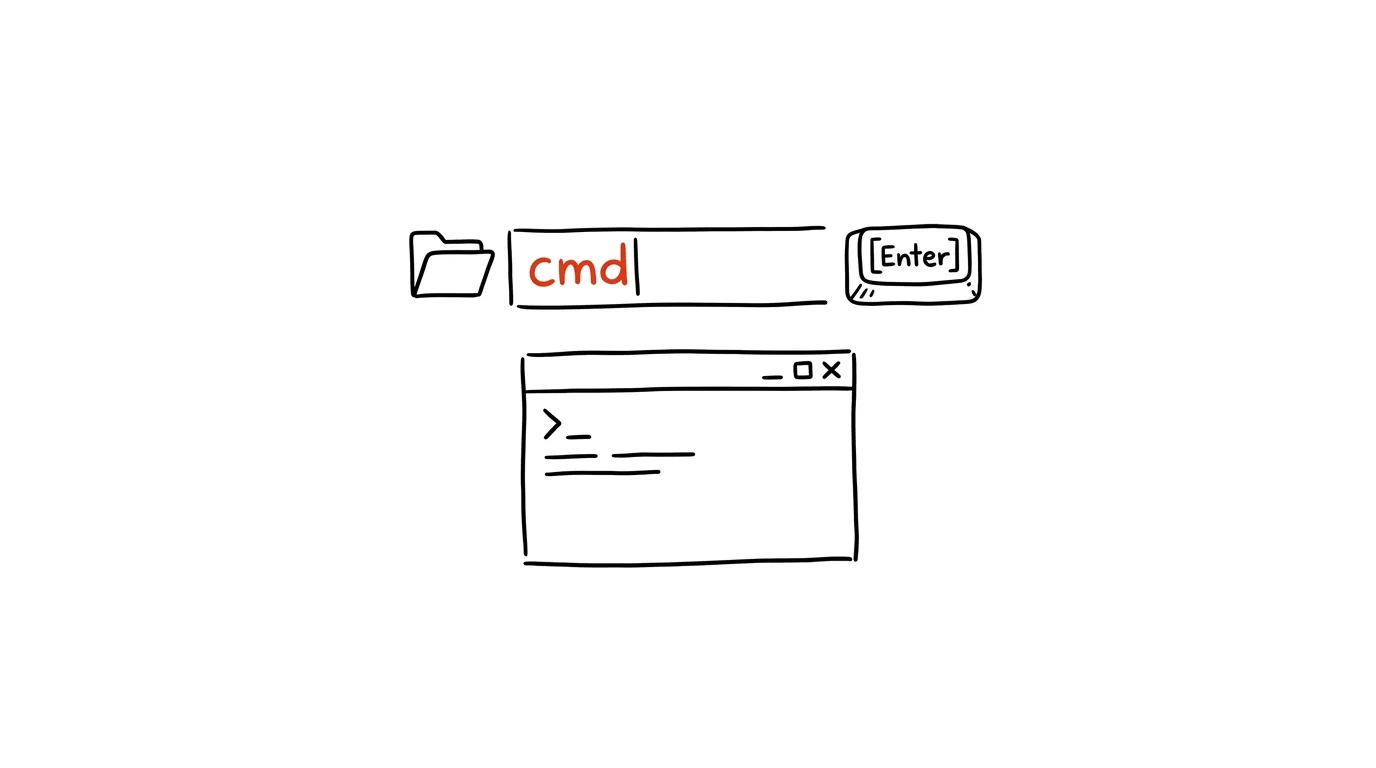
The classic ritual: open a terminal, then click your way to the folder you want to work in using cd and name completion. Yet you're often already there — in File Explorer. Explorer's address bar doesn't just display a path: it can also execute commands. Type “cmd” into it, and a command prompt opens with its working directory set exactly to the folder you're already looking at.
How to do it
- In File Explorer, navigate to the folder you want to work in.
- Click into the address bar, or press Ctrl + L or Alt + D — the path gets selected.
- Type
cmdand press Enter — a command prompt opens in the current folder. Typepowershellinstead, and you get PowerShell. - It also works the other way and more generally: you can paste any path into the address bar and press Enter to jump there, type a system folder name like
Downloads, or launch a program that's on the system path. - A no-typing alternative: right-click an empty spot in the folder — Windows 11 offers Open in Windows Terminal right in the context menu.
A typical scenario
You've downloaded a project you need to install or build: npm install, pip install -r requirements.txt, a quick git status. You already have the folder open in File Explorer because you were checking what's in it. Instead of opening a terminal and building the path via cd C:\Users\... — stopping at every space in the name — you click into the address bar, type three letters, and the terminal opens exactly where you need it.
It's handy outside development too: a quick winget install in any folder, bulk operations via ren, or checking what's blocking a file from being deleted.
What you get out of it
- No more building paths:
cdwith long paths full of spaces and accented characters is a chore even with autocomplete — here it disappears entirely. - Speed: three letters and Enter beat opening a terminal and running several navigation commands.
- A smooth handoff between worlds: Explorer for browsing, the terminal for working — and switching between them stops hurting.
Pro tip
If you type in the terminal more often than you browse in Explorer, the reverse direction works too: in an open terminal, type explorer . (with the period) and the current directory opens as an Explorer window. The pair — cmd in the address bar and explorer . in the terminal — covers the transition both ways. And if you catch yourself popping a terminal open many times a day, check out quake mode in Windows Terminal, which keeps it permanently ready on one global shortcut.
Want to go deeper? The handbook has a whole chapter on it — The app categories that matter.
Similar tips
Color Picker: grab any color on screen with one click
Win+Shift+C
What's the exact color of the client's logo? Win+Shift+C from PowerToys reads the color from anywhere on screen and copies its code to the clipboard.
PowerToys FancyZones: windows into your own grid
A free tool from Microsoft that splits your monitor into zones — windows snap into them on their own. A must on a wide monitor.
PowerRename: rename a hundred files by a rule
Replace text across all filenames, add a date, number them. PowerRename from PowerToys renames whole batches at once — with a preview before anything actually happens.
Was this helpful?
Liked this tip?
I send one like it every week by email. Two minutes to read, hours saved.
The Top 30 tips e-book, free — it lands in your inbox right away.
Then 1 tip a week · no spam · unsubscribe in one click
Prefer a system to single tips? The free email course — seven days, seven emails, one skill a day.