Tips & tricks · Shortcuts · Browser · ~2 min a day · 3 min read
Delete an annoying suggestion from the address bar: Shift+Delete
Last reviewed:
Shift+Delete
In this article
You made a typo in an address once — and the browser now serves it up as the top suggestion with iron regularity. Or you type “ama” and instead of Amazon, some site you visited once, a year ago, pops up. The address bar's autocomplete learns from your history, mistakes included. The good news: a single misbehaving suggestion can be deleted with one shortcut, without wiping your whole history.
How to do it
- In the address bar, start typing the text that triggers the bad suggestion.
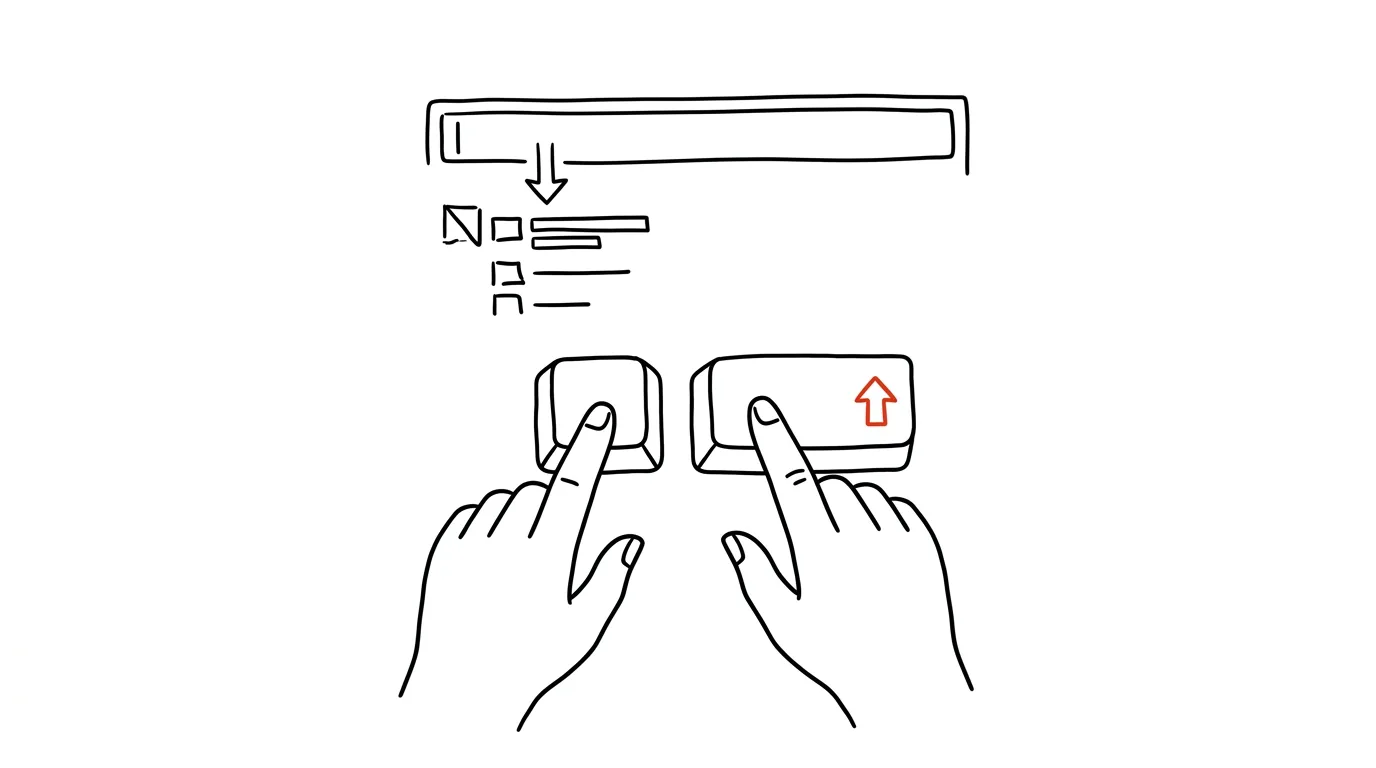
- Use the down arrow to select the suggestion in the dropdown (it has to be highlighted — just seeing it isn't enough).
- Press Shift + Delete. On a Mac, where the keyboard has no standalone Delete key, use Shift + Fn + Delete (Fn turns the backspace key into a proper forward Delete).
- The suggestion disappears from the dropdown immediately and stops showing up. The shortcut works in Chrome, Edge, and Firefox.
- In Chrome and Edge, the same thing works with a mouse too: an X appears on the right of a selected suggestion for removing it.
- Only suggestions from your own history can be deleted this way. Search-engine suggestions (proposed phrases to look up) can't be removed — they don't come from your browser.
- If a suggestion comes back later, it means you visited the site again in the meantime — deleting removes the record, not the future. For sites you never want to see again, it helps to also remove them from your browsing history.
A typical scenario
An accountant opens online banking every day. Long ago, though, she accidentally visited a fraudulent-looking domain with a similar name — and ever since, the browser offers both addresses side by side whenever she types the bank's short name. Every morning, she has to pause and pick the right one. One press of Shift+Delete, and the wrong address is gone from the list forever; from then on, typing two letters and confirming with Enter is all it takes, no thinking required.
The same cleanup pays off for work tools: if typing “doc” pops up five dead links to documents from old projects, delete them — and the top suggestion goes back to being the one you actually use every day.
What you get out of it
The address bar goes back to the state where two letters and Enter take you exactly where you meant to go. The daily micro-hesitation of “which of these two suggestions is the right one” disappears — and with it, the risk of accidentally opening the wrong address while distracted.
Pro tip
The shortcut also doubles as quick privacy first-aid: if you don't want a specific page showing up in suggestions on a shared computer, you don't have to clear your whole history — just remove that one suggestion. And if you want to start completely fresh for just one session, an incognito window is the tool for that — it doesn't write to history at all.
Want to go deeper? The handbook has a whole chapter on it — The app categories that matter.
Similar tips
Shift+Click on the Taskbar Opens a Second Window of an App
Clicking a running app's taskbar icon just brings it to the front. Shift+click opens a new window, Ctrl+Shift+click launches it as admin — three tricks in one icon.
The Action Button: A Physical Shortcut on the Side of Your iPhone
Newer iPhones have a programmable button above the volume controls. Voice memo, flashlight, camera, or a custom shortcut with one press-and-hold.
Three fingers on iPhone: copy, paste, and undo
The iPhone has gestures for working with text: a three-finger pinch copies, a spread pastes, and a swipe left undoes the last action.
Was this helpful?
Liked this tip?
I send one like it every week by email. Two minutes to read, hours saved.
The Top 30 tips e-book, free — it lands in your inbox right away.
Then 1 tip a week · no spam · unsubscribe in one click
Prefer a system to single tips? The free email course — seven days, seven emails, one skill a day.